Digital Signage Software for LG webOS Displays
Manage and publish content on all your webOS powered LG displays from Pickcel cloud based digital signage software.
Why LG webOS for Digital Signage?

No external signage media player required
LG webOS displays have built-in digital signage capabilities, eliminating the need for additional hardware players.

Aesthetically better as less wires and power cords
Clean, minimalist design with fewer cables and power connections for a professional appearance.

Intuitive & user-friendly interface
Easy-to-use webOS interface makes content management and display control simple for all users.

Easy installation, low set up cost
Quick setup process with minimal technical requirements and cost-effective implementation.

Suitable to run web apps
Native support for web applications and modern web technologies for enhanced functionality.

Good customer support
Comprehensive support from LG and Pickcel for seamless digital signage implementation.
Pickcel Features Supported on LG webOS displays

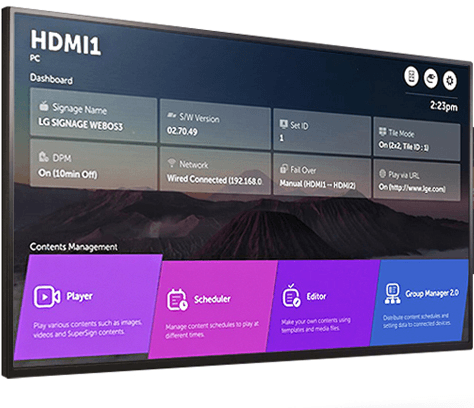
Display registration and managing displays

Content management: creating and publishing images, videos, URLs, etc

Creating custom layouts and compositions

Streaming live content like social media feeds, news, RSS feeds, etc

Scheduling content and managing multiple schedules across several screens

Reporting on screen uptime and content play duration
Supported LG webOS Display Models
Pickcel signage software supports a variety of LG displays with webOS platform.
| OS Type | Display Series |
|---|---|
| webOS 3.2 (3.0+) | SM5KD, SM5D |
| webOS 3.0 | UH5C, LS75C, LS73D, SM3C, SM5C, SM5KC, UH5C, XE3C, XF3C, XS2C |
source : LG
Getting started with Pickcel digital signage software on LG webOS
1. Installing the Pickcel app on LG webOS with USB flash drive
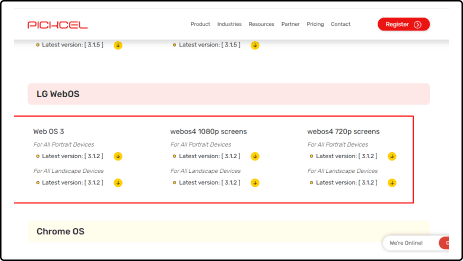
1. Install the Pickcel application on your LG TV from our download page
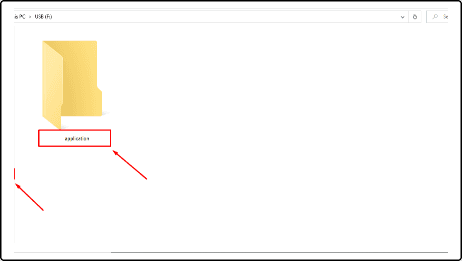
2. Connect the USB and create a folder named ‘application’ (folder name is case-sensitive).
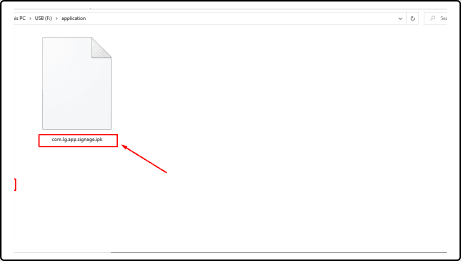
3. Keep the downloaded IPK file in the application folder and the name of the file should be ‘com.lg.app.signage.ipk’ (file name is case-sensitive).
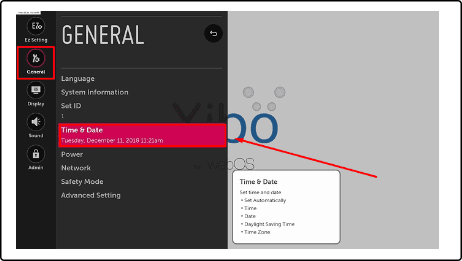
4. Insert the USB flash drive into the USB port of your LG device. Then, click on the Settings icon from the LG remote.
5. Open General and click on the Time & Date option.
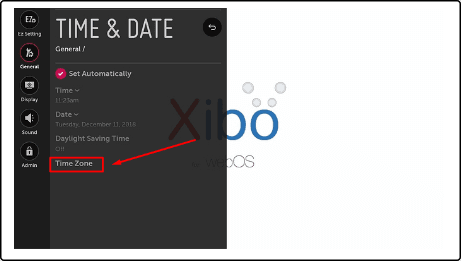
6. Set the Date & Time and Time Zone.
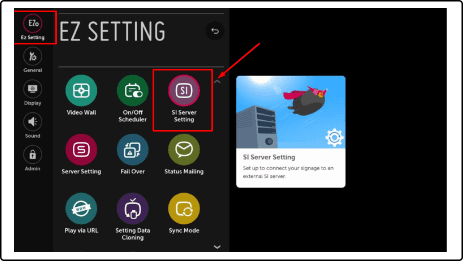
7. Go for the Ez Setting menu, select the SI SERVER SETTING option.
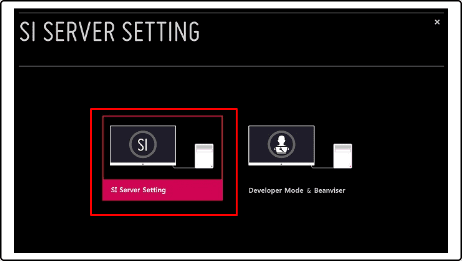
8. On the SI SERVER SETTING screen, select the SI Server Setting option.
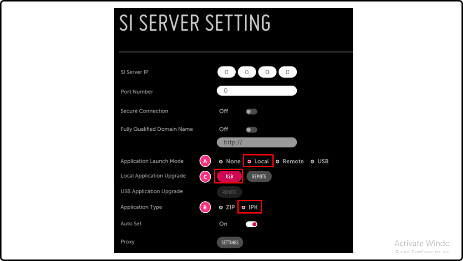
9. On the settings menu, set the following fields with the values provided. The following fields are marked with corresponding letters in the screenshot below.
Application Launch Mode: Local
Application Type: IPK
Local Application Upgrade: USB
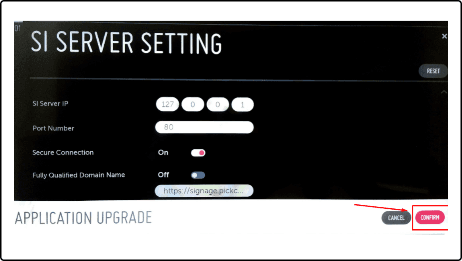
10. After clicking on USB you will get an Application Upgrade confirmation pop-up. Click on ‘CONFIRM.’
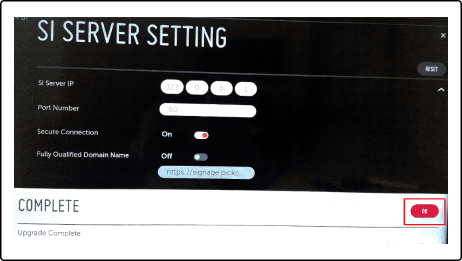
11. It will show a success message after completion of the installation. Click on ‘OK’ and reboot the device.
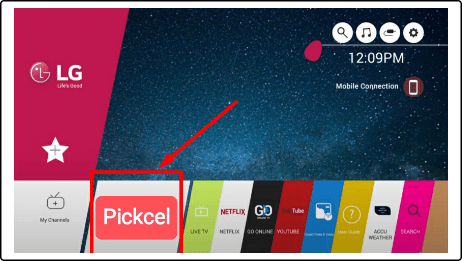
12. Press the ‘Home’ button to see the Pickcel app on the home screen and select the Pickcel app, then press the ‘OK’ button on the remote to launch the app.
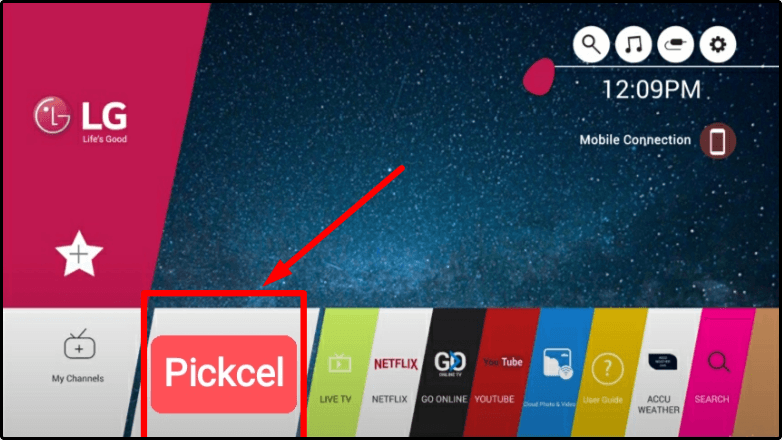
2. Launching the Pickcel player app on your LG device:
a. Press the Home button on your LG remote. You will see the Pickcel app on the home screen.
b. Select the Pickcel app and press the OK button to launch the app.
c. After the app launches, it takes a couple of minutes to connect with the internet.
d. Once the internet is connected, your screen will show a 6-digit unique “Screen Registration Code”
e. Use the 6-digit code to ad your LG display with the Pickcel console
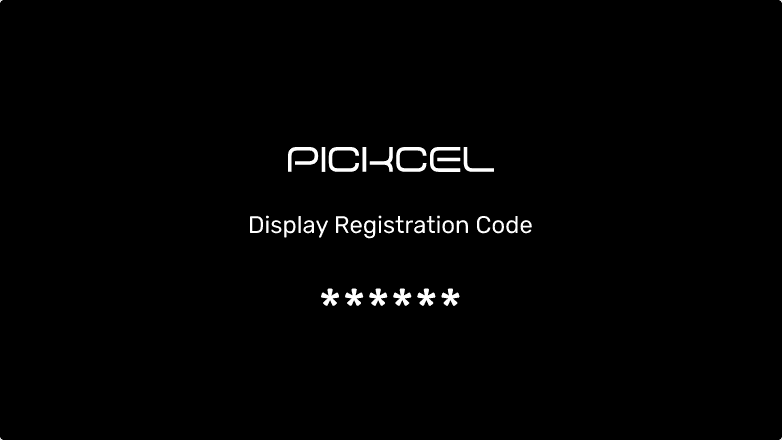
3. Registering the LG device with Pickcel console:
a. Use any laptop or desktop to register or login to your Pickcel console.
b. Once logged in, navigate to the Screen Module.
c. Click on the + Screen button to add your LG display.
d. Enter the 6-digit Screen Registration Code displayed on the LG TV.
e. Enter a screen name, location (optional), and google location (optional), to complete the screen registration.
It's time for you to get a demo!