
Employee Screensaver Communication: Turn Every Idle Screen Into a Strategic Message
Use screensaver communication to reach desk workers non-intrusively. Learn ideal use cases, content strategy, technical implementation, and ROI for idle screen messaging.
TL;DR
- The Problem
- Desk workers leave their screens idle for 2–3 hours daily — prime communication time that most organisations waste entirely.
- The Solution
- Screensaver communication displays scheduled organisational messages on idle employee screens, reaching staff non-intrusively during natural breaks.
- The Impact
- Zero productivity disruption, repeated daily exposures per employee, and higher policy awareness compared to email-only distribution.
- Who Needs This
- Internal Communications Managers, HR Specialists, and IT Managers at organisations with 100+ desk-based employees.
Who Needs This
The Impact
2–3 hrs
Daily Idle Screen Time
Per desk worker that can carry messaging
3–5×
More Message Exposures
Versus a single email send over 2 weeks
20–40%
Higher Campaign Uplift
For awareness and enrollment when screensavers are added
Executive Summary
Most organisations invest heavily in email, Slack, and intranet tools — yet completely ignore the one channel that reaches every desk worker multiple times a day without interrupting their work: the idle computer screen. When an employee steps away for a meeting, lunch, or a break, their screen goes dark or displays a generic screensaver. That represents a repeating communication opportunity that delivers zero organisational value.
Screensaver communication systems replace that wasted idle time with scheduled, branded organisational messages — benefits reminders, policy updates, culture content, and event promotions — displayed only when the employee is away from their desk. For organisations building a multi-channel internal communication strategy, screensaver communication is the lowest-disruption, highest-frequency channel available. It sits alongside office digital signage, desktop alerts, and email to form a complete reach framework that no single tool can deliver alone.
📌 KEY INSIGHT
The value of screensaver communication is not in any single exposure — it is in the cumulative effect of repeated, non-intrusive awareness-building over days and weeks.
What Is Screensaver Communication?
Screensaver communication is a system that displays organisational messages on employee computer screens when the device has been idle — typically for 5–15 minutes — replacing the default screensaver or lock screen with company-scheduled content. When the employee returns and moves their mouse or presses a key, the message disappears instantly.
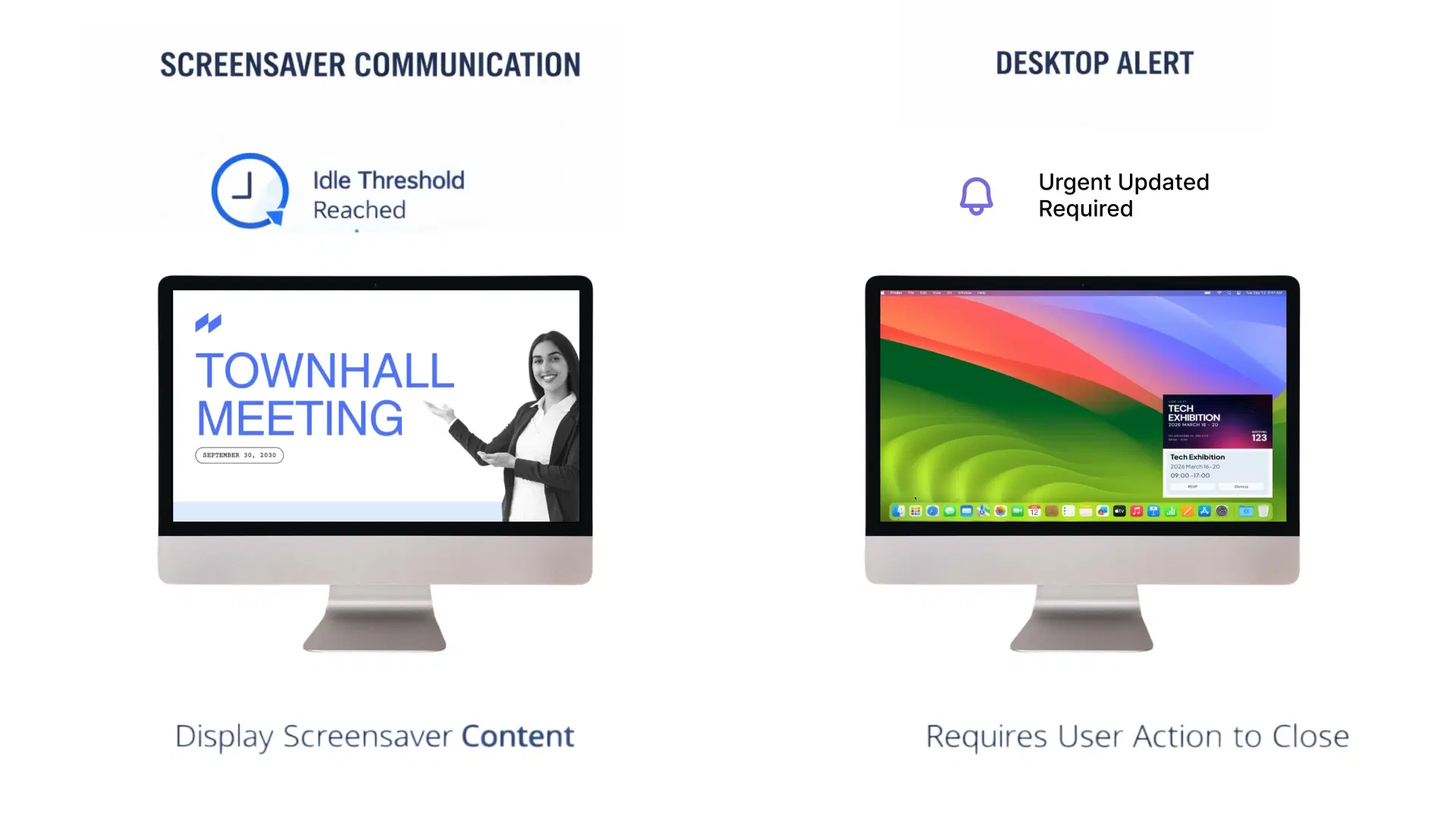
Unlike desktop alerts, which interrupt active work and demand immediate attention, screensaver communication is entirely passive. The message appears only when the employee is already away, which means there is no workflow disruption, no cognitive intrusion, and no resentment from staff who feel interrupted.
Key Distinction: Screensaver vs Desktop Alert
| Attribute | Screensaver Communication | Desktop Alert |
|---|---|---|
| When It Appears | Employee away from screen (idle) | Immediately, any time |
| Workflow Impact | Zero — employee not present | Interrupts active work |
| Best For | Awareness-building, culture, reminders | Urgent, time-critical messages |
| Daily Frequency Tolerance | High (multiple exposures acceptable) | Low (>5/month causes fatigue) |
| Employee Perception | Non-intrusive, ambient | Demanding, disruptive if overused |
💡 PRO TIP
Use screensaver communication for any message that requires awareness over time — not immediate action. Reserve desktop alerts for genuine urgency (IT outages, safety events). Mixing the two for low-priority messages trains employees to ignore both.
The Business Case for Idle Screen Communication
Desk workers routinely spend significant portions of their workday away from their screens — in meetings, at lunch, or on short breaks — leaving their monitors completely idle. This idle time creates a repeatable, natural window for non-intrusive communication that most internal comms strategies never use.
The core advantage of screensaver communication is frequency without fatigue. Because messages appear only when the employee is absent, they do not compete with work tasks for attention. This means organisations can display messages multiple times per day — cycling through 10–15 different content pieces — without generating the communication fatigue that makes employees tune out emails or dismiss alert pop-ups.
For organisations already using digital signage for HR communication, screensaver communication is the natural extension — it carries the same visual, scheduled approach from break rooms and lobbies directly onto every employee's desk screen.
💰 ROI SNAPSHOT
When screensaver communication is part of a unified platform that includes digital signage and desktop alerts, the incremental cost per additional channel is typically zero — making it the highest ROI communication addition for any organisation already invested in workplace display infrastructure.
Ideal Use Cases: Benefits, Culture, Policy, Reminders
Screensaver communication is not suited for every message type. Its power is in persistent, passive awareness — content that benefits from repeated exposure over days or weeks rather than a single urgent notification.
Use Case 1: Benefits Enrollment Campaigns
Benefits enrollment windows are typically 2–4 weeks long and require consistent reminders to drive participation. Email reminders get missed or buried. Screensaver communication keeps the enrollment deadline visible every time an employee steps away from their desk — without sending another message to their inbox.
An effective screensaver enrollment campaign displays: a countdown ("5 days left to enroll"), a QR code linking directly to the benefits portal, and multi-language versions for diverse teams. This approach removes the friction of hunting for enrollment links and keeps the deadline front-of-mind through natural, repeated exposure.
Use Case 2: Policy Updates and Compliance
Updated policies — code of conduct, remote work guidelines, data security — require all employees to read and acknowledge changes. Rolling out policy updates via screensaver for 2–3 weeks post-announcement dramatically improves awareness rates compared to email-only distribution. Key changes can be highlighted visually ("New: All roles now eligible for remote work"), with a direct link to the full policy and an optional acknowledgment click.
Use Case 3: Culture, Values, and Employee Recognition
Company values need to be lived, not just declared at onboarding. Screensaver communication lets organisations rotate recognition, values messaging, and diversity content throughout the week — reinforcing culture through ambient, non-pushy repetition. Employee spotlights, team achievements, and wellness tips are well-suited to this format: low urgency, high visibility, genuinely appreciated by staff.
Use Case 4: Event Promotion
Company events — town halls, volunteer days, social events, training sessions — need wide awareness 1–2 weeks out. Screensaver communication carries event visuals and registration links passively to every desk-based employee, supplementing calendar invites and email announcements. A countdown timer creates urgency without the pushiness of a follow-up email.
Screensaver vs Desktop Alerts vs Email: Choosing the Right Channel
The right channel depends on message urgency and the type of action required. Using screensaver communication for an emergency — or desktop alerts for a wellness tip — undermines both channels.
| Message Type | Urgency | Primary Channel | Supporting Channel |
|---|---|---|---|
| Emergency Evacuation | Critical | Desktop Alert + SMS | — |
| IT System Outage | High | Desktop Alert | |
| Benefits Enrollment Ends Tomorrow | Medium | Desktop Alert | Screensaver |
| Policy Update (2-week rollout) | Medium | Screensaver | |
| Employee Recognition | Low | Screensaver | Office Signage |
| Wellness Tips | Low | Screensaver | — |
| Company Values / Culture | Low | Screensaver | Office Signage |
Decision rule: If a message requires immediate action within 30 minutes, use desktop alerts (and SMS for critical scenarios). If it requires awareness and action over days or weeks, pair screensaver communication with email. Informational, ambient, and culture content belongs primarily on screensavers and office digital signage.
For a complete view of how these channels fit together, see Pickcel's guide to employee communication tools and how digital signage fits the broader internal communications stack.
Content Strategy for Screensaver Messages
Screensaver content must work in seconds. Unlike an email or intranet post, the screensaver competes with a blank screen — not an inbox — for attention. The bar for clarity and visual quality is high.
Message Design Principles
- Visual over text. Lead with an image or graphic. Aim for approximately 60% visual, 40% text. Use real photos over stock imagery wherever possible.
- Brevity. Maximum 25 words of body copy. One topic per screensaver. A clear 5–7 word headline.
- One clear CTA. QR code for mobile-friendly access, a short URL, or a simple next-step instruction.
- Rotation discipline. Display each message 2–3 times daily maximum. Rotate across 10–15 unique messages weekly. Repetition of the same creative causes message blindness faster than the message itself.
Weekly Content Calendar Example
| Day | Message Theme |
|---|---|
| Monday | Employee recognition + policy reminder |
| Tuesday | Benefits information + wellness tip |
| Wednesday | Company news + event promotion |
| Thursday | Training reminder + culture message |
| Friday | Employee spotlight + week-end safety tip |
For content creation support, Pickcel's digital signage content creation tools guide covers design principles and tooling that apply directly to screensaver content.
Technical Implementation: Windows Deployment Guide
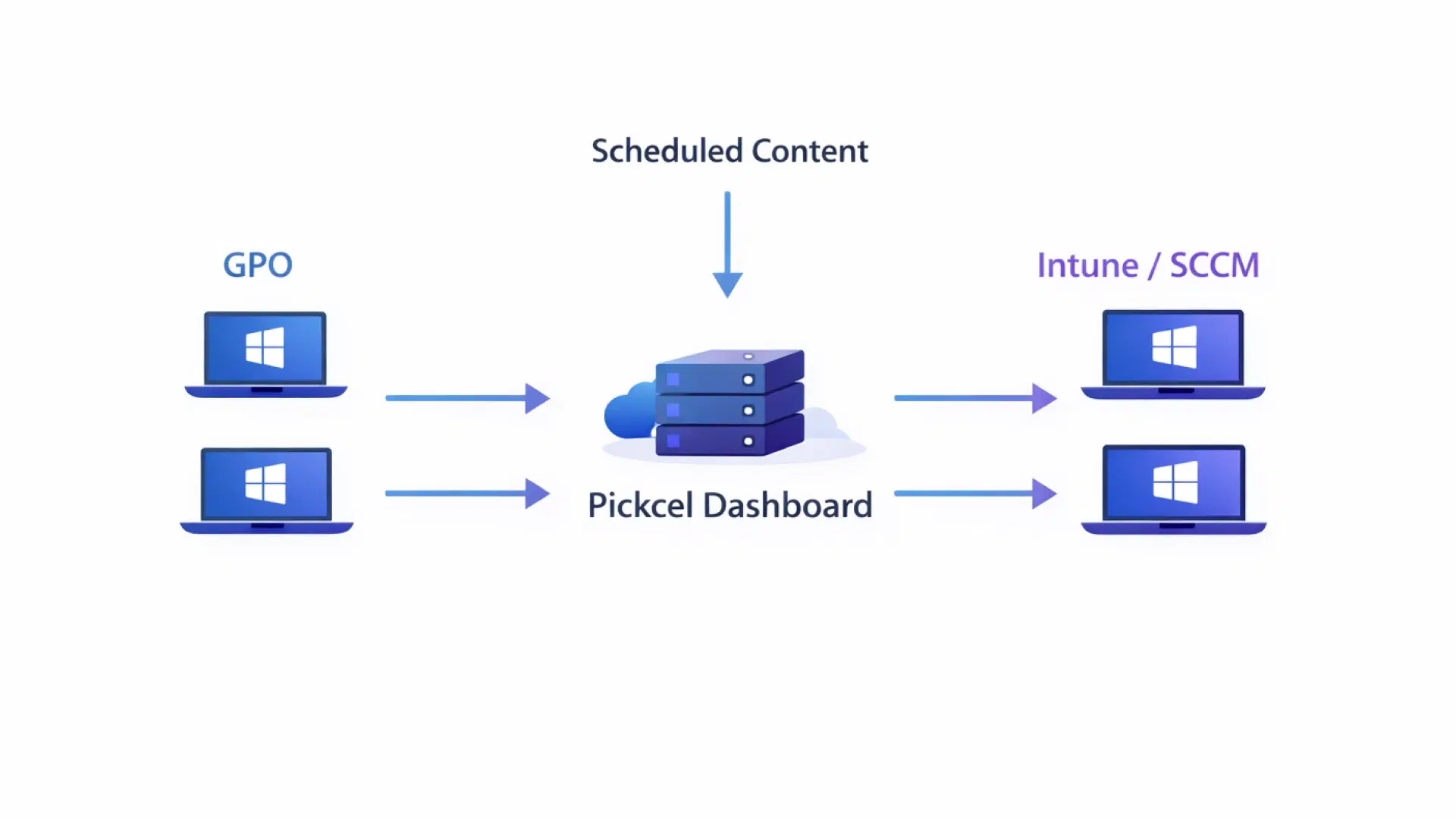
Screensaver communication requires a lightweight agent installed on employee Windows computers. Pickcel's screensaver deployment approach mirrors its digital signage software architecture — a central content server pushing scheduled messages to thin agents on endpoints.
Deploy via Group Policy (GPO)
For domain-joined environments, create a Group Policy Object to push the screensaver agent to all targeted machines. Idle timeout, content server address, and content refresh interval are managed centrally via registry keys. The agent runs as a Windows service with auto-start — no manual intervention required after initial deployment.
Key configuration parameters: idle timeout (recommended 10 minutes), content server (central Pickcel dashboard URL), content refresh interval (15–30 minutes), and automatic startup as a Windows service.
Deploy via Endpoint Management (Intune / SCCM)
For cloud-managed or hybrid environments, package the Pickcel screensaver agent as a standard Win32 application. Deploy to device collections or Intune device groups. Monitor deployment status and compliance directly from your endpoint management console. Content refreshes in the background every 15–30 minutes without requiring an agent restart or user interaction.
💡 PRO TIP
For large rollouts, deploy to a pilot group of 10–20 machines first. Validate idle timeout behaviour, content refresh, and dismissal (mouse movement / keypress) before pushing to the full fleet.
Pickcel's screensaver deployment approach mirrors its digital signage architecture — a central content server pushing scheduled messages to thin agents on endpoints. IT teams retain full control over configuration while comms teams manage creative and scheduling from the dashboard.
Frequency and Rotation: Avoiding Message Fatigue
The non-intrusive nature of screensaver communication gives it a much higher frequency tolerance than any active channel — but that tolerance has a ceiling.
Optimal Parameters
- Set idle timeout at 10 minutes (5 minutes feels too frequent for most teams).
- Rotate 10–15 unique messages per week.
- Display each message a maximum of 2–3 times daily.
- Retire messages after 10–14 days and refresh with new creative.
Seasonal Campaign Calendar
| Period | Campaign Focus |
|---|---|
| January | Benefits enrollment (if applicable) |
| February–March | Tax season reminders, FSA deadlines |
| April–May | Summer schedule, PTO reminders |
| September–October | Annual reviews, goal-setting |
| November–December | Holiday schedules, year-end deadlines |
Multi-Channel Integration: Screensaver as Part of the Communication Stack
Screensaver communication delivers maximum value when it operates as one channel in a coordinated multi-channel campaign — not in isolation. The most effective approach uses each channel for what it does best.
Example: Benefits Enrollment Multi-Channel Campaign
- Week 1: Email announcement + screensaver begins (daily awareness exposure).
- Week 2: Office digital signage in break rooms + screensaver continues.
- Week 3: Desktop alert ("5 days left") + screensaver reinforcement.
- Week 4: SMS reminder (day before deadline) + final screensaver push.
This layered approach ensures that desk workers who miss the email see it on a break room screen, those who miss signage see it on their desktop screensaver, and the desktop alert ensures last-mile urgency for stragglers. Each channel handles the job it is designed for — and none of them duplicate effort.
Analytics: Measuring Screensaver Effectiveness
Screensaver communication platforms provide two layers of measurement: delivery metrics and business impact metrics.
Delivery Metrics
- Impressions: total number of times the screensaver was displayed.
- Unique reach: number of distinct employees who saw each message.
- Average display duration: how long the screensaver was visible per occurrence.
- QR code scans / URL clicks: employees who took action via the CTA.
Business Impact Metrics
- Benefits enrollment rate (before and after screensaver campaign).
- Event attendance rate comparison (screensaver-promoted vs email-only promoted events).
- Policy acknowledgment rate (employees who clicked "Read and Understood").
- Awareness survey results: "I am aware of [specific policy/benefit]" — measured pre/post campaign.
📌 KEY INSIGHT
Measuring screensaver effectiveness requires defining the metric before the campaign launches, not after. Set a specific awareness target (for example, "75% of employees can identify the benefits enrollment deadline") and survey accordingly.
Privacy and Employee Experience
Screensaver agents monitor only one thing: idle time. They do not log keystrokes, capture screen content, track websites visited, or record any employee activity. The agent watches for the absence of mouse movement and keyboard input — nothing more.
Transparent communication about what the system does and does not do is essential to maintaining trust. A brief FAQ on the company intranet — clearly stating that the screensaver agent does not monitor activity — prevents the most common concern before it becomes a complaint.
Employee Experience Best Practices
- Mix content types: balance HR/policy content with recognition, culture, and wellness messaging.
- Maintain high design quality — employees who find screensavers visually appealing are more likely to pay attention.
- Provide a straightforward opt-out process (email the IC team or self-service portal).
- Survey employees quarterly on screensaver communication value.
⚠️ WARNING
An opt-out rate above 5% is an early signal that your screensaver content has become too corporate, too repetitive, or too frequent. Treat it as a content quality flag — not a channel problem.
Frequently Asked Questions
Still have questions?
Our team is here to help with anything not covered above.


Ready to activate your idle screens?
See how Pickcel's unified communication platform delivers screensaver messaging, office digital signage, and desktop alerts from one dashboard.