
Digital Signage MCP Server: Run Your Screens from Claude, ChatGPT and Codex
Let the AI assistant your team already uses handle routine screen updates, from a new promo to a 40-site schedule, inside your own Pickcel account.
- 150,000+ screens run on Pickcel
- Business & Enterprise
- 150,000+screens worldwide
- 70+countries
- SOC 2Type II
- ISO 27001certified




- Exprezo
Pickcel customer stories
- Mixed fleet · QSR
McDonald's India
1,300+ menu boards across Android players and LG webOS displays, with zero on-site installation visits.
McDonald's India case study - Retail kiosks

Amazon
850+ screens in 400+ mall kiosks, rolled out in about a week.
Amazon case study - ExprezoExisting screens · US retail
Exprezo
50+ existing screens in 20+ US gas-station stores, now centrally managed.
Exprezo case study - Transit
NEC
Live bus arrivals on 150 bus-stop screens in under 2 seconds.
NEC case study
Definition
What is the Pickcel MCP server?
The Pickcel MCP server is a hosted connector that lets an AI assistant work inside your Pickcel account. It uses the Model Context Protocol (MCP), an open standard for connecting AI assistants to outside tools and data. Once it's connected, Claude, Codex and other MCP clients can carry out digital signage tasks you describe in plain language, choosing from 26 Pickcel tools to find, create and schedule content on your screens.
- Describe the update in plain language
- The assistant picks from 26 Pickcel tools
- The change shows up in your console and on screen
In Claude / Codex
“Put the new promo video on the entrance screens this weekend.”
- 01
Generate a token
In the Pickcel console, open Settings → APIs and click Generate Token.
- 02
Add the server to your assistant
Paste the server URL and the token into Claude.ai, Claude Code, Codex in the ChatGPT app or Codex CLI as a custom connector.
- 03
Ask for what you need
For example: "Put the new promo video on the entrance screens this weekend."
- 04
Review it in Pickcel
Layouts, compositions and schedules the assistant creates appear in the console like any others.
Capabilities
What the Pickcel MCP server can do: 26 tools in four groups
Each tool belongs to one of four groups, and the assistant picks the right ones for each request.
Screens and media (4 tools)
What the assistant can do
List screens; find images, videos and PDFs; upload images and videos
Limits
The assistant must be able to read the file; some hosted assistants can't
Layouts and compositions (5 tools)
What the assistant can do
Browse layouts, read their zones, save new ones, build compositions from a layout and your media
Templates and designs (9 tools)
What the assistant can do
Browse templates, create media from one, draft a design, check it, save versions
Limits
Template tools need the paid Templates module. Designs are text and shapes; add photos in the editor
Scheduling and playback (8 tools)
What the assistant can do
Create and edit Day Sequences (reusable time-slot plans) and schedules, assign them to screens, push a timed Quickplay
Limits
One schedule per screen; a new one replaces the old. Editing a Day Sequence changes every schedule using it
All tool names
list_screens · list_media · begin_media_upload · save_media · list_layouts · get_layout · create_layout · list_compositions · create_composition · list_templates · get_template · use_template · get_design_guide · get_design_template · validate_design · create_design · get_design · update_design · list_day_partitions · create_day_partition · update_day_partition · list_schedules · create_schedule · update_schedule · assign_schedule_to_screens · push_quick_play
Reports, screen health and the content editor stay in Pickcel's digital signage CMS.
In practice
What it looks like in Claude and Pickcel
Every change the assistant makes is visible in two places: the chat and the Pickcel console.
Request to schedule
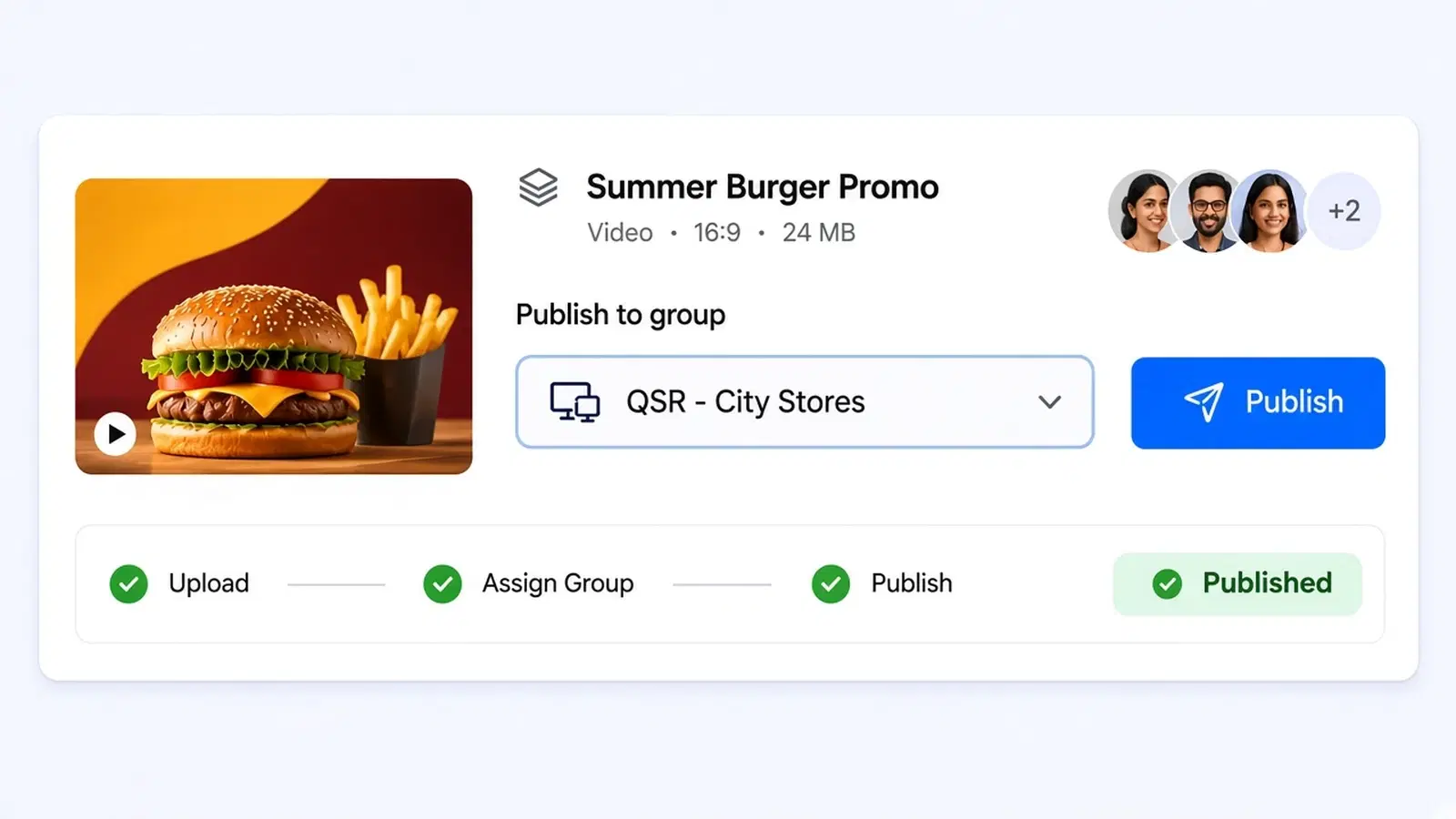
The assistant confirms a new schedule, and the same schedule appears in Pickcel.
Design to editor
A drafted design opens in the Pickcel editor from the link the assistant returns.
Approvals
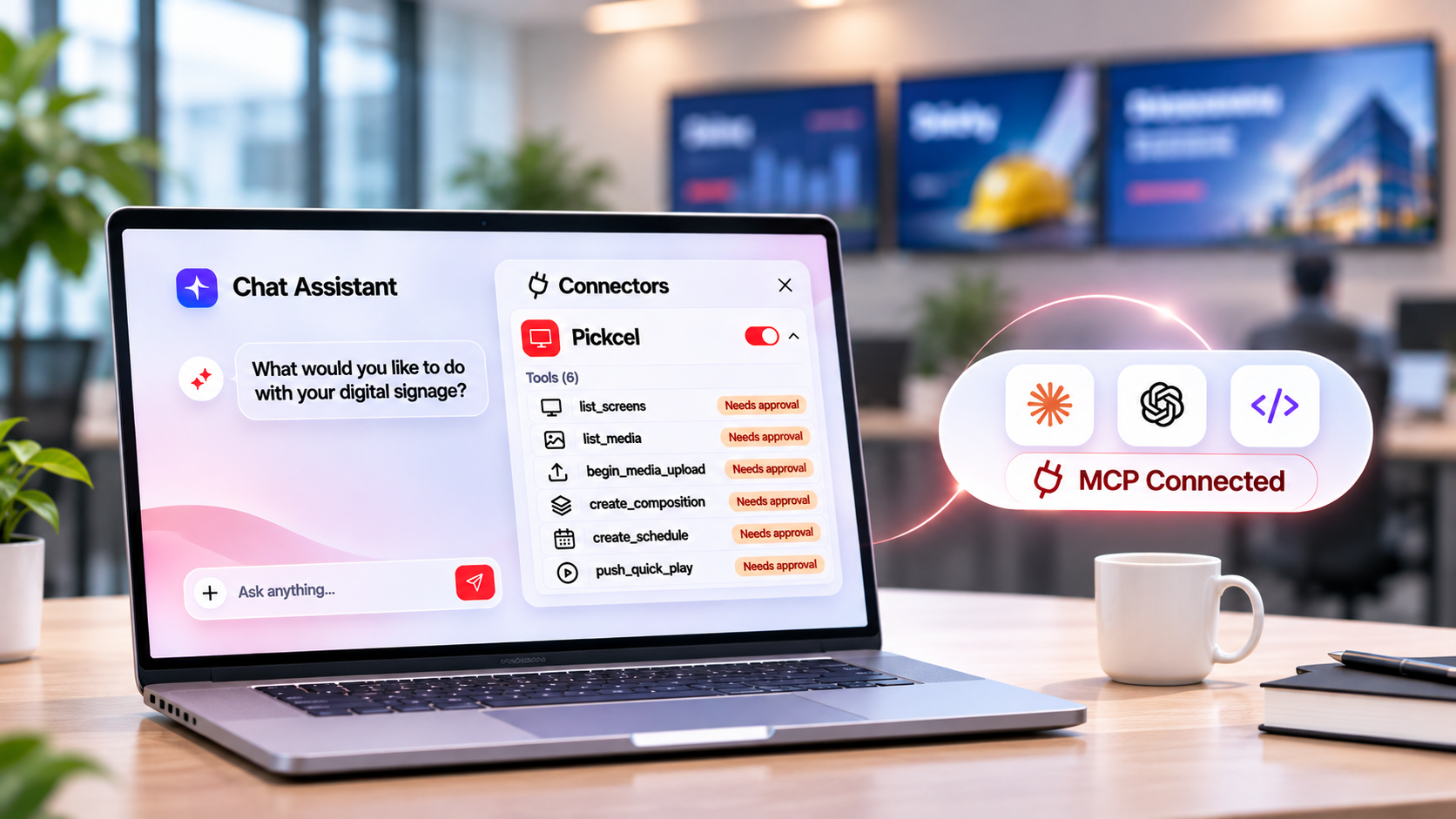
Claude's permission panel for the Pickcel connector starts every tool on Needs approval.
Requests you could type
- Upload these three videos and run them on the entrance screens Friday to Sunday.
- Play the lift maintenance notice on the lobby screens for the next two hours.
- Make a 16:9 town hall announcement with the date and venue.
- Which schedules expire this week?
Security
Permissions and limits: what the assistant can and can't touch
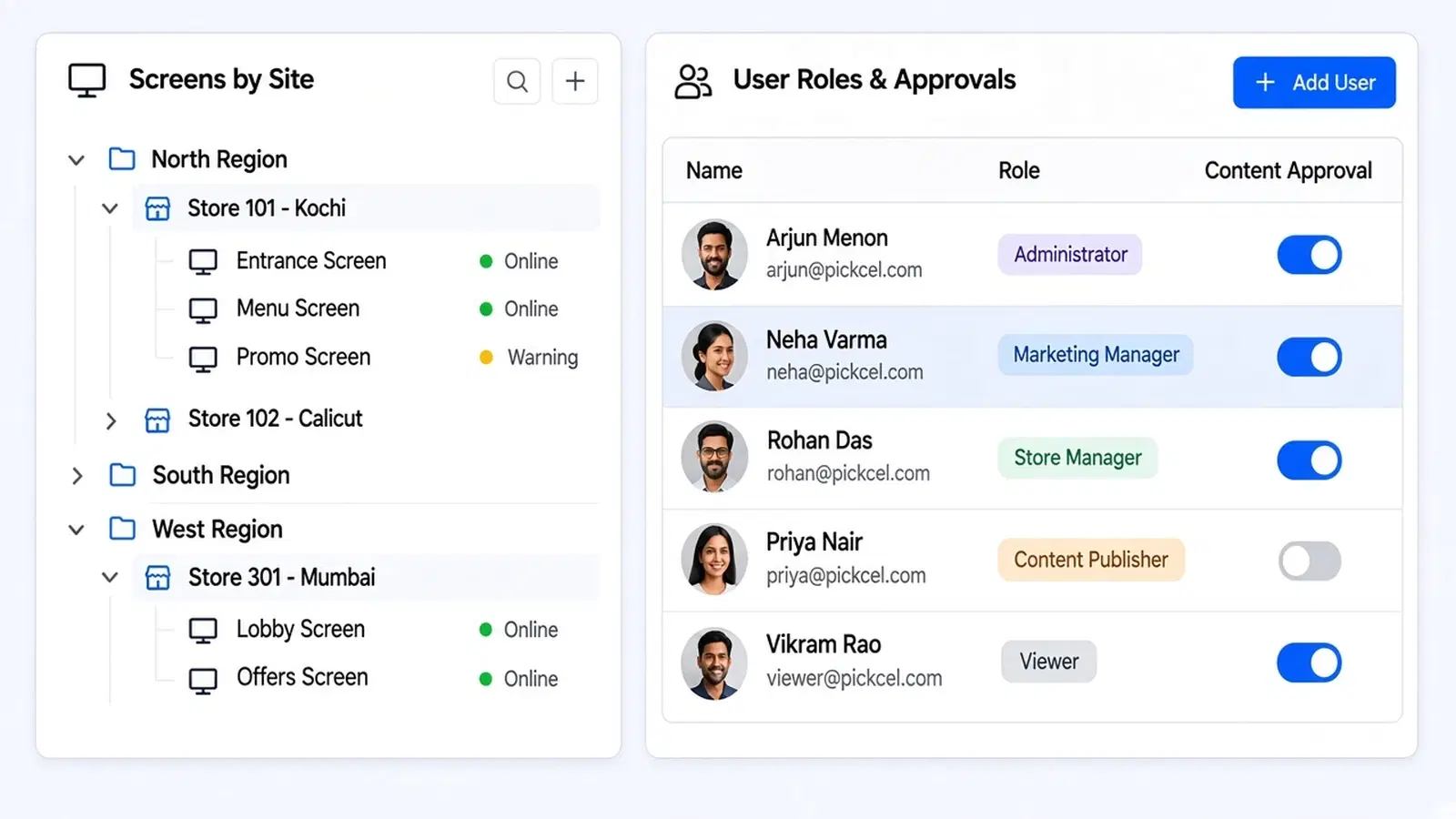
The assistant sees and changes only the Pickcel account its token belongs to.
The token is the key
It gives full access to the account, so store it like an admin password. Regenerating it in Settings → APIs stops the old token immediately.
Approvals in Claude
Every Pickcel tool starts on Needs approval and can be set to Always allow or Blocked. On Claude Team and Enterprise, an organization owner adds the connector first.
No delete tools
The assistant can create and change content, not remove it.
Quickplay runs to the end of its window
A Quickplay interrupts whatever the selected screens are playing, and the assistant can't stop one. Remove it in the console under Publish → Quickplay.


Request a demo
See the Pickcel MCP server run your own requests
Bring two or three tasks your team does every week. We'll run them through an assistant on a live Business account.
Use cases
What teams ask the assistant to do
Weekend promos for retail
The request
“Upload these three videos and run them on the entrance screens Friday to Sunday.”
What happens
The assistant uploads, builds the composition and assigns the schedule.
An urgent lobby notice
The request
“Play the lift maintenance notice on the lobby screens for the next two hours.”
What happens
A Quickplay takes over those screens for exactly that window, then regular content resumes.
A first draft for internal comms
The request
“Make a 16:9 town hall announcement with the date and venue.”
What happens
A designer finishes it instead of starting from a blank canvas.
A Monday check for IT
The request
“Which schedules expire this week?”
What happens
The assistant lists active, upcoming and expired schedules, so the right ones get extended in time.
Compatibility
Supported AI assistants and requirements
Pickcel publishes setup guides for four clients. Any other assistant that supports remote MCP servers with a custom request header can use the same details.
Assistants
- Claude.ai (web and desktop)Setup guide
- Claude CodeSetup guide
- ChatGPT app, through Codex (not a ChatGPT chat)Setup guide
- Codex CLISetup guide
- Gemini and other MCP clientsNo guide yet
Connection details
- Server URL
- https://signage.pickcel.com/v5.1/mcp
- Transport
- Streamable HTTP
- Authentication
- Bearer token in Authorization header
- Plan
- Business or Enterprise
Step-by-step instructions for each client are in the Pickcel MCP setup guide. To connect POS systems, dashboards or other business apps instead, see Pickcel's digital signage integrations.
FAQ