Meetings Calendar
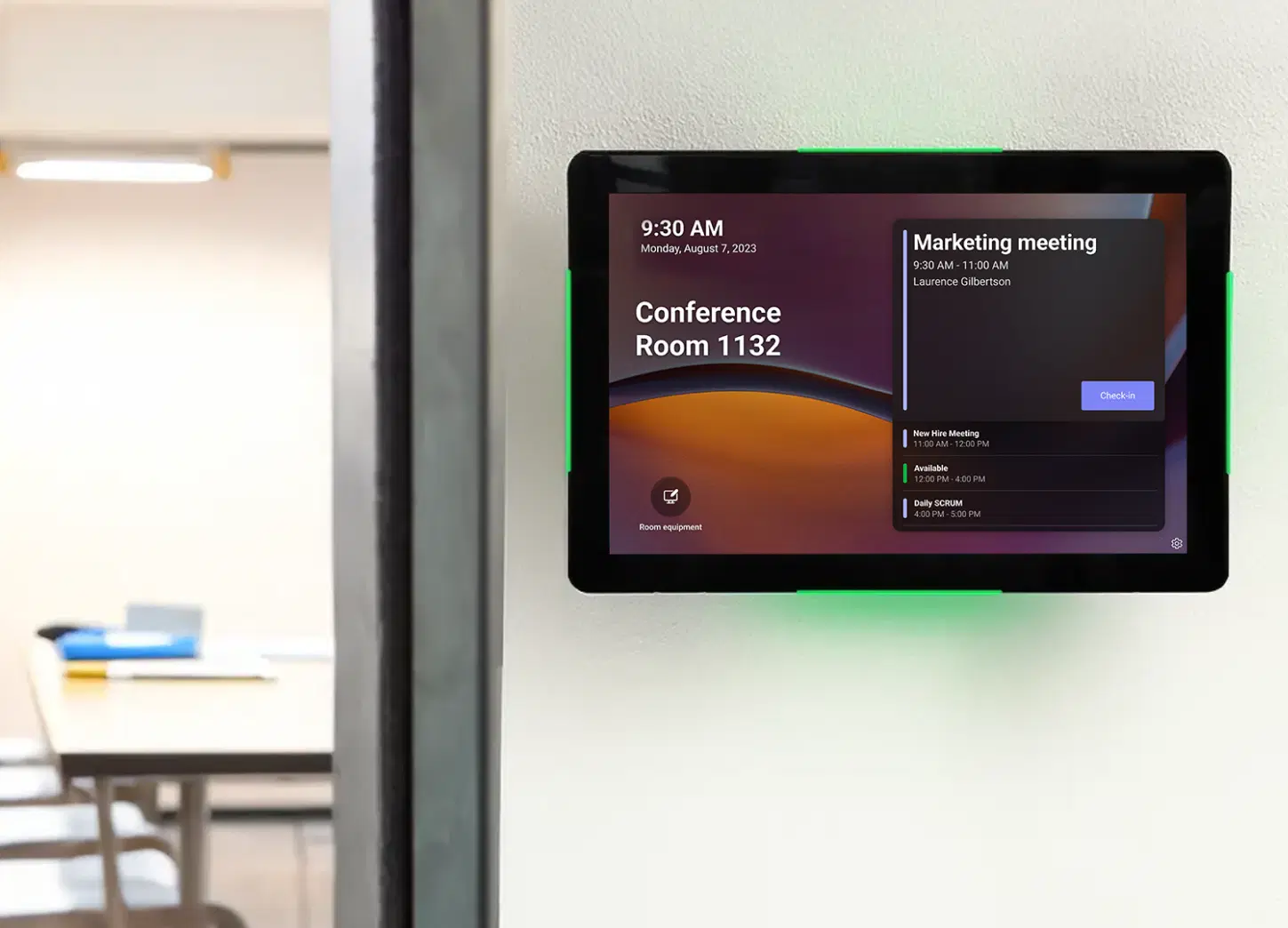
Display real-time meeting room schedules, availability, and bookings on any screen with seamless Google and Outlook calendar sync.

Trusted by businesses worldwide







SOC 2 Type II
ISO Certified
Key Features Highlights

Seamless Calendar Sync
Connect Google Calendar or Microsoft Outlook with just a click and display your meeting room schedules automatically, updated in real time.

Instant Room Booking
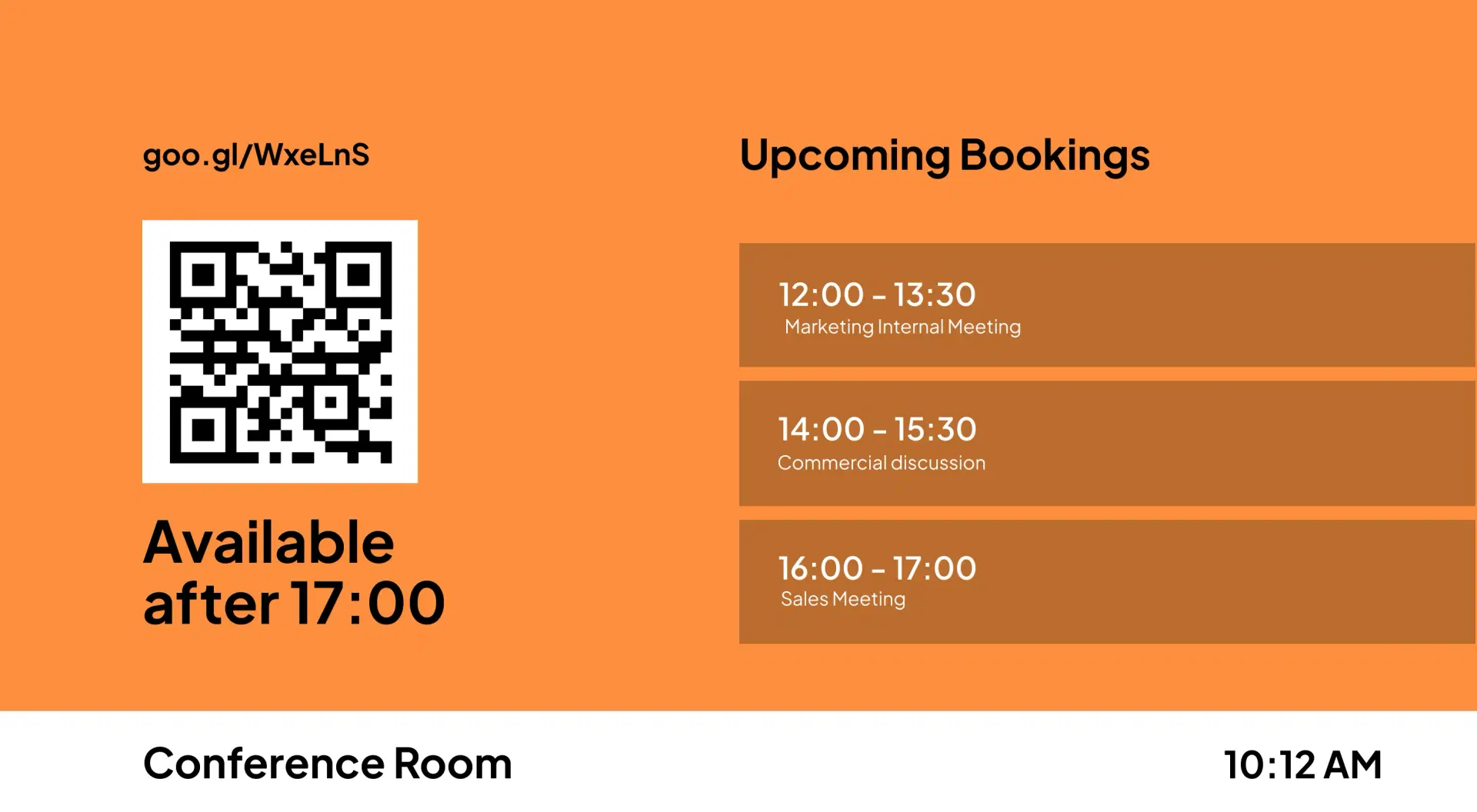
Allow users to reserve available rooms on the spot through QR codes, short URLs, or touchscreen booking panels.

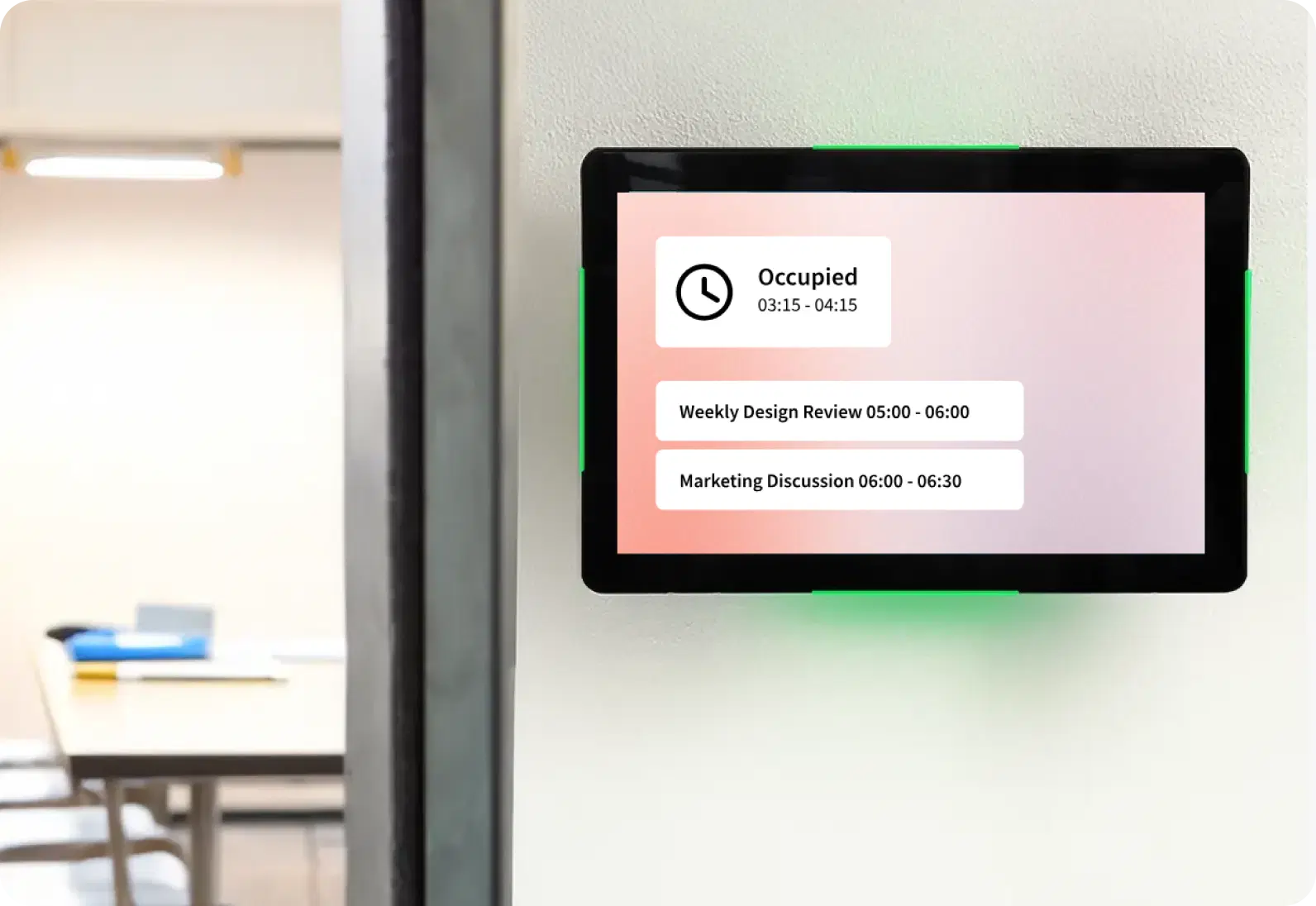
Live Room Status Display
See room availability at a glance with intuitive meeting room availability indicators, along with meeting titles and organizer names.

Custom Branding & Layouts
Add your company logo and background to match your brand identity and enhance the professional look of your workspace displays.

Interactive Mode for Touchscreens
Enable “Book Room” buttons on touch displays for quick, walk-up scheduling ideal for conference rooms and shared office spaces.
Automatic Updates & Sync
Every booking reflects instantly across all connected devices and calendars, ensuring zero scheduling conflicts and real-time transparency.
One App, Many Display Styles
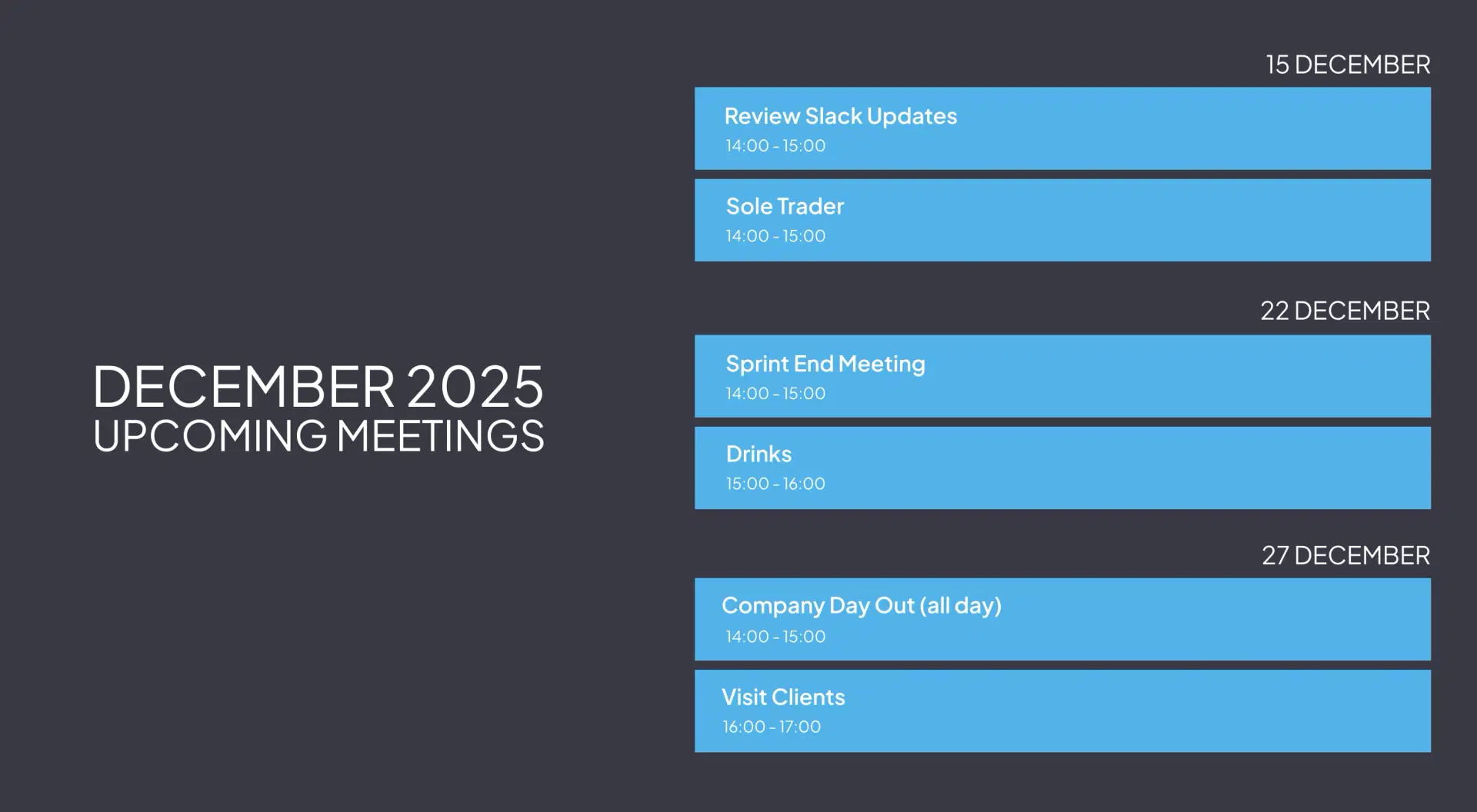
Style your meetings calendar feed differently for every display.

Interesting Use Cases
See how teams apply the meetings calendar App to simplify updates and deliver information where it matters most.
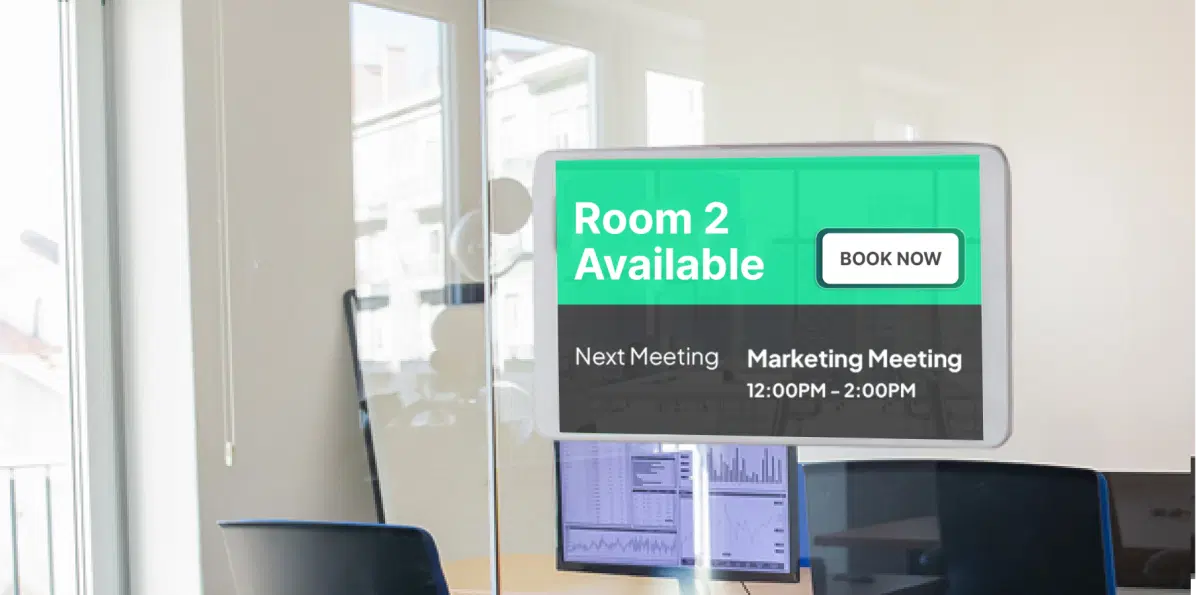
Corporate Offices
Display live schedules outside each meeting room, allowing teams to find free rooms and book instantly using their phones or a touch display. Perfect for reducing double-booking chaos in busy offices.
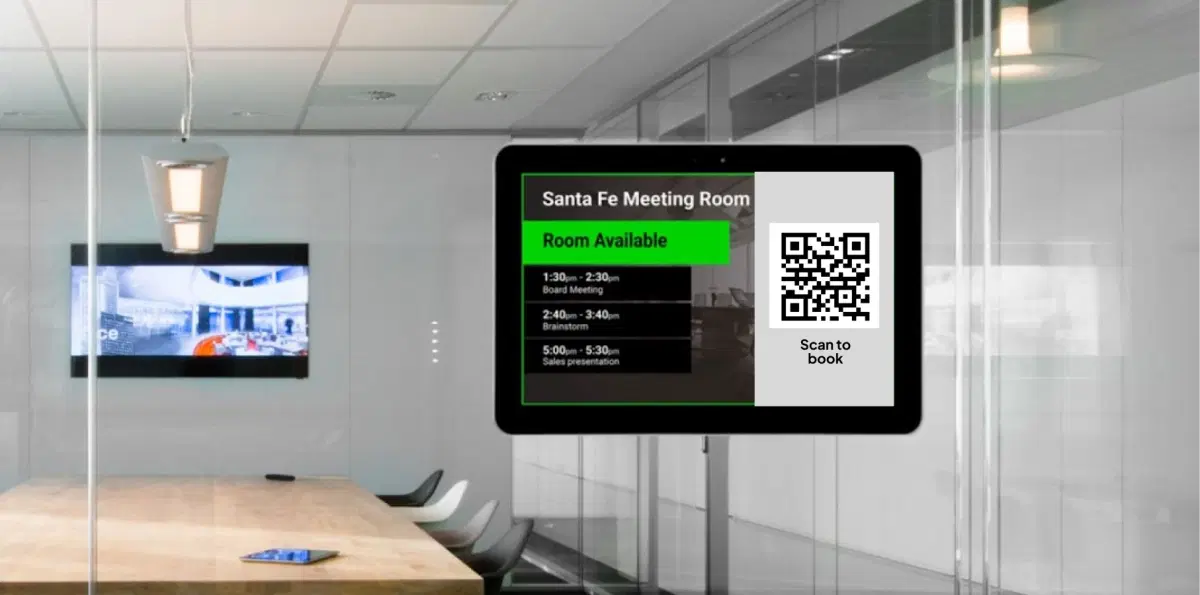
Co-working Spaces & Business Centers
Offer members a seamless, self-service booking experience. Visitors can scan a QR code, view availability, and schedule their slots without needing staff assistance.
Need customized apps? Connect with us.
We are open to all kinds of customization & integration with third-party applications.
How To Steps
Step 1: Configure Your Meeting Calendar
In the Pickcel console, go to Apps and find and select Meeting Calendar. Name your app instance and the meeting room. Choose your preferred calendar service: Google or Microsoft Outlook and connect securely to sync schedules. Customize appearance with your logo, background, and time format, then enable interactive booking if using a touch display.

Step 2: Add to Composition
Create a new composition in Pickcel. Drag and drop the Meeting Calendar App into your layout, and combine it with other widgets like date, time, or announcements if desired.

Step 3: Publish to Screens
Assign the composition to your desired meeting room screens. Your calendar will instantly display live updates and allow bookings in real time.
More Pickcel Apps to Complement the meetings calendar App on your Digital Signage
Modern workplaces communicate everywhere – not just on wall displays. Pickcel extends your internal communication to every screen employees see.