Trusted by businesses worldwide







SOC 2 Type II
ISO Certified
Key Feature Highlights
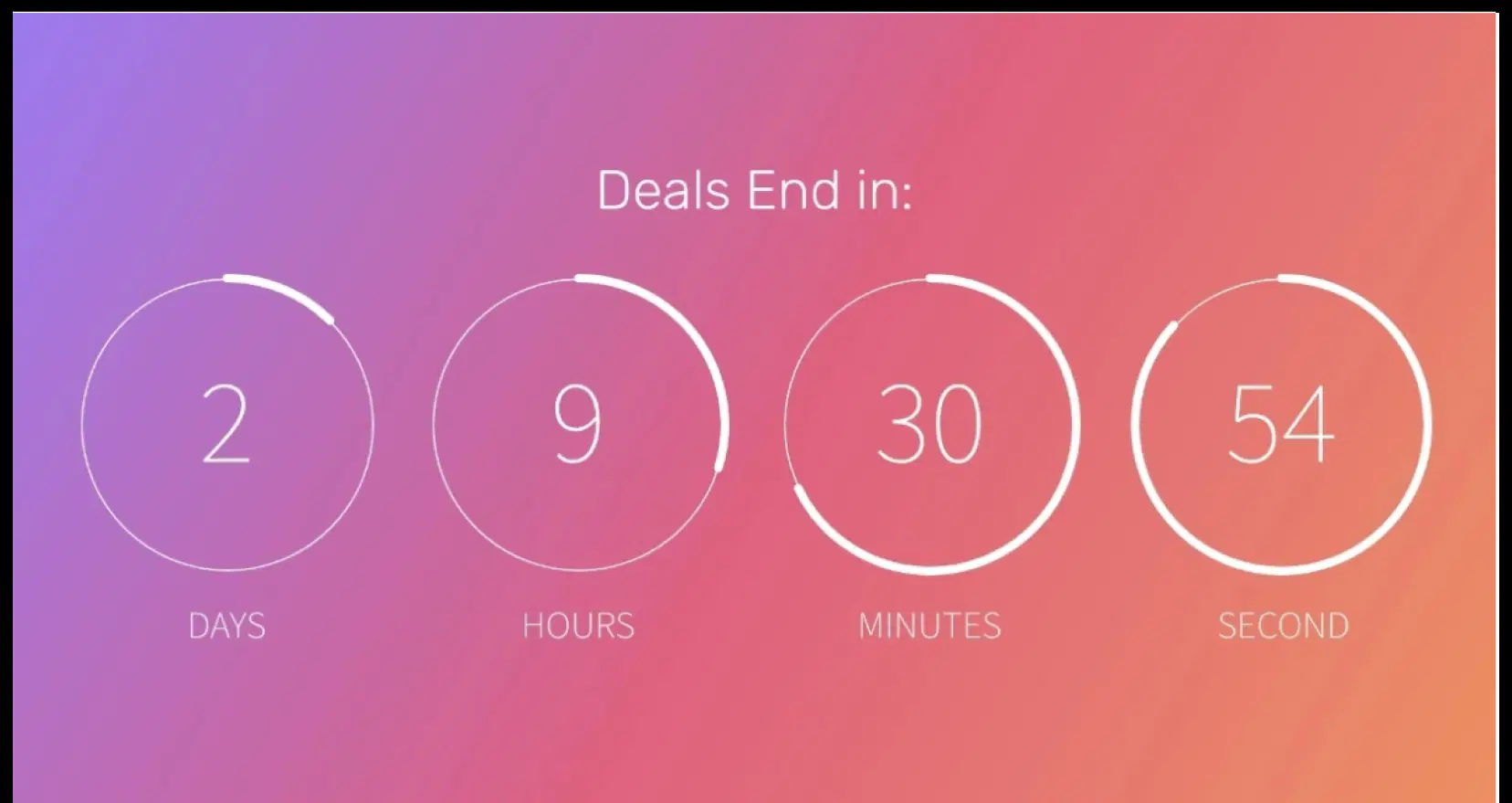
Flexible timer formats
Pick the format that fits your layout, from full days-hours-minutes-seconds to compact styles that stay readable from a distance.

Central control and instant updates
Configure once in Pickcel and push changes to one screen or many. Perfect for last-minute schedule shifts.

Works on any screen and OS
Deploy on Android, Samsung Tizen, LG webOS, Windows, macOS, and Linux. No new hardware needed, faster rollout, lower cost.

On-screen messaging
Add a headline or short line that runs with the timer, so people know exactly what the countdown is for.

Automatic end message
Set a post-countdown message like “Offer ended” or “Session starting now” to remove confusion the moment time runs out.

Brand-ready color schemes
Choose from preset color themes or match your brand palette for a polished look on any display.
One App, Many Display Styles
Classic, modern or minimalistic – find a style that fits your brand.


Interesting Use Cases
See how organizations use display to drive sales, boost team insights, and improve visibility across a spectrum of industries.
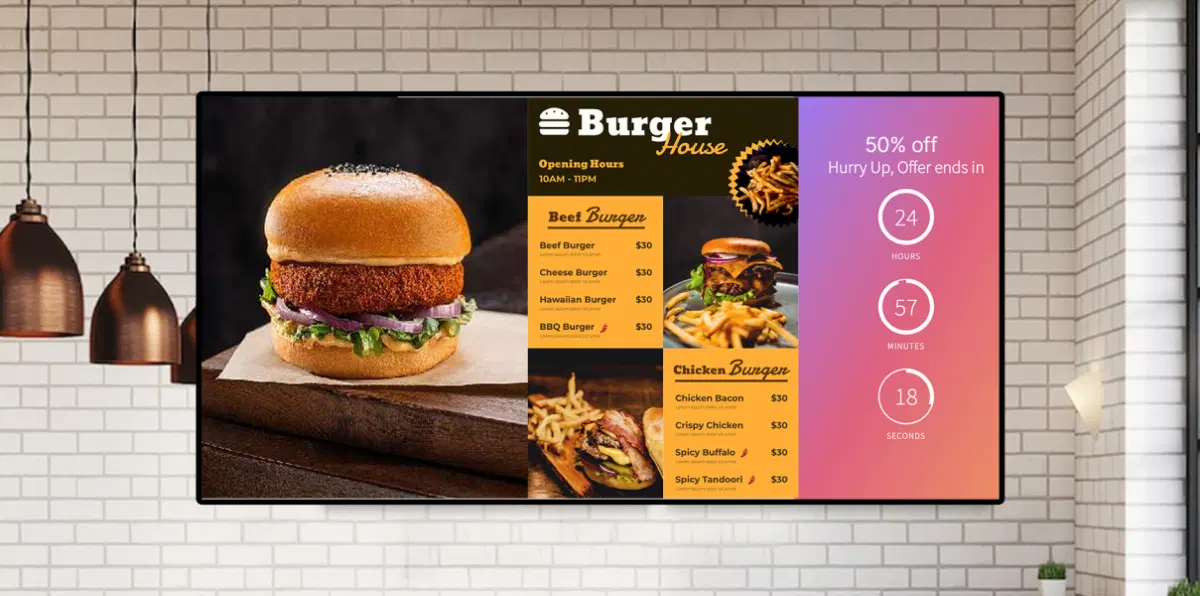
Retail and QSR
Run flash sales or happy hour timers to drive quick decisions and impulse purchases. Fuel the urgency with a dynamic timer to boost conversions.
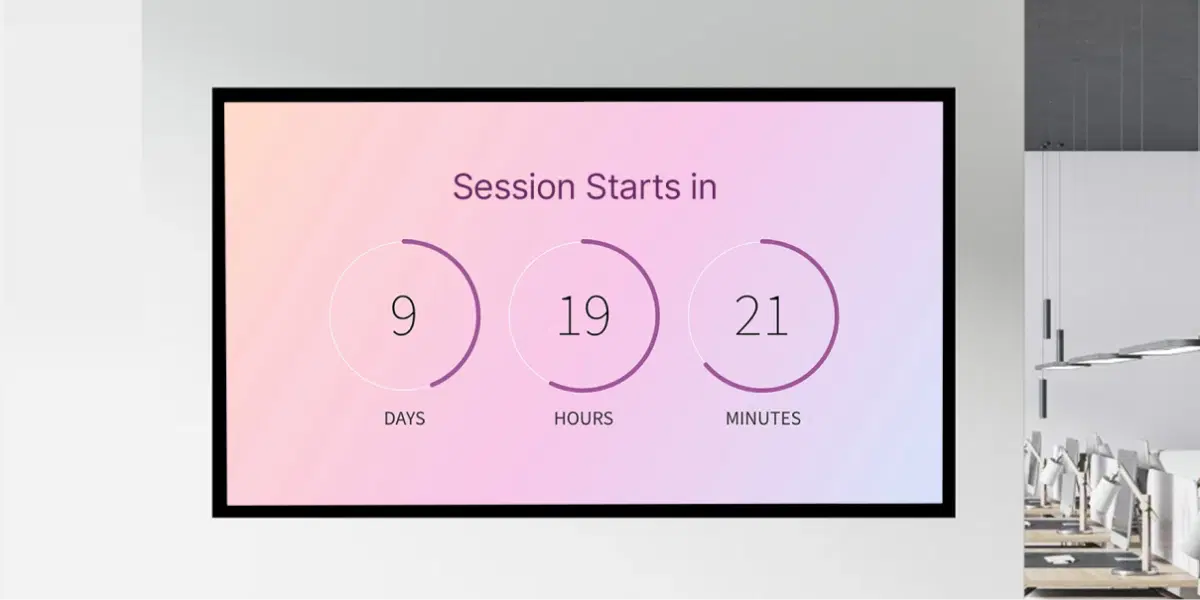
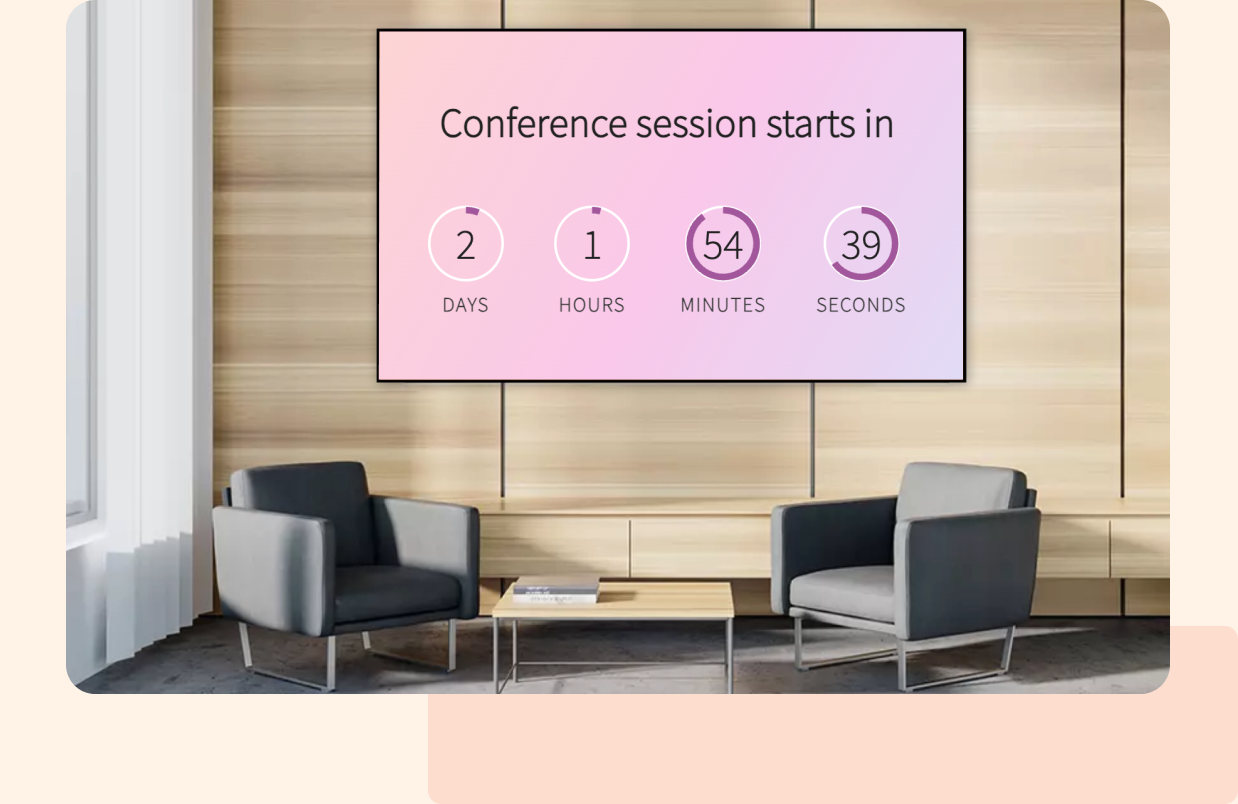
Corporate and events
Count down to session starts, keynote kickoffs, or break ends in lobbies and conference areas. Reduce late entries and keep schedules on track.
How-To Steps
The SharePoint App connects securely with Microsoft SharePoint and lets you publish pages, news posts, and intranet data to office screens, campuses, and common areas — all from one simple interface.
Step 1: Configure the app
Open the Pickcel dashboard, go to Apps, and select Countdown. Create the app, name it, choose your Countdown format, add the running message, set the end date and time, define the post-countdown message, and pick a color scheme.
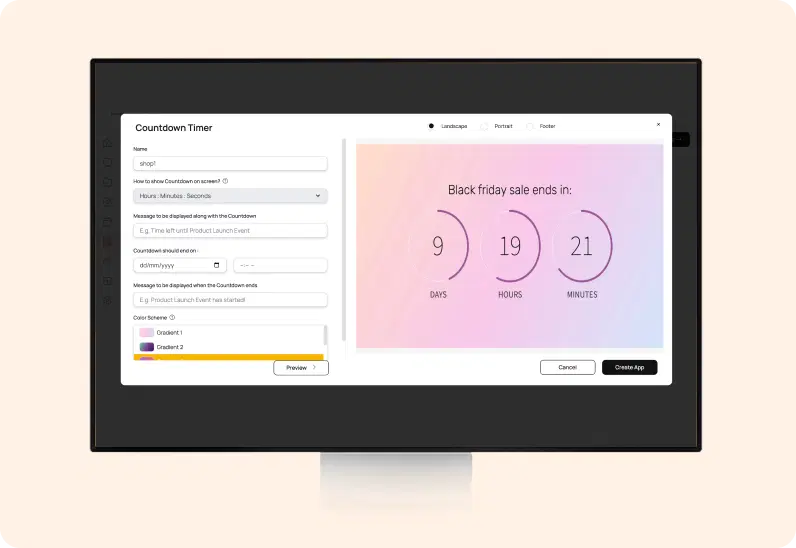
Step 2: Add to a composition
Create a new composition, add the Countdown app, position and size it for visibility, and optionally include a header, ticker, or promotional panel.

Step 3: Publish to Screens
Assign the composition to your screens or groups and publish. The timer begins immediately and updates in real time across all locations.
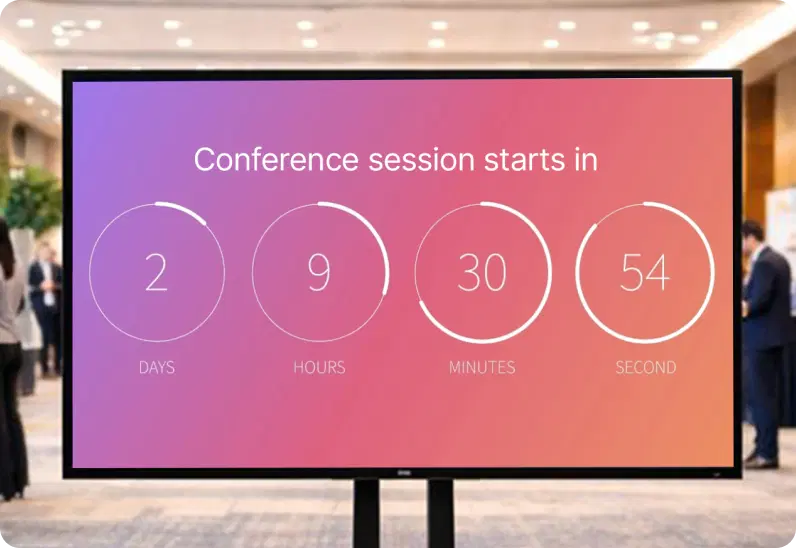
More Pickcel Apps to Complement the SharePoint App on your Digital Signage
Pickcel helps you communicate everywhere – to staff or your dealers. It's a platform for your internal communication to every employee & stakeholder.