Campaign App
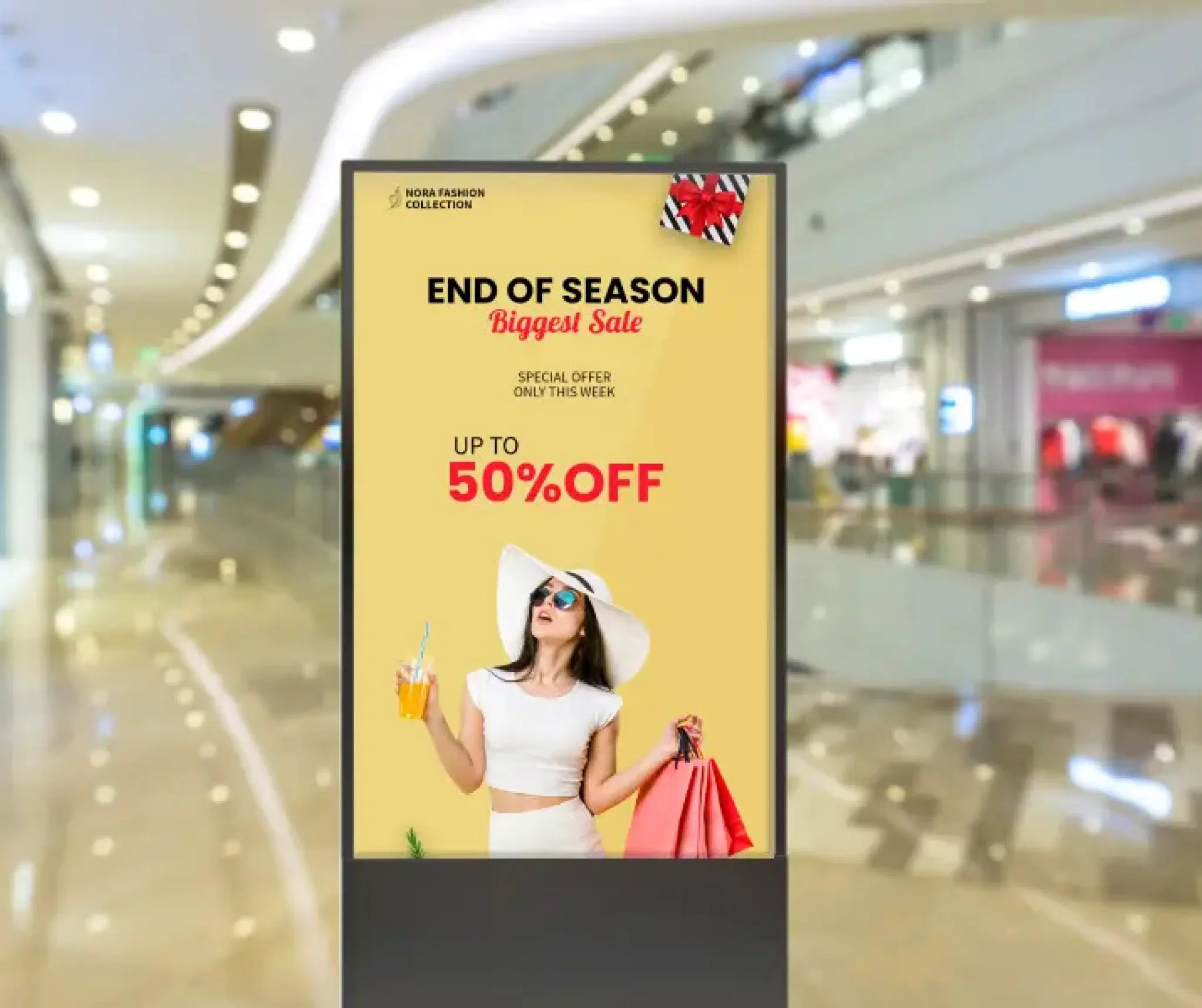
Run and manage advertising campaigns across your digital screens with precision.

Trusted by businesses worldwide







SOC 2 Type II
ISO Certified
Key Features Highlights

Centralized Campaign Management
Plan, schedule, and monitor all your campaigns from one intuitive Pickcel dashboard. Simplify content delivery across multiple locations.
Flexible Scheduling Controls
Set start and end dates, customize duration per media file, and ensure your content appears exactly when intended.

Tag-Based Targeting
Map media and screen tags to play specific content in specific locations or audience. Perfect for localized promotions or audience-based targeting

Performance Tracking
Monitor campaign playback data in real time. Measure media runs and track exposure to evaluate campaign success

Multi-Media Support
Combine videos, images, and Pickcel apps within a single campaign. Engage viewers with dynamic, rich content experiences.
Works Across Devices
Compatible with Android players, Amazon Signage Stick and more, making campaign delivery effortless on any screen.
One App, Many Display Styles
Style your campaign content differently for every screen layout.




Interesting Use Cases
See how teams apply the SharePoint App to simplify updates and deliver information where it matters most.
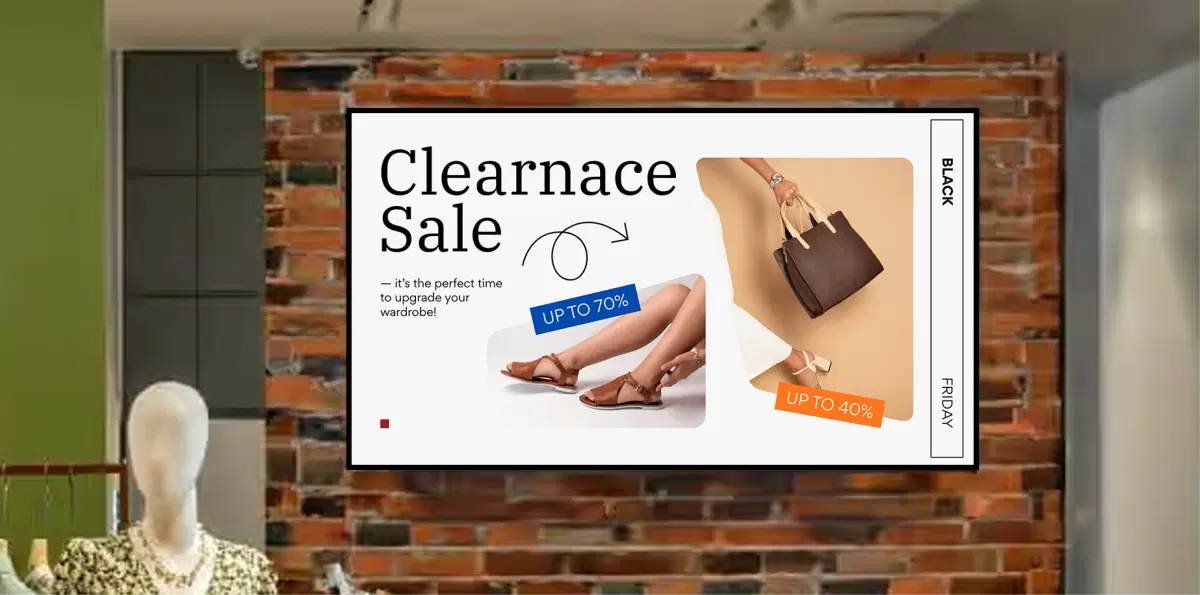
Retail Promotions
Display time-bound product offers across stores with local targeting. Schedule weekend discounts or flash sales to appear only during promotional hours.

Corporate Branding
Run internal awareness or branding campaigns across office screens. Set campaign durations for events, culture weeks, or milestone celebrations and track display performance.
Need customized apps? Connect with us.
We are open to all kinds of customization & integration with third-party applications.
How To Steps
The Campaign App connects securely with your Pickcel dashboard and lets you publish campaigns, media files, and app content to office screens, campuses, and common areas—all from one simple interface.
Step 1: Configure Your Campaign
Open the Campaign App from your Pickcel dashboard. Select the images, videos, or apps from your media library, set how long each should play, and define the start and end dates.

Step 2: Add to Composition
Create a new composition and insert your Campaign App. Adjust its placement and layout to fit your screen design. Preview to ensure your campaign appears exactly as you want.

Step 3: Publish to Screens
Assign the composition to one or multiple screens, and click Publish. Your campaign will begin automatically based on your configured schedule.
More Pickcel Apps to Complement the SharePoint App on your Digital Signage
Modern workplaces communicate everywhere – not just on wall displays. Pickcel extends your internal communication to every screen employees see.