
Display Microsoft Teams Messages on Digital Signage
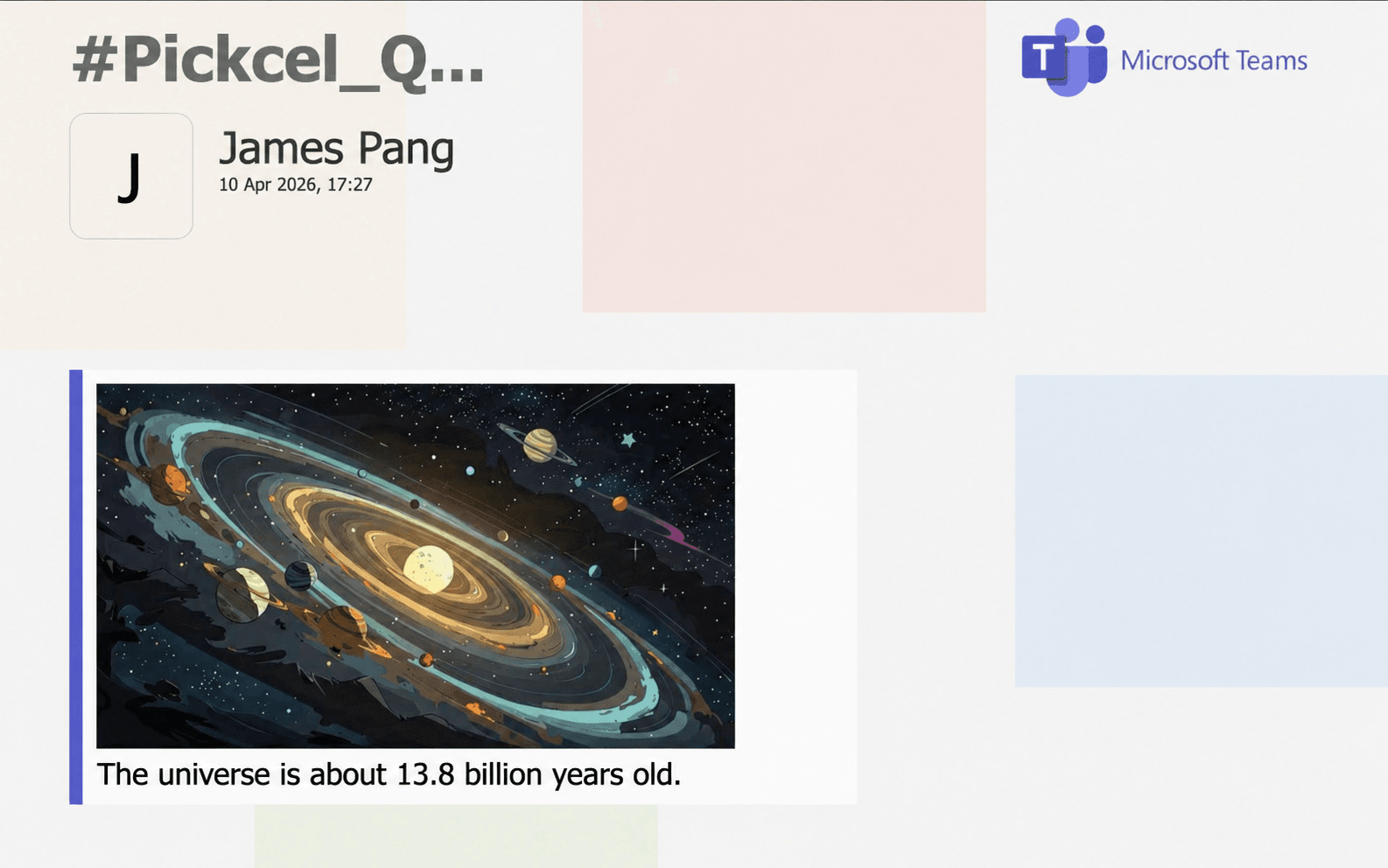
Connect a Microsoft Teams channel to Pickcel's digital signage software and display its messages on your screens. It's a simple way to surface internal announcements, standups, and team recognition boards where everyone can see them.
Prerequisites
Before you begin, make sure you have:
Microsoft account access: A Microsoft account with access to the Team and Channel you want to display.
Read permission: Permission to allow Pickcel to read messages from that channel on your behalf.
Pickcel only reads messages from the Team and Channel you select. It cannot post or modify messages.
Setting up the Microsoft Teams app in the Pickcel console
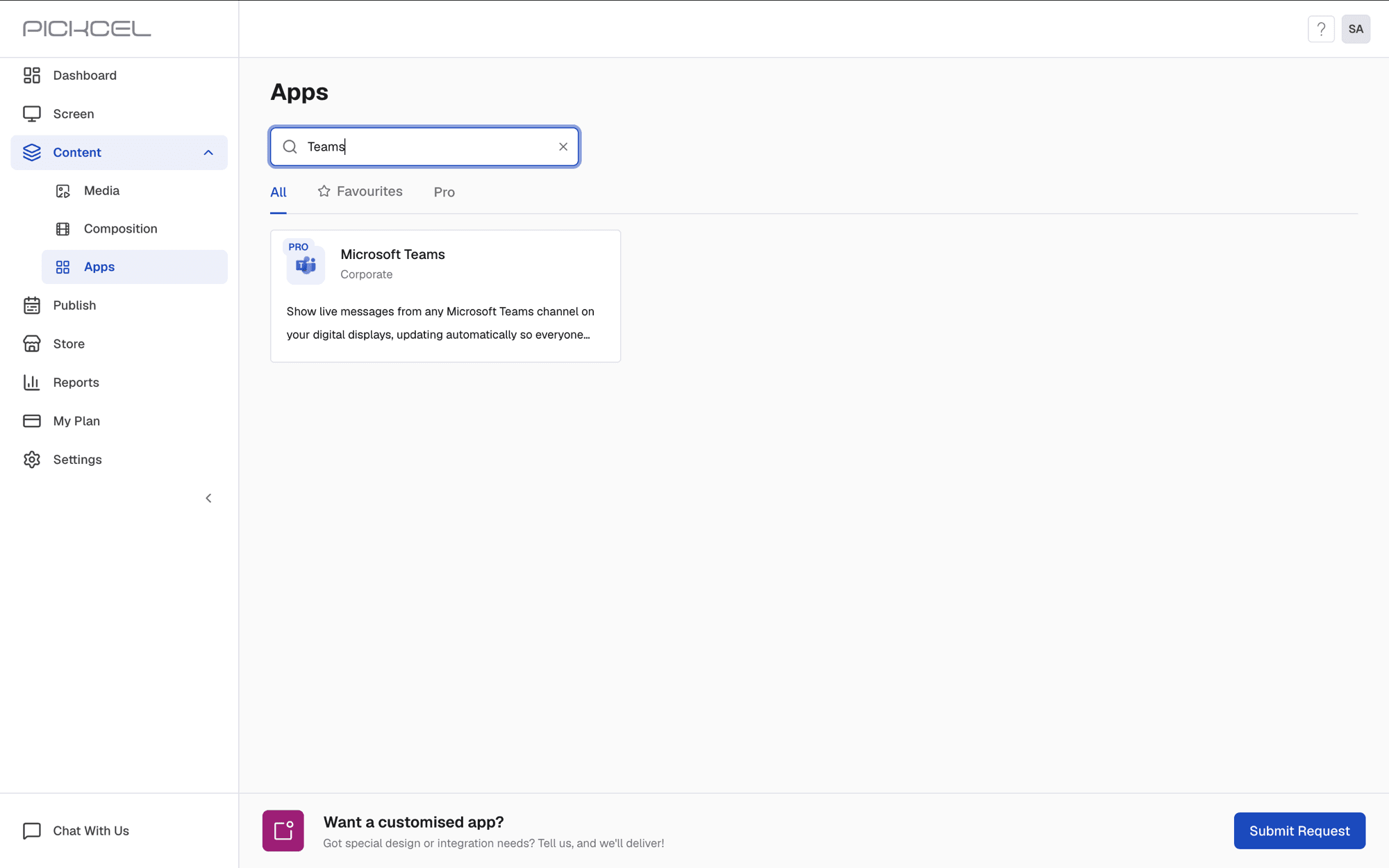
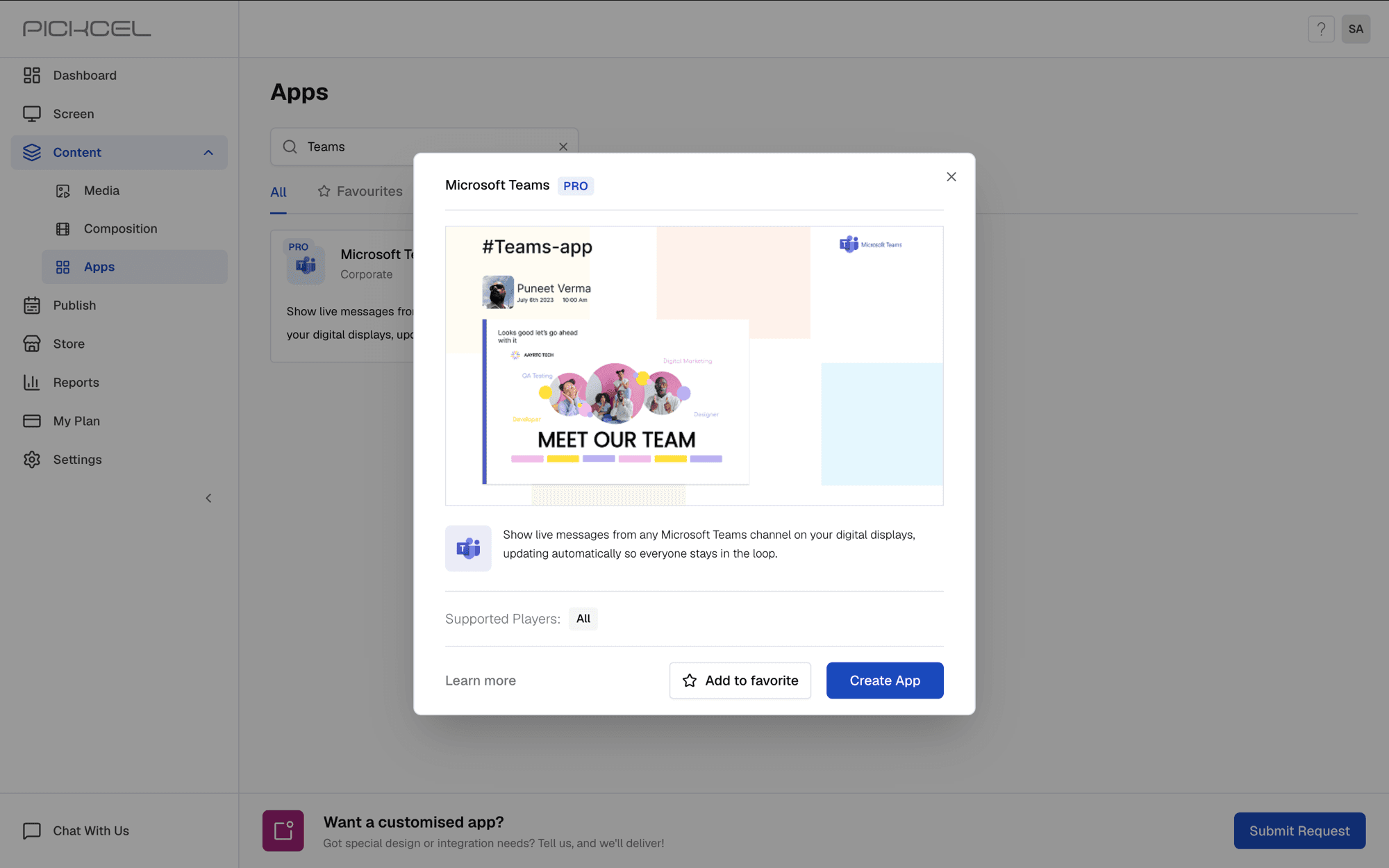
Step 1 - Search for and create the app. Log in to your Pickcel account, go to the Apps module and search for Teams. Click the Microsoft Teams app card, then click Create App in the app details panel.
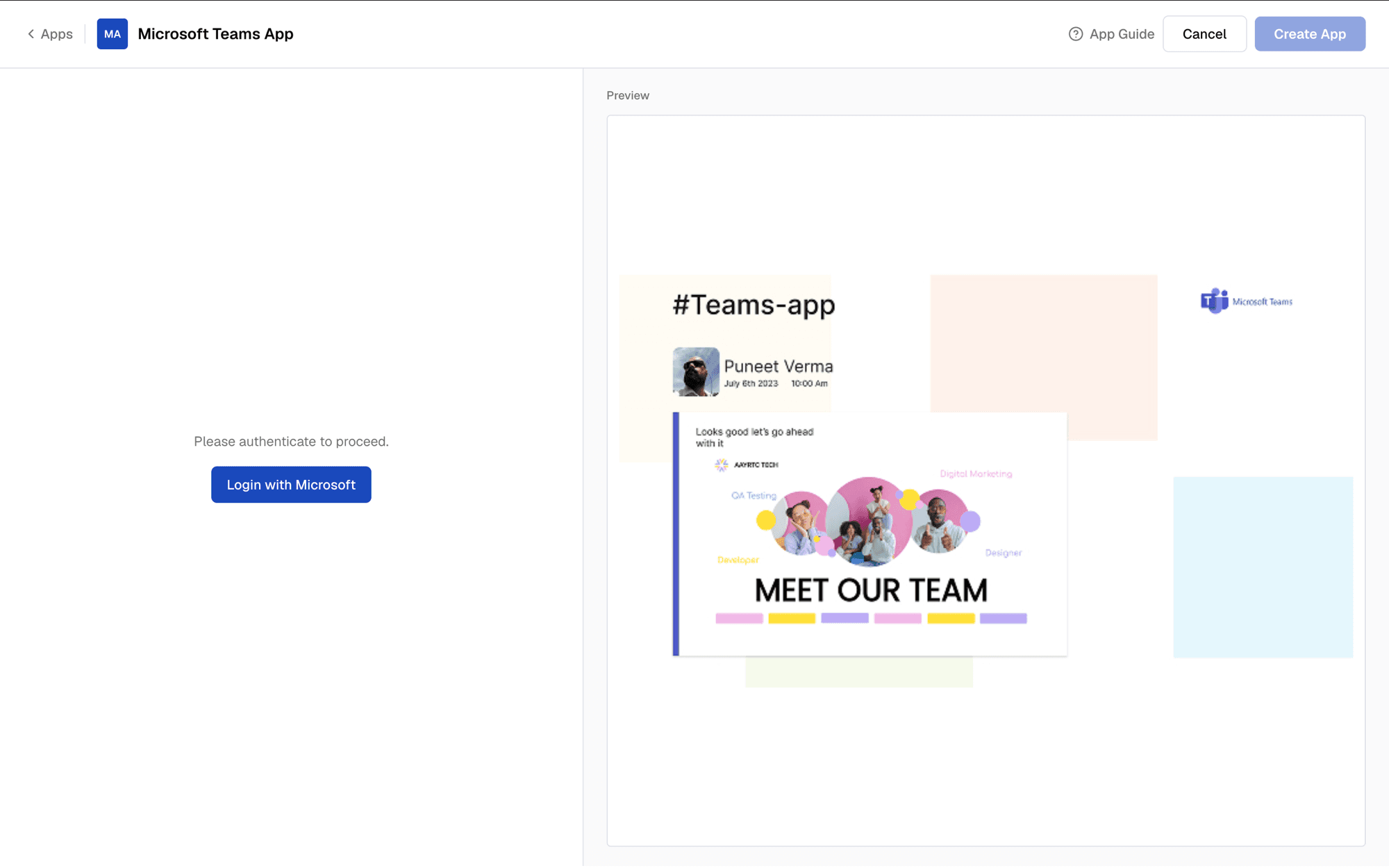
Step 2 - Click Login with Microsoft and sign in with an account that has access to the Team and Channel you want to display. Pickcel needs this connection to read messages on your behalf. Once you're signed in, a confirmation toast appears and the app configuration form loads.
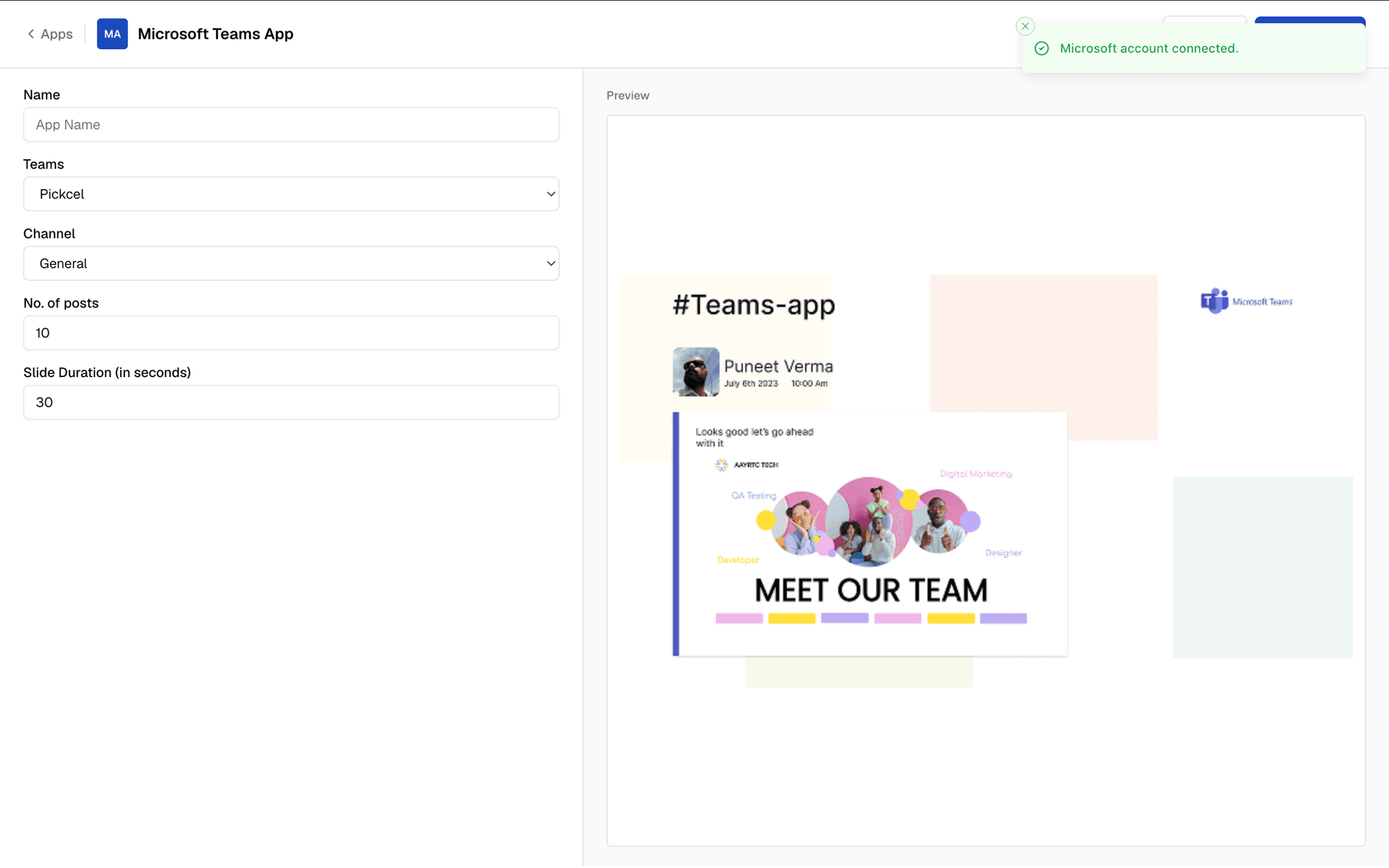
Step 3 - Enter a Name for the app so you can identify it later in the Media section, then choose the Team whose messages you want to display.
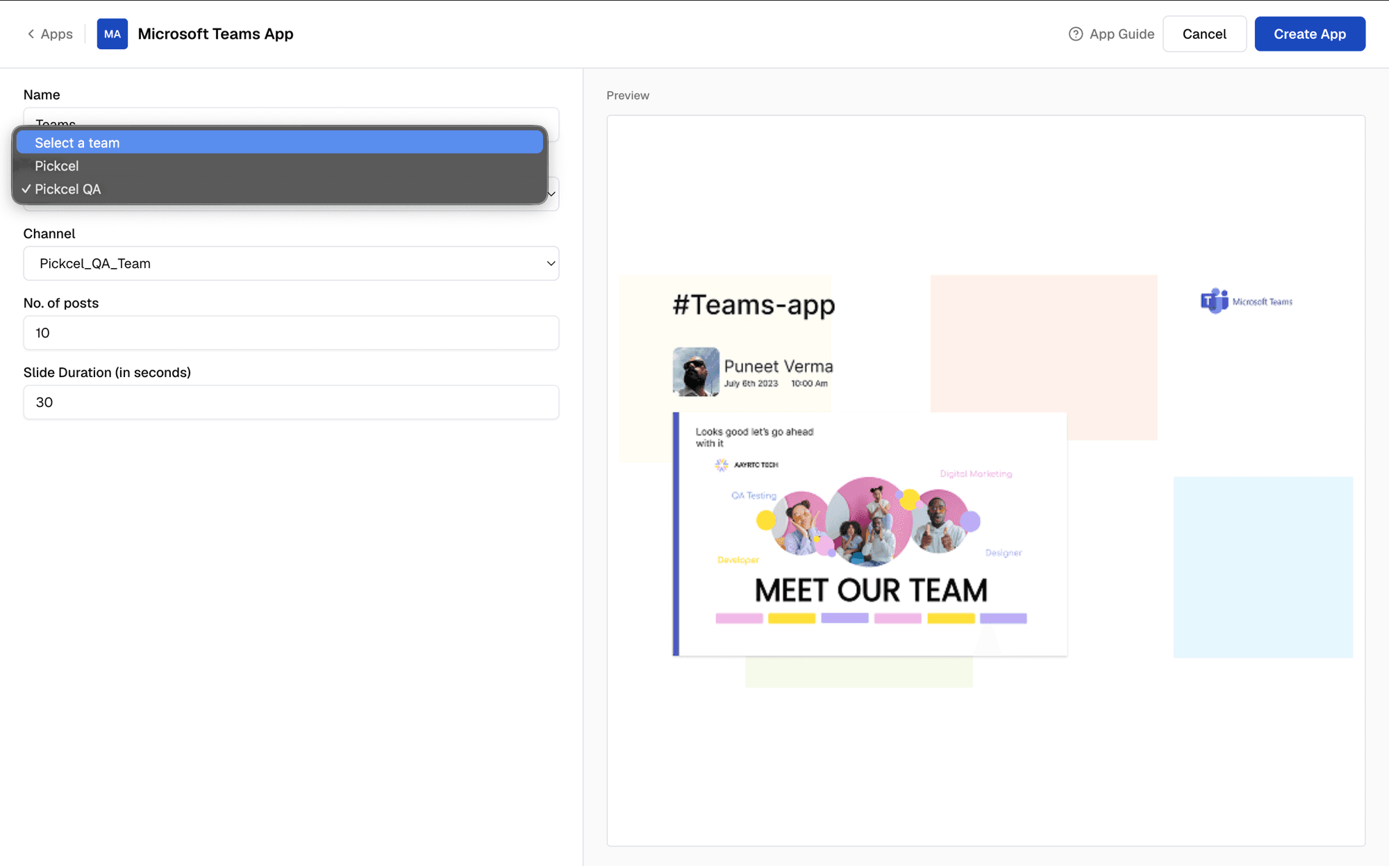
Step 4 - Pick the Channel within that Team to pull messages from.
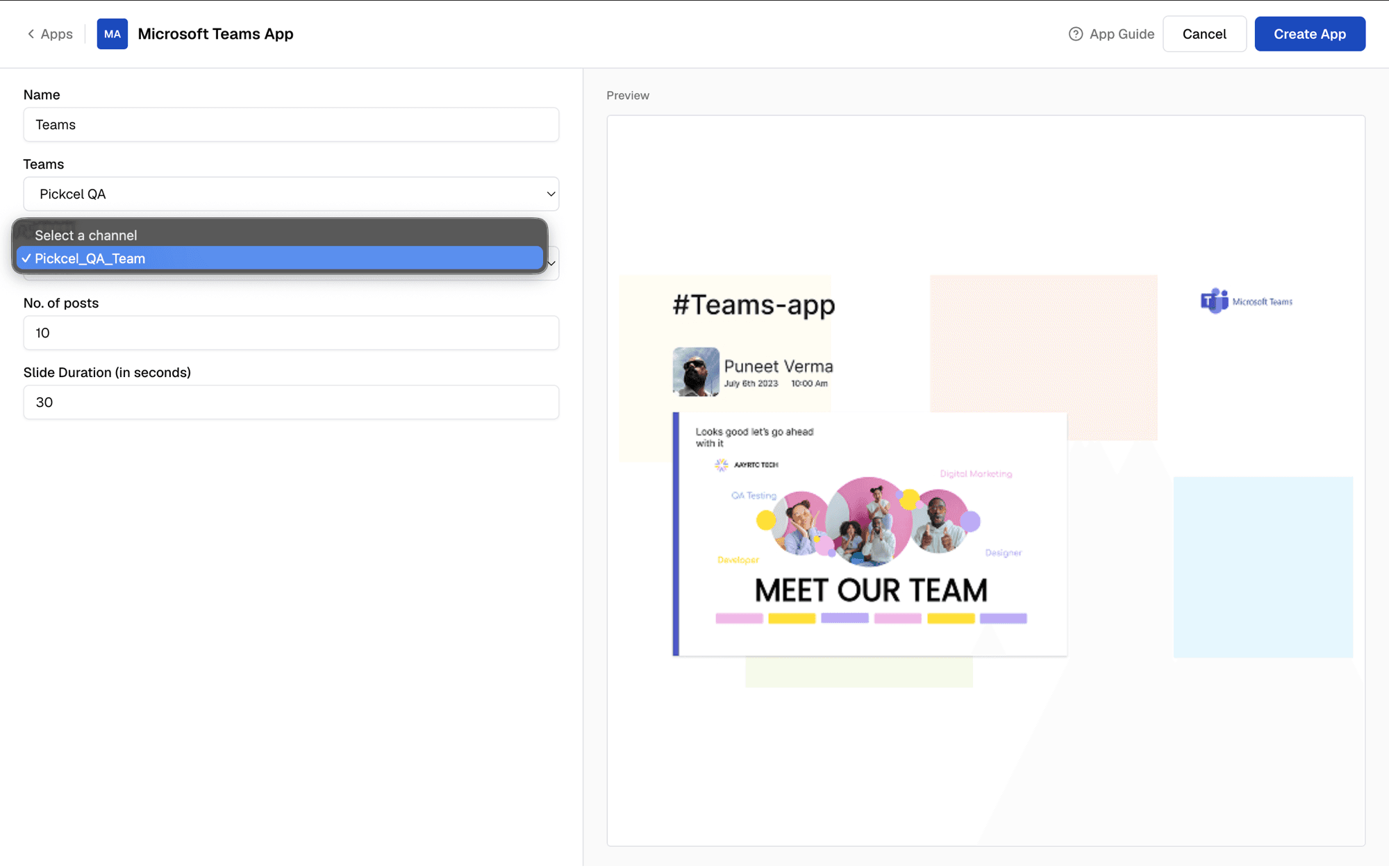
Step 5 - Set the number of posts. Choose how many recent posts from the channel to cycle through. The number of posts must be 5 or more.
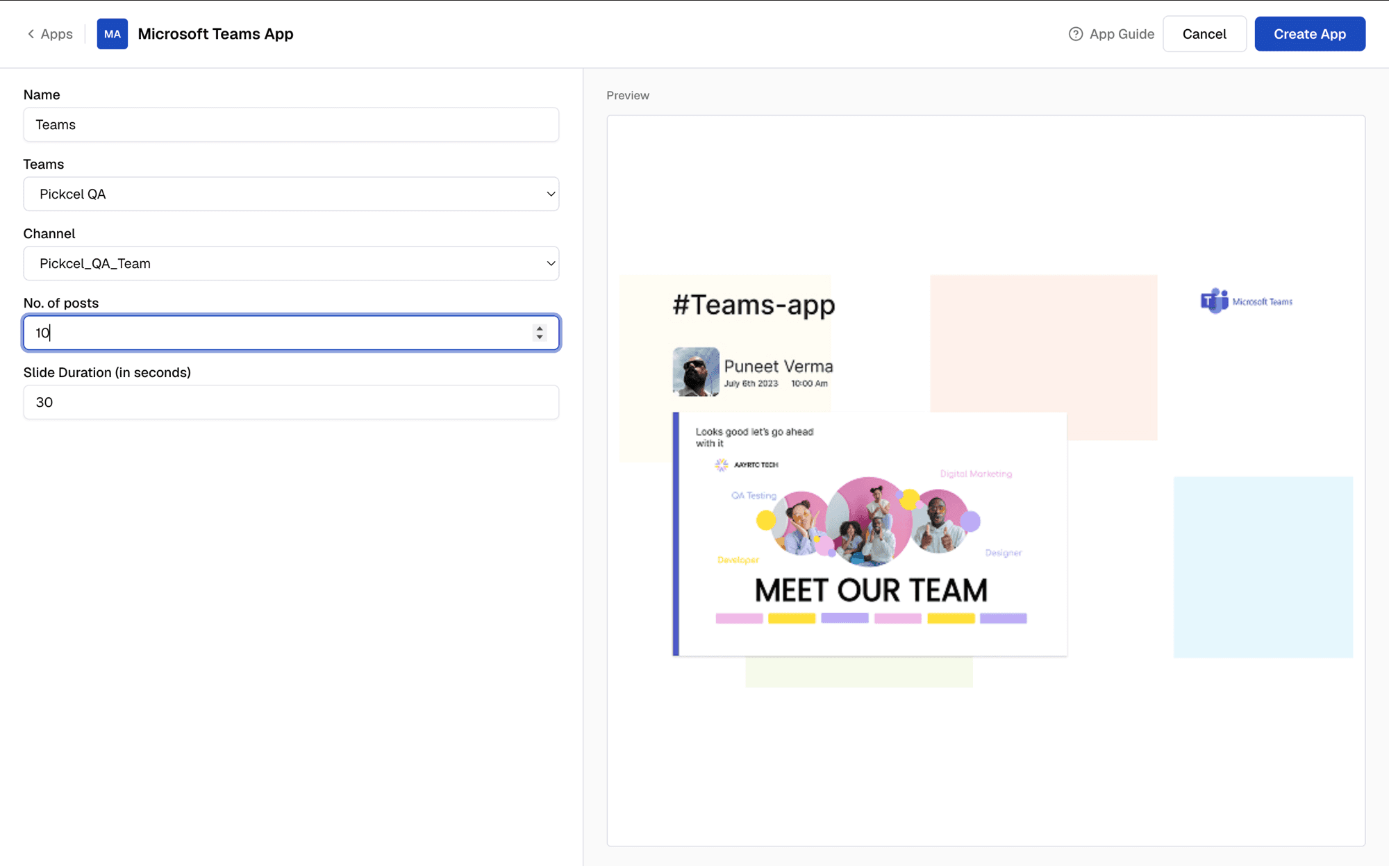
Step 6 - Set the slide duration. Decide how long each post stays on screen before moving to the next.
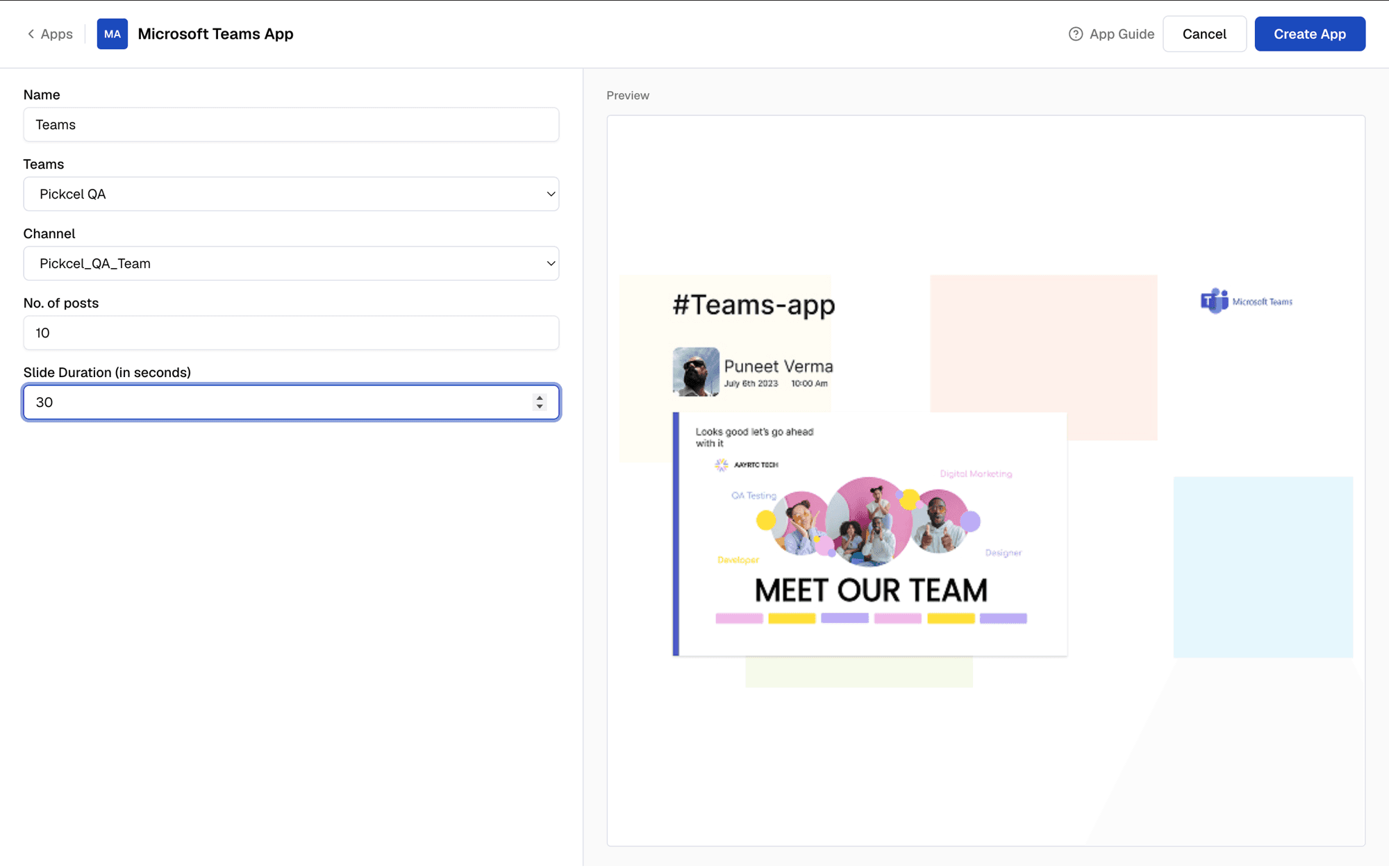
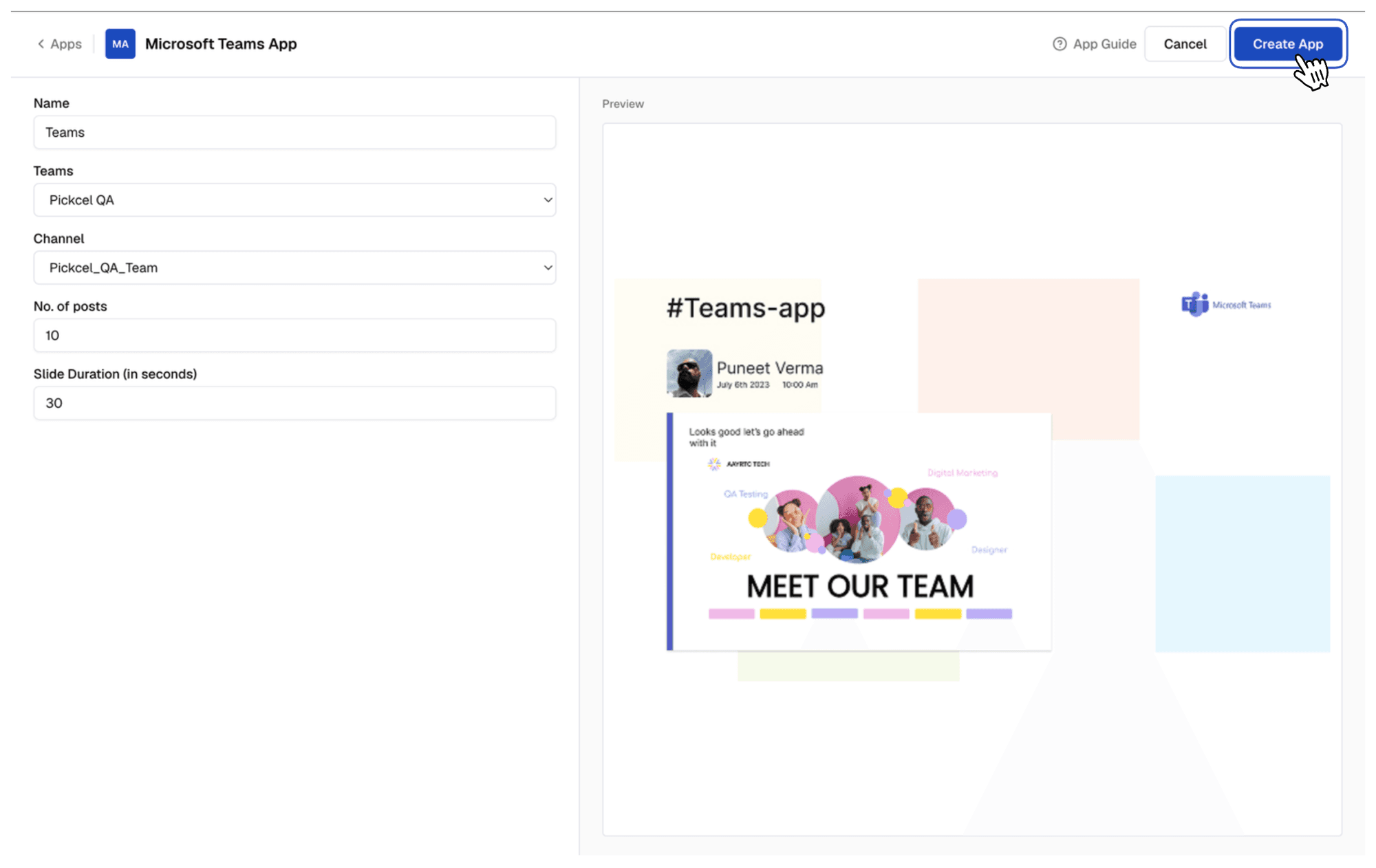
Step 7 - Click Create App to finish. Your Microsoft Teams app is now ready to use.
If the connected Microsoft account doesn't have access to the selected Team and Channel, the app shows no messages instead of an error.
What's next?
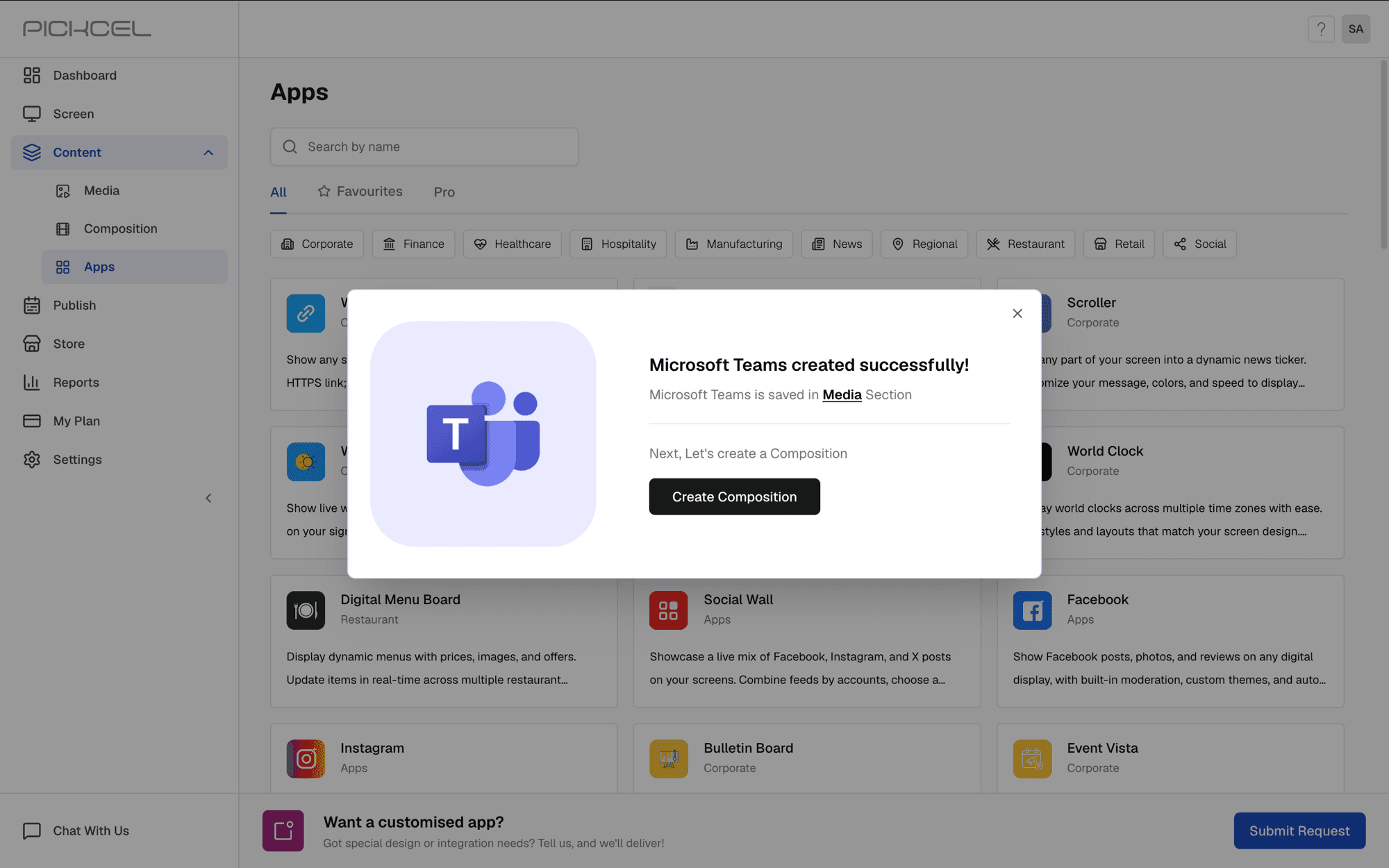
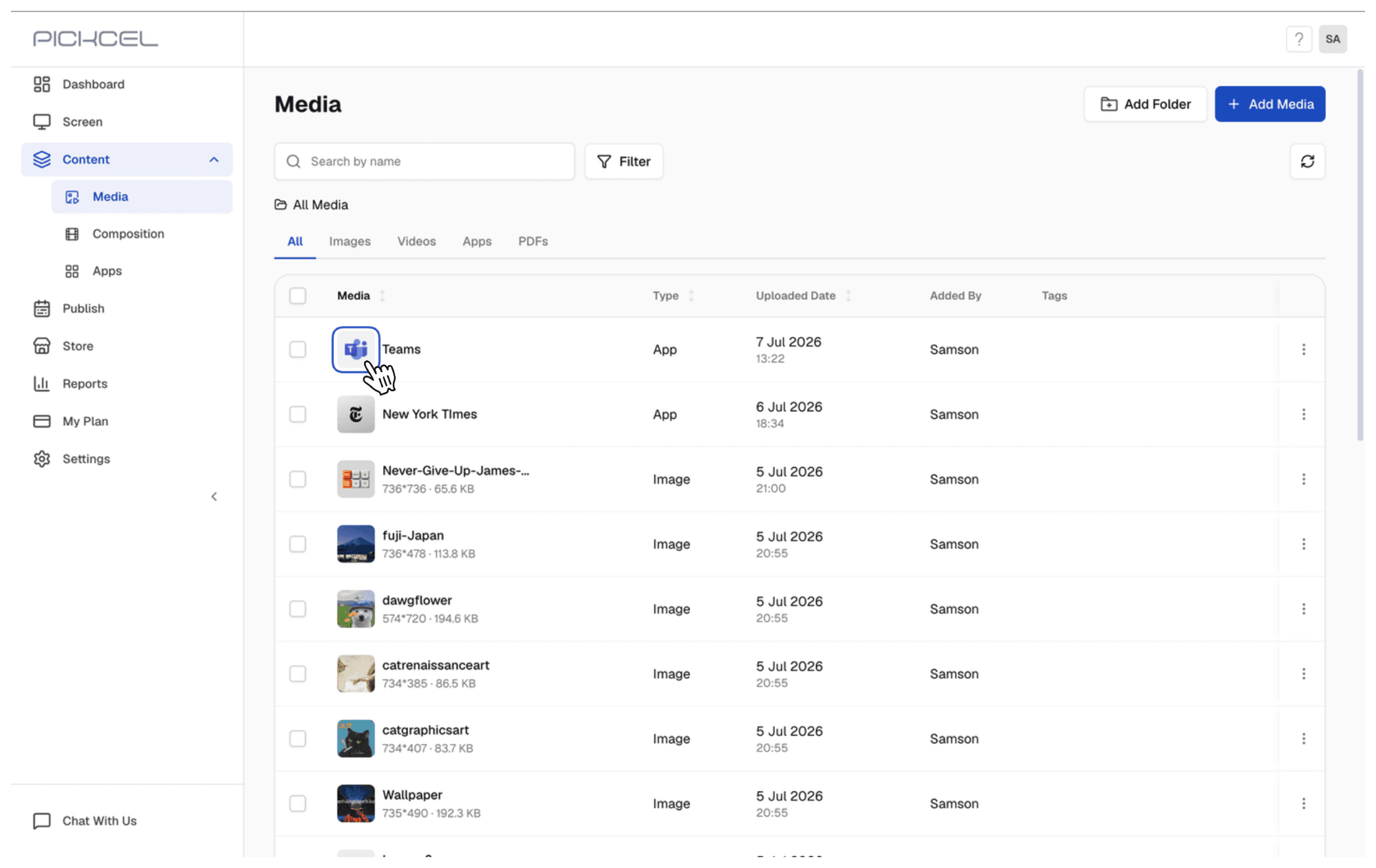
Use the app to create a composition, or preview it first. Click Create Composition right after creating the app to add it to a layout. Or go to Media, click the app's thumbnail to preview it, and assign it to a composition later before you publish or schedule it to your screens.
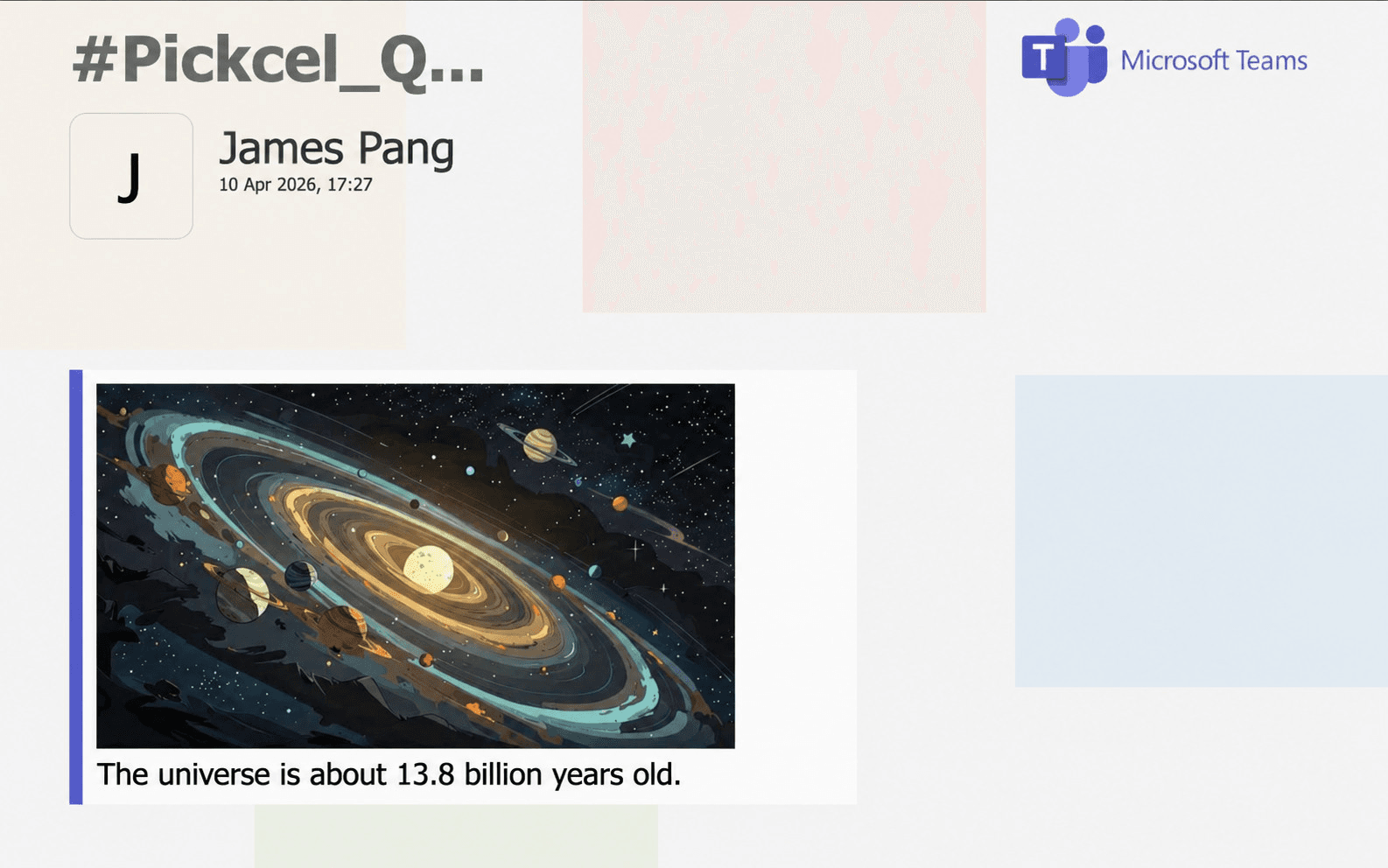
Here's how the messages look once the app is live on screen — each post is displayed along with any attached images.
For HR teams looking to go beyond announcements and boost Microsoft Teams employee engagement with digital signage, Pickcel's guide covers strategies for announcements, KPI displays, and recognition programmes.
Ready to bring your Teams conversations to the big screen with Pickcel Digital Signage? Visit Pickcel's official website to learn more!