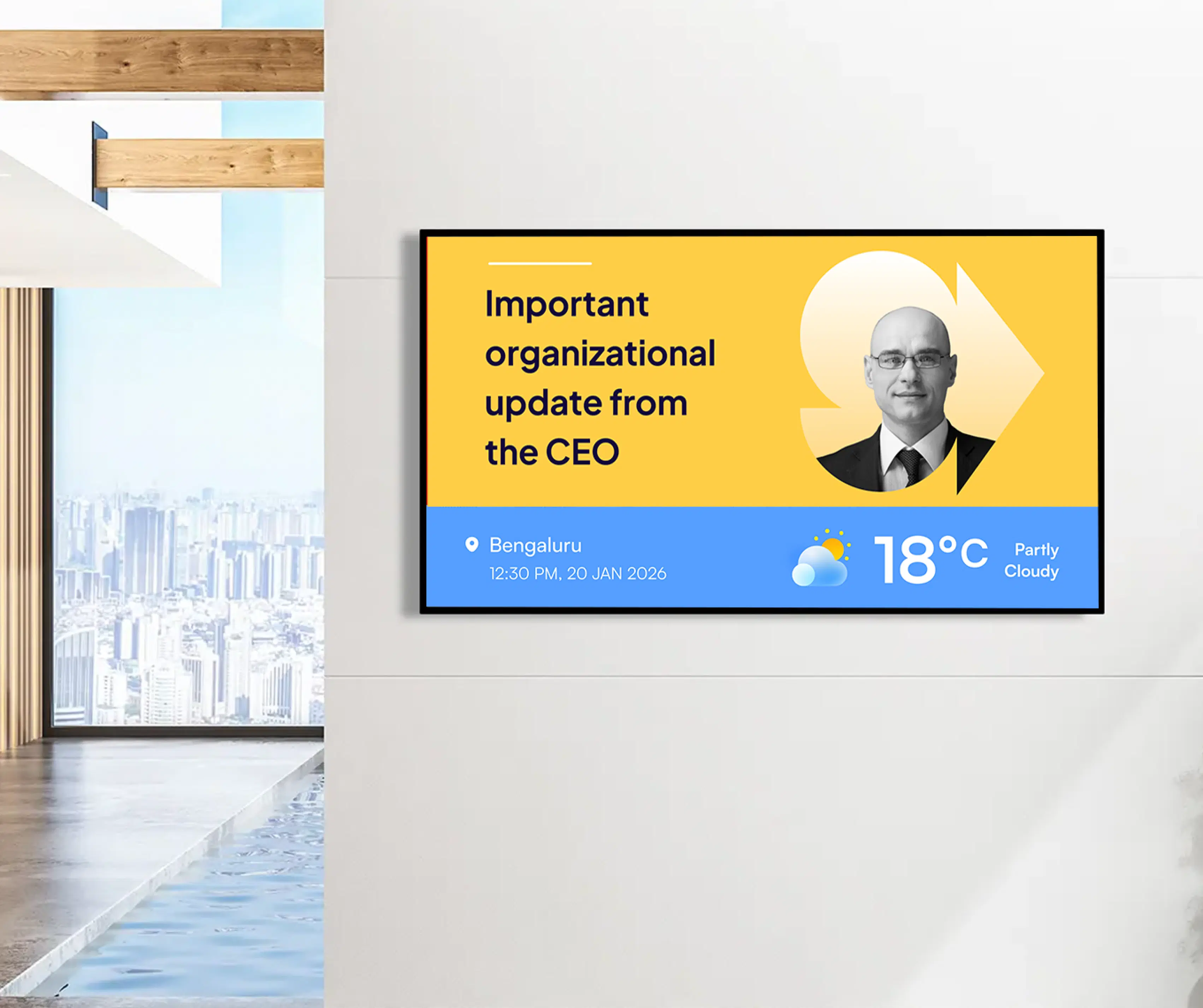
Sharepoint App
Display SharePoint content in real time on any screen to keep everyone updated.

Trusted by businesses worldwide







SOC 2 Type II
ISO Certified
Key Features Highlights

Display Styles
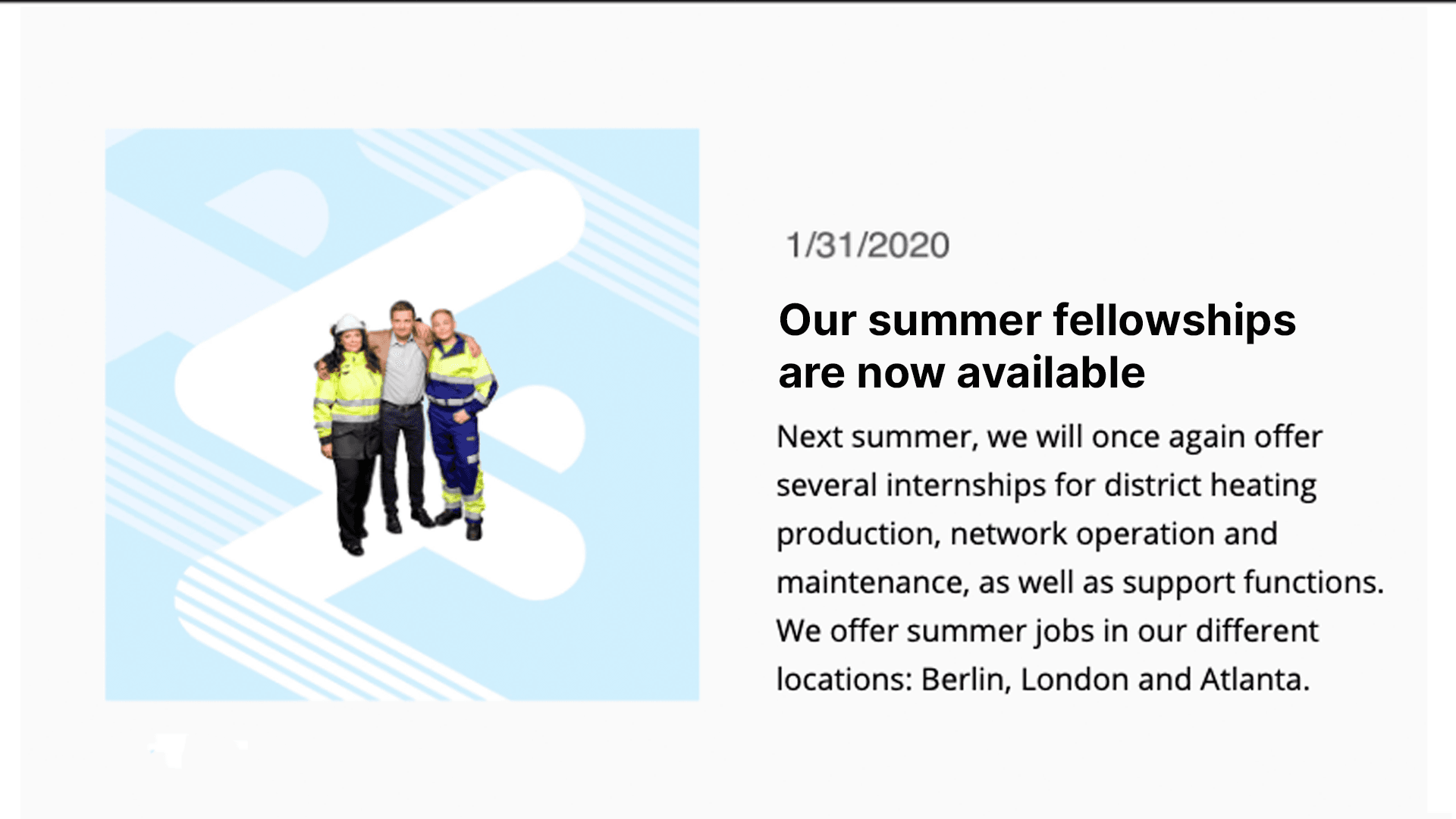
Choose Classic, Circle, or Full View to present SharePoint content cleanly on any layout or screen size.

Reliable and Secure Access
The app ensures top security with encrypted connections and verified access to your SharePoint content.
QR Code Handoff
Add a QR code so viewers can open the original SharePoint page on mobile for deeper reading and links.

Auto Refresh
Content refreshes on a schedule so screens always reflect the latest posts and edits from SharePoint.
Central Control
Manage, schedule, and combine SharePoint with videos, tickers, and dashboards from one Pickcel dashboard.
Single Page or Slideshow
Pin one important page or rotate through multiple pages with a custom duration for each slide.
One App, Many Display Styles
Style your SharePoint feed differently for every display.


Interesting Use Cases
See how teams apply the SharePoint App to simplify updates and deliver information where it matters most.

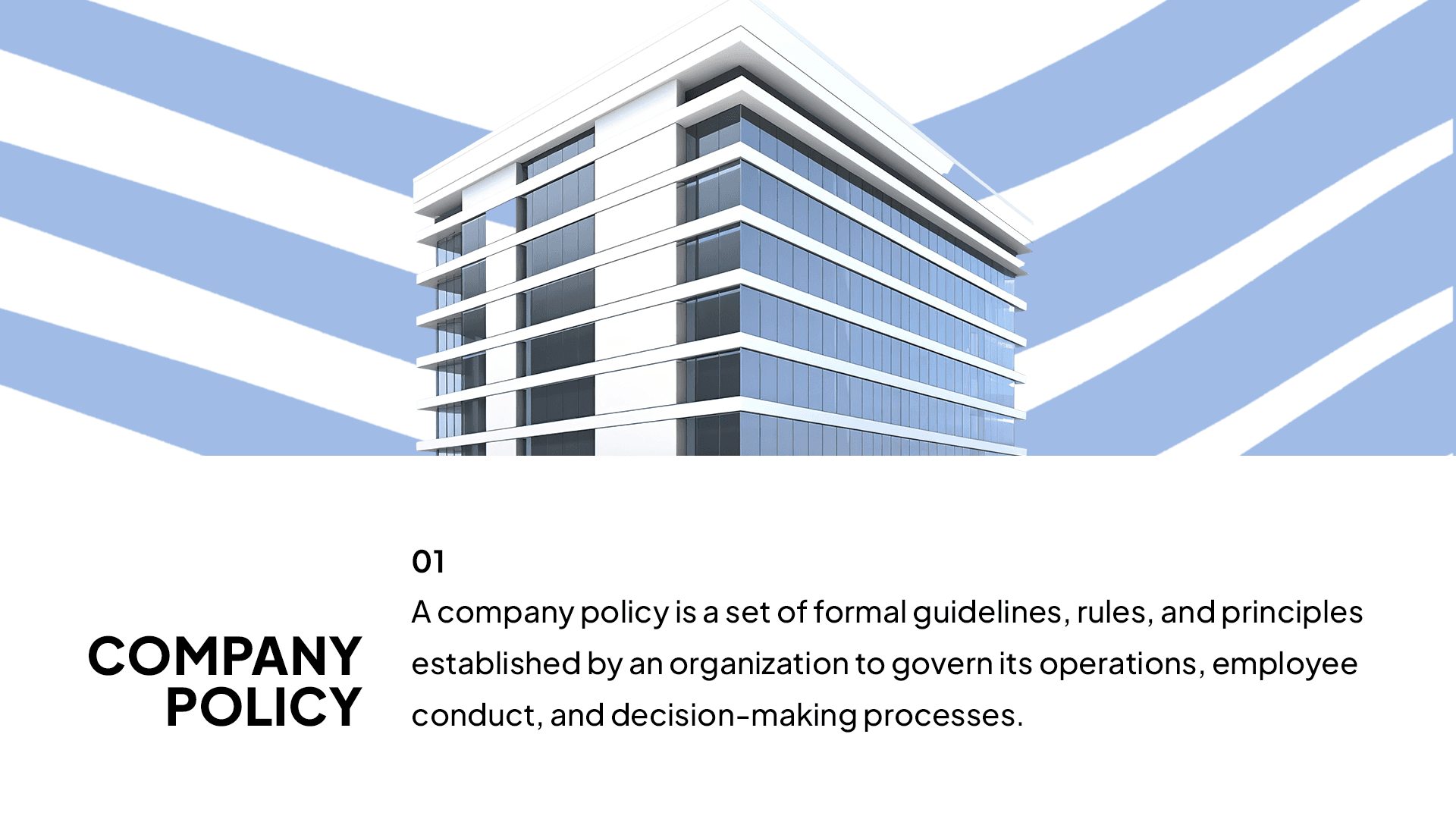
Corporate communications in HQ and branch offices
HR and IT teams show company policies, leadership messages, and rollout plans from a central SharePoint site. A rotating slideshow highlights this week’s priorities, while a QR code lets employees open the full page to view attachments and links.
Faculty and student updates on campus
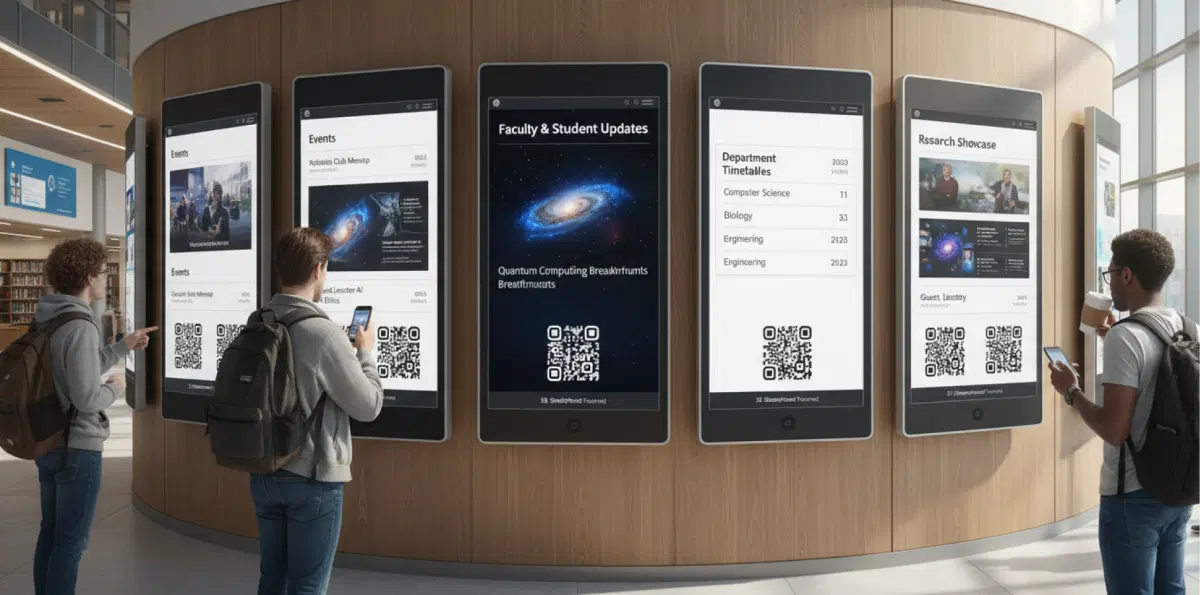
Departments publish timetables, research showcases, and event posts directly from SharePoint. Screens in lobbies and libraries loop the latest pages. Students scan the QR code to read details, register, or download resources.
Need customized apps? Connect with us.
We are open to all kinds of customization & integration with third-party applications.
How To Steps
Step 1: Configure the SharePoint App
Name the app, log in with Microsoft, select your SharePoint site, choose a page or Slideshow, pick a display style, activate QR if needed, and add the app.

Step 2: Add to a Composition
Open a composition, add the SharePoint App widget, adjust its size and position, and optionally pair it with a logo or video.

Step 3: Publish to Screens
Assign the composition to your screens, set the schedule, and publish. Your screens will update automatically with new SharePoint changes.
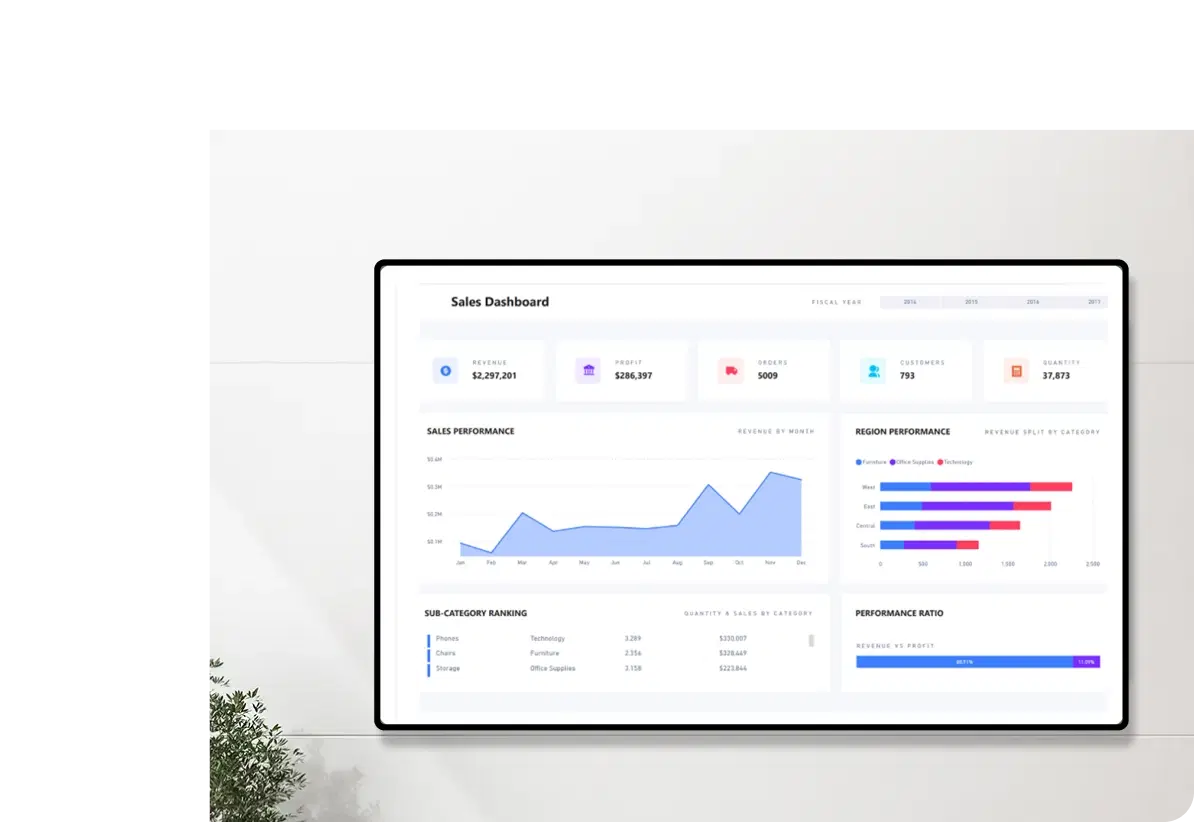
More Pickcel Apps to Complement the SharePoint App on your Digital Signage
Modern workplaces communicate everywhere – not just on wall displays. Pickcel extends your internal communication to every screen employees see.