Wi-Fi Connect App
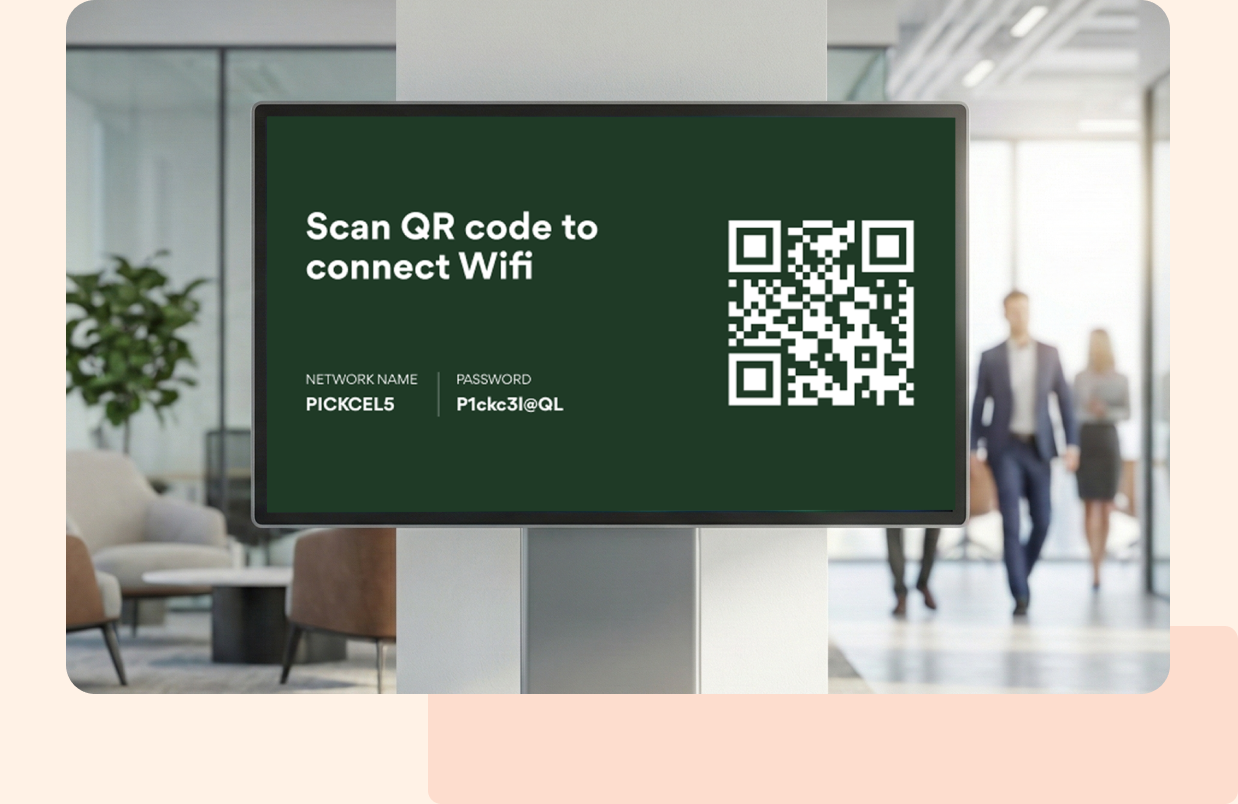
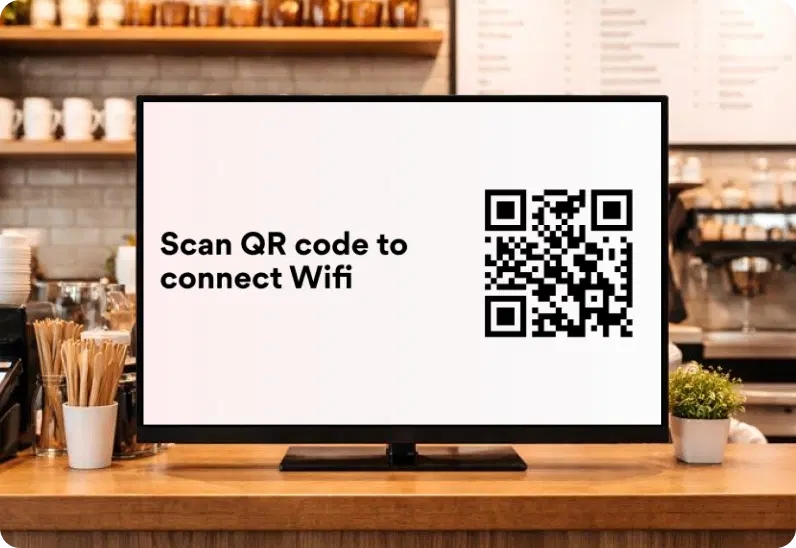
Display a branded Wi-Fi QR code for instant, password-free access—manage network credentials and updates centrally across all screens.

Trusted by businesses worldwide







SOC 2 Type II
ISO Certified
Key Feature Highlights

Instant QR Access
Generate and display a unique QR code that guests can scan to connect immediately — no passwords or staff assistance required.

Custom Branding
Add your company logo and personalized message to make even Wi-Fi access feel like part of your brand experience.

Flexible Themes & Layouts
Pick from Classic, Minimal, or Transparent themes in light or dark mode to fit any signage design or screen orientation.

Secure Network Sharing
Credentials are safely encoded within the QR code, ensuring guest access without exposing sensitive details.

Portrait & Landscape Support
Optimize your Wi-Fi display for any setup — from vertical lobby screens to widescreen menu boards.

Real-Time Updates
Manage and refresh your Wi-Fi details remotely from the Pickcel dashboard — changes appear instantly across all screens.
One App, Many Display Styles
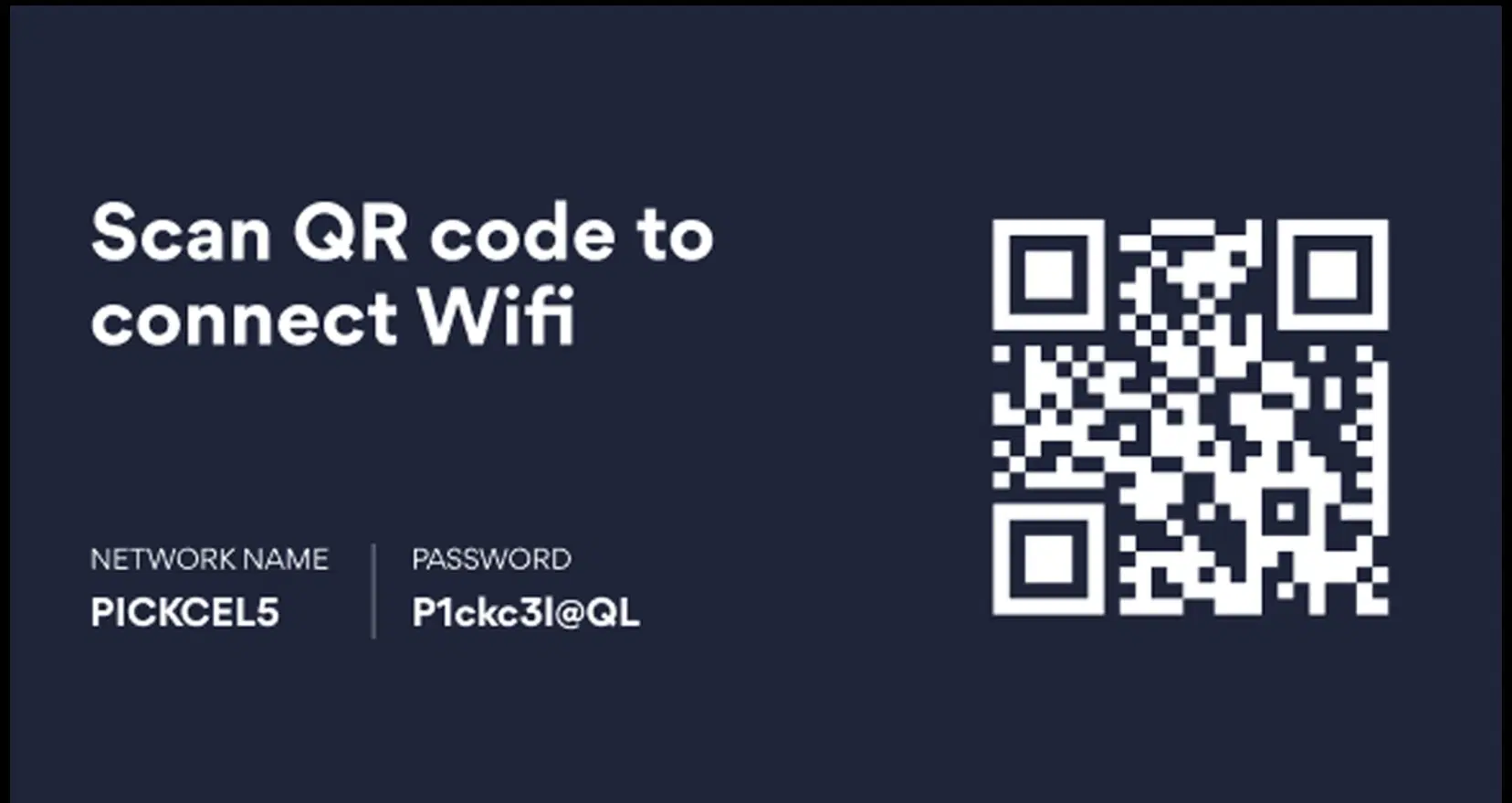
Classic, modern, or minimal - find a style that fits your brand.


Interesting Use Cases
See how global brands deploy Pickcel to unify updates, broadcast insights, and improve visibility across corporate environments.
Hospitality & Cafés
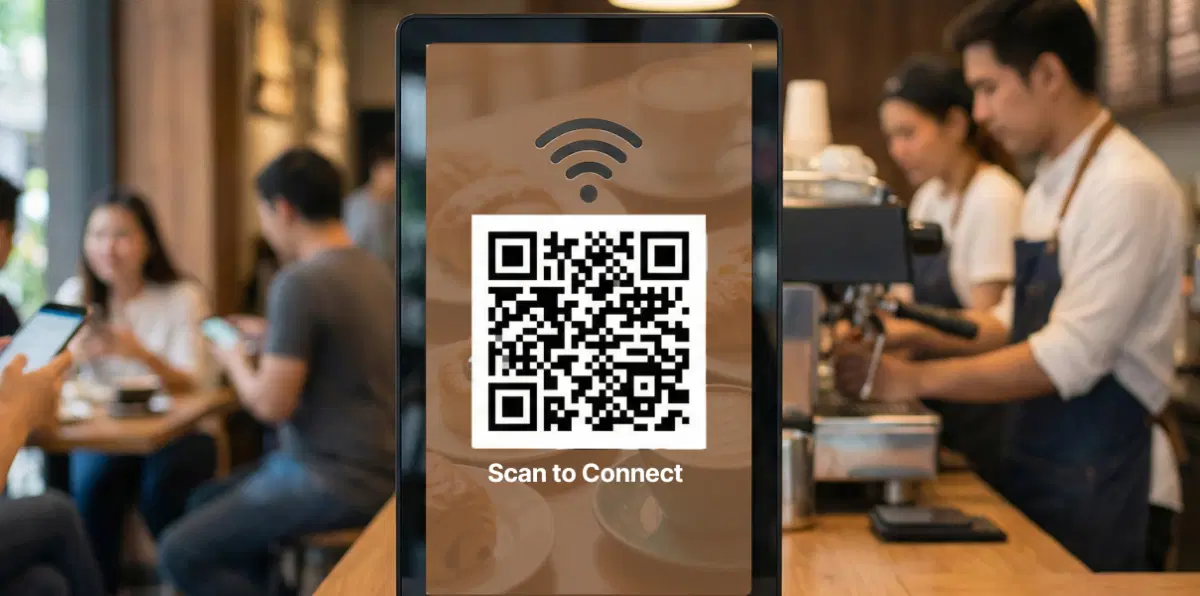
Display your Wi-Fi QR code on counter or waiting-area screens so customers can connect in a single tap while ordering or dining. No more asking staff for credentials — it’s fast, friendly, and efficient.
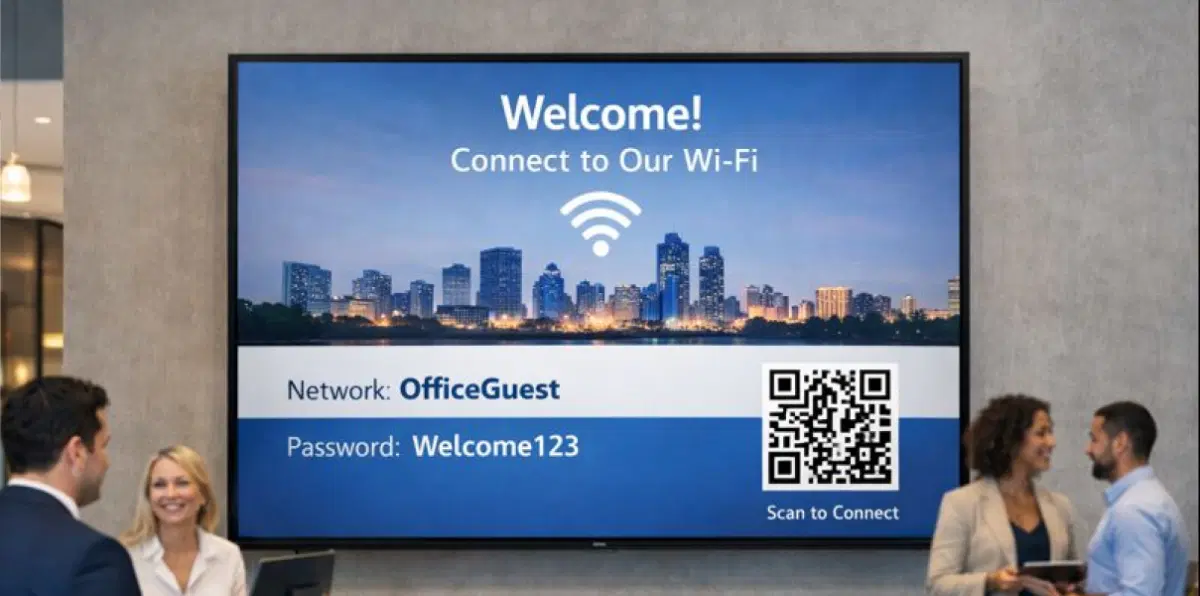
Corporate Offices & Co-Working Spaces
Welcome clients and guests with an easy, branded Wi-Fi access point in lobbies or meeting areas. It saves time for reception teams and adds a professional touch to your workplace experience.
How-To Steps
The Wi-Fi Connect App connects securely with Pickcel CMS and lets you publish Wi-Fi QR codes to screens in cafes, lobbies, and meeting areas — all from one simple interface.
Step 1: Configure the app
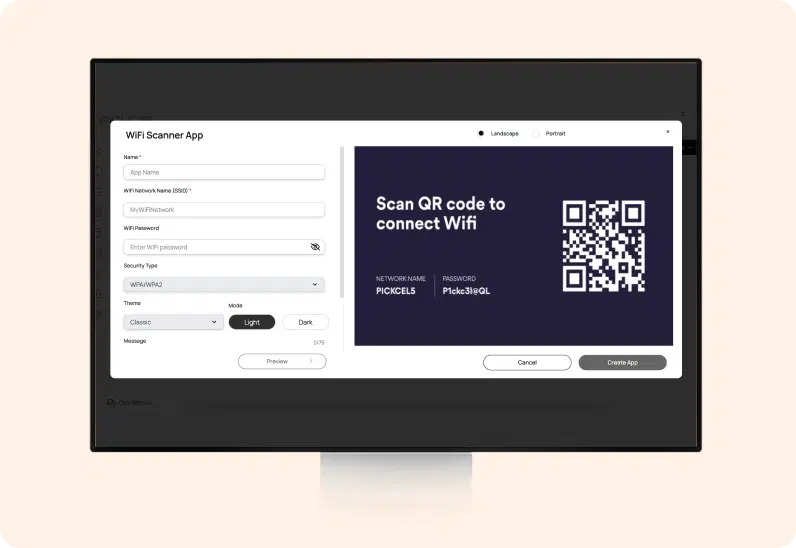
Open the Pickcel dashboard, go to Apps, and select Wi-Fi Connect. Click Create App, name it, then enter your Wi-Fi SSID, password, and security type. Choose a theme, set screen orientation, and optionally add your logo and a short welcome message.
Step 2: Add to a composition
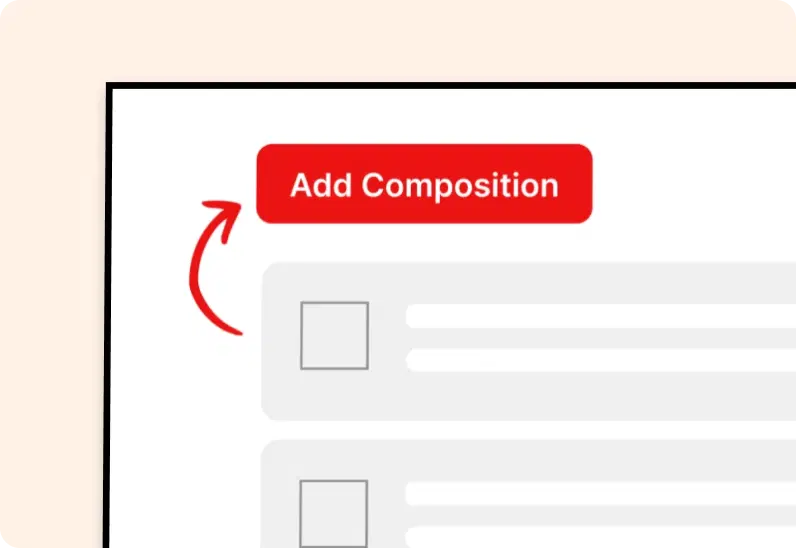
Click Create App to save it to your media library. Create a new composition, drag the Wi-Fi Connect app onto the canvas, position and size it, and optionally pair it with a welcome banner or promo.
Step 3: Publish to Screens
Assign the composition to your selected screens or screen groups and click Publish. Your QR code appears instantly on the displays so guests can scan and connect.
More Pickcel Apps to Complement the Wi-Fi Connect App on your Digital Signage
Modern businesses communicate everywhere — not just on wall displays. Pickcel extends your communication to every screen customers see.