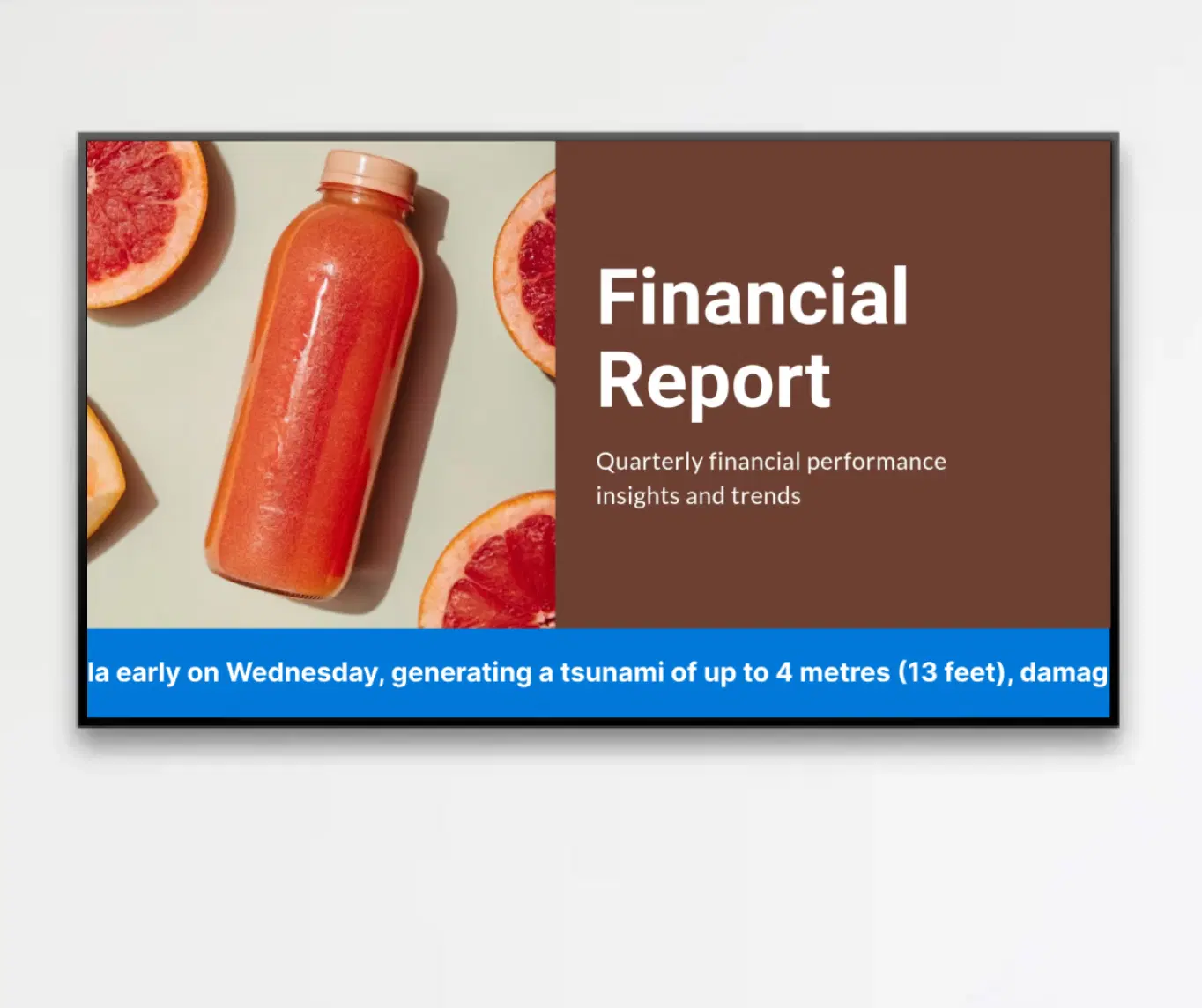
MS Office: Word, PPTX, Excel
Showcase PowerPoint, Word, and Excel files - seamlessly on your digital signage with our native app.


Trusted by businesses worldwide







SOC 2 Type II
ISO Certified
Key Feature Highlights

Multi-Format Document Support
Display PowerPoint (.pptx), Word (.docx), or Excel (.xlsx) documents directly on your digital signage without extra formatting.

Automatic conversion
The app automatically converts your files into a signage-optimized format, ensuring consistent display across all screen sizes and orientations.

Flexible playback control
Choose between auto-advancing slides or allow viewers to manually navigate through slides or pages using on-screen arrows—ideal for kiosks, meetings, or touch-enabled displays.

Customizable Display Settings
Set display titles, define slide/page durations, and tailor your presentation to fit the audience and context.

On-Prem Ready (Local Network)
This app is available in Pickcel’s on-prem signage solution, so you can run it inside your local network and keep PowerPoint, Word, and Excel content behind your firewall with full control and policy compliance.
One App, Many Display Styles
Classic, modern, or minimal - find a style that fits your brand.



Interesting Use Cases
See how organizations use MS Office integration to display documents, presentations, and spreadsheets on digital signage.
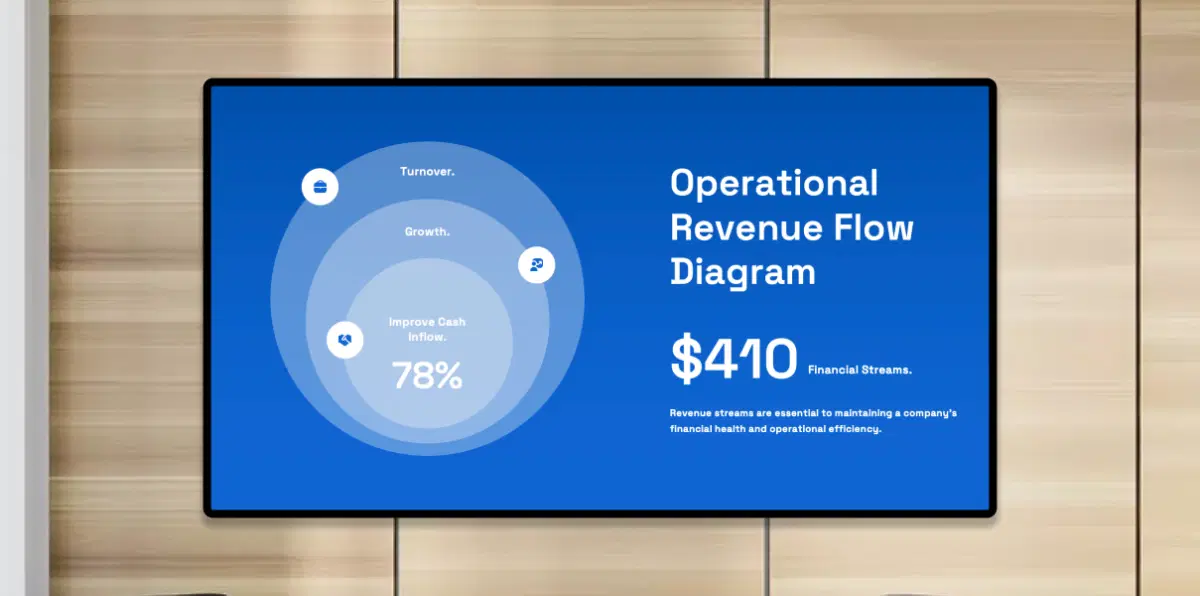
Corporate Offices
Display monthly sales reports, company announcements, or training materials in lobbies, meeting rooms, or collaborative workspaces to enhance awareness and engagement.
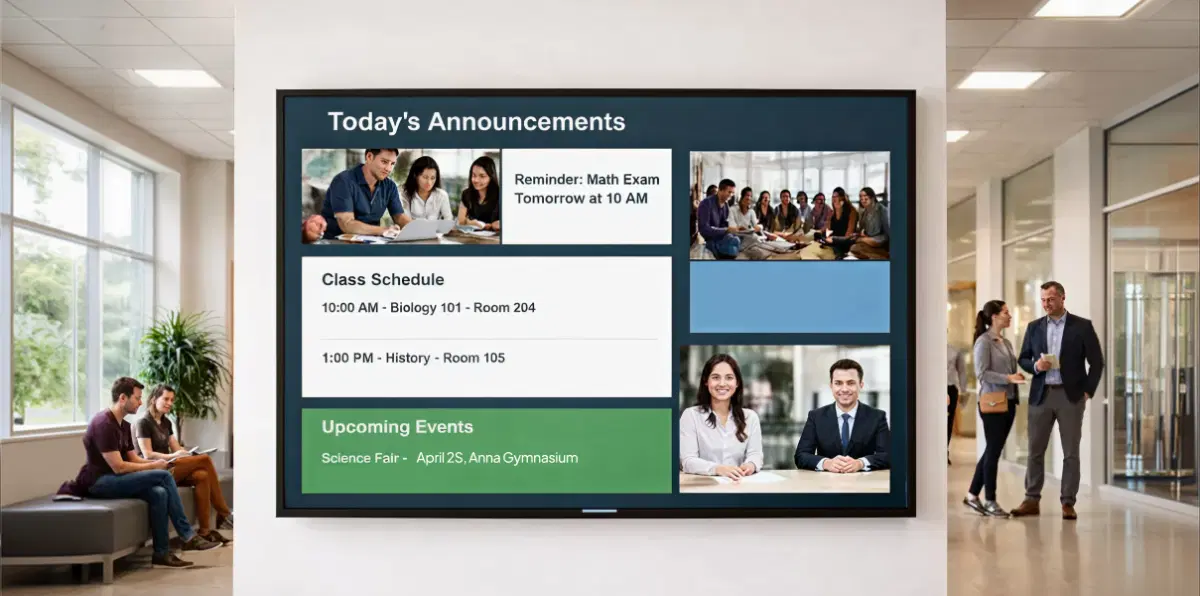
Education Institutions
Share lecture notes, timetables, and classroom presentations on hallway screens, faculty lounges, or reception areas for seamless information delivery.

How-To Steps
The SharePoint App connects securely with Pickcel CMS and lets you publish documents, presentations, and spreadsheets to office screens, campuses, and common areas — all from one simple interface.
Step 1: Configure the app
Upload your PowerPoint, Word, or Excel file. Set slide duration, choose mode of display, and name your app instance.

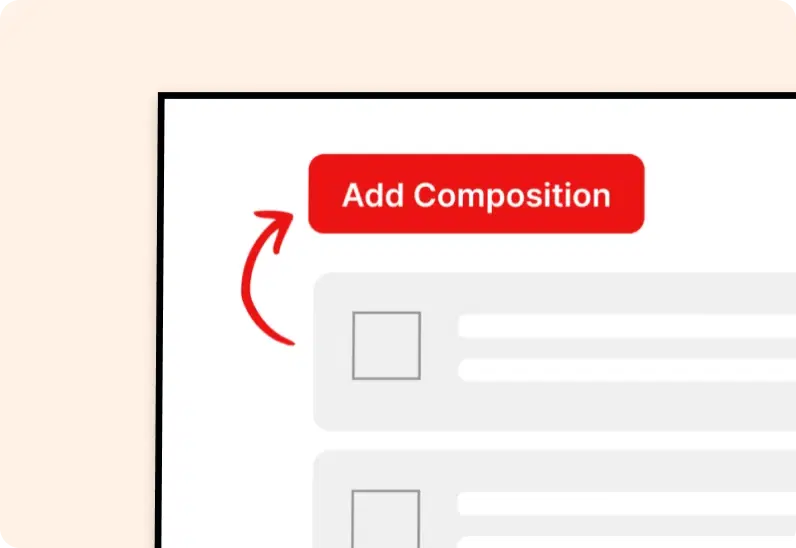
Step 2: Add to a composition
Choose a single-zone layout for full-screen presentations/word doc/excel report or integrate the app within a multi-zone layout alongside other content.
Step 3: Publish to Screens
Select your target screens and hit Publish to broadcast your Office documents instantly across your digital signage network.

More Pickcel Apps to Complement the SharePoint App on your Digital Signage
Modern workplaces communicate everywhere — not just on wall displays. Pickcel extends your internal communication to every screen employees see.