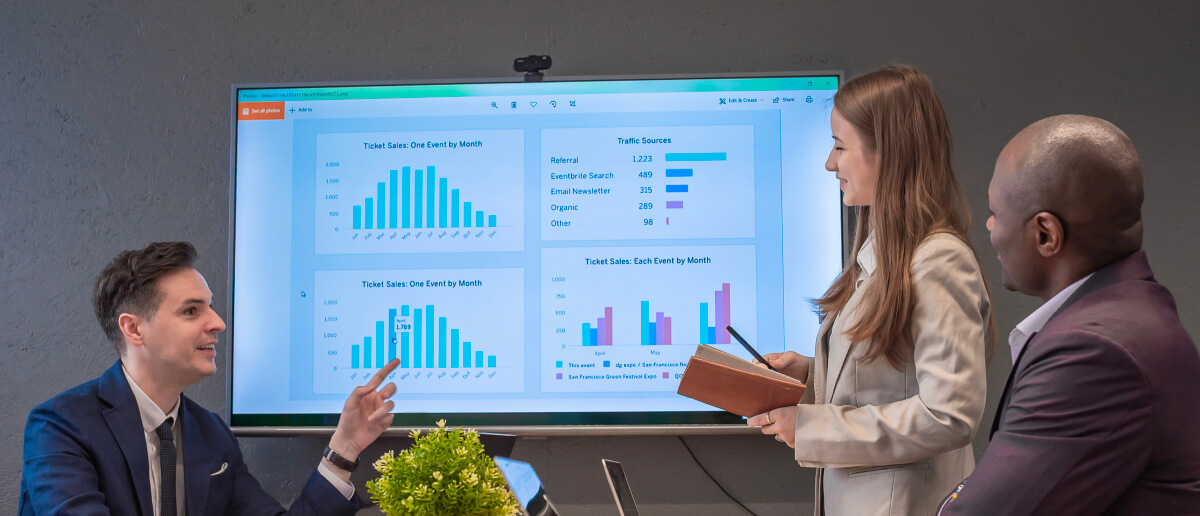
What a TV dashboard is, the hardware and data connections you actually need, and what to look for before you buy.
- A TV dashboard needs a data source, a player, and a display.
- Logins and sleeping PCs break most TV dashboards, not the TV.
- Dedicated software earns its cost at three screens or more.
What Is a TV Dashboard?
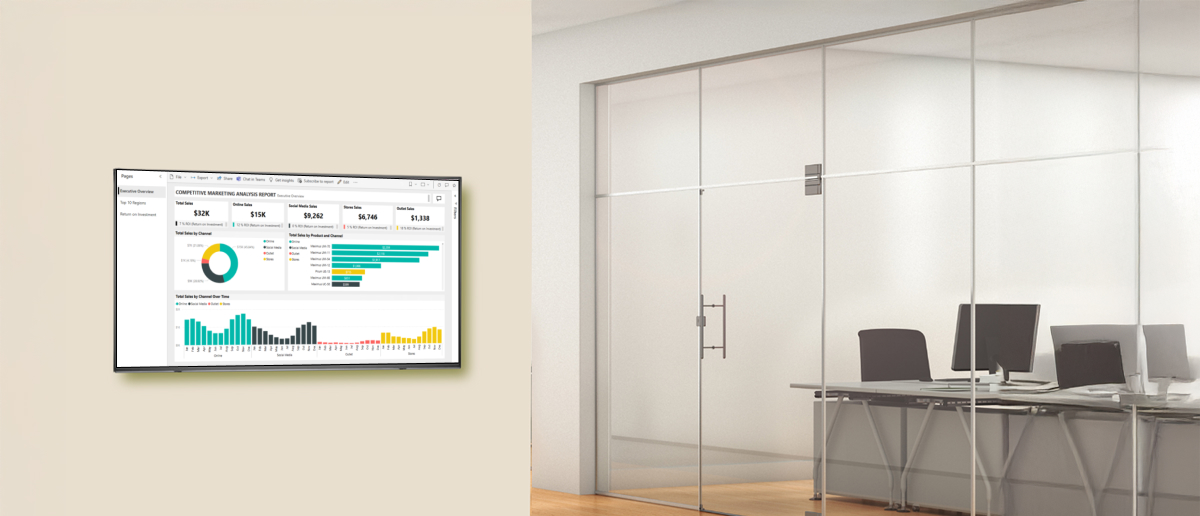
A TV dashboard is a business dashboard, built in a tool like Power BI, Grafana, or a CRM's own reporting view, shown continuously on a television or commercial display instead of a personal computer screen. The distinction that matters is audience: a personal dashboard is opened by one person when they choose to look, while a TV dashboard is always visible to whoever walks past, which changes what belongs on it and how it gets connected.
What You Get From Putting Data on a TV
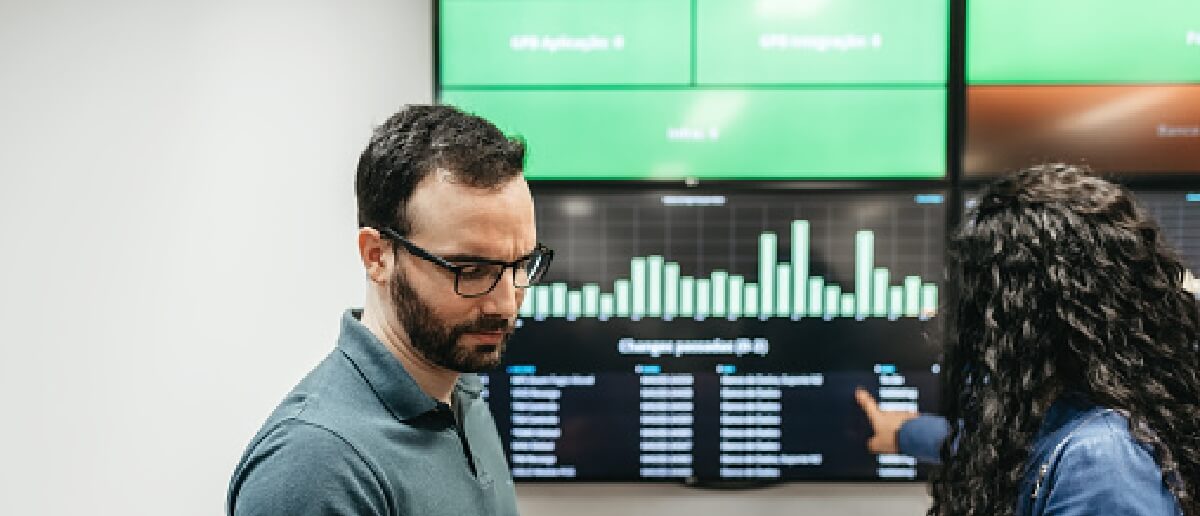
Once a number lives on a screen instead of behind a login, people stop treating it as something to go find. A supply chain team stops asking “what’s our on-time rate today” in a meeting and instead just looks up. A support team notices queue depth climbing before it becomes a backlog, because the number is in their peripheral vision all shift, not buried in a tab they’d have to remember to check.
It also creates a shared reference point. When the same number is on a shared screen instead of five separate laptops, a disagreement about “what does the dashboard say” mostly disappears, because everyone in the room is looking at the same instance at the same moment.
Where Teams Actually Put a TV Dashboard
Corporate and sales offices run pipeline, bookings-to-target, and lead conversion on a shared screen so the team tracks progress against the period without pulling a report.
Retail and e-commerce operations put foot traffic, inventory exceptions, or loyalty-program activity on a back-office screen, giving supply chain and store staff a shared read on the day without a status meeting.
Manufacturing and logistics floors track equipment downtime, supplier performance, and shipment status where the people who can act on a problem are standing, not in an office down the hall.
Healthcare units show bed availability, patient wait times, or operating-room status so staff coordinate on the floor without paging someone for an update.
What You Actually Need to Run One
Three things determine whether a TV dashboard survives past its first week: the display, the player behind it, and the connection to your data. Get any one of these wrong and the dashboard becomes the thing nobody trusts.
TV vs. commercial display. A consumer smart TV works for a single screen that someone restarts occasionally, but it isn’t built to run one image for 10+ hours a day, every day. Commercial and signage-grade displays are rated for continuous “always-on” use and typically carry a longer warranty for that duty cycle. For one screen in a low-visibility spot, a TV is a reasonable trade-off. For anything customer-facing or safety-related, the duty-cycle rating stops being a minor detail.
The player question. Something has to hold the connection to your data and render it, and it isn’t the TV itself unless the display has a capable built-in system-on-chip (SOC). Most setups add a dedicated media player running purpose-built digital signage software : a small box that plugs into the HDMI port and does the connecting, refreshing, and recovering. This is the single biggest reliability difference between “casting a browser tab” and running a managed dashboard.
Mounting and orientation. Wall-mounted screens read as more intentional and permanent than a TV on a cart, and orientation matters more than people expect: a dashboard built for landscape rarely reads well cropped into portrait, so decide the orientation before the layout is built, not after.
What happens on power loss. A screen that needs a person to press a button after every outage will eventually sit dark for a day before anyone notices. A managed player that reconnects and reloads its dashboard automatically on power-up removes that failure mode entirely; a consumer TV with a browser tab open usually does not.
Free download
TV Dashboard Setup Checklist
Get the TV dashboard setup checklist as a 1-page PDF.
Connecting the Dashboard to Your Data
The display is the easy half. The data connection is where most TV dashboard projects actually stall.
Power BI , Grafana , Tableau, and similar BI tools are usually the source, since the dashboard likely already exists there before anyone thinks about putting it on a TV. The player needs a way to hold an authenticated view of that report without a person re-logging in every morning, which is the part a plain browser tab does not handle well.
CRM and support tools like Salesforce or Zendesk often feed a TV dashboard directly, particularly for sales and service floors, since the numbers that matter (pipeline, ticket queue) live natively in those systems rather than in a separate BI layer.
Refresh behavior is a data-source decision, not just a display setting. A queue-depth number that changes every few minutes needs a short refresh interval to stay useful; an executive summary reviewed weekly does not, and forcing it to refresh every minute adds load without adding value. For a closer look at connecting Power BI or Grafana specifically, see how to share Power BI dashboards and reports .
What to Look for in TV Dashboard Software
Once a TV dashboard needs to survive unattended, run on more than one screen, or serve more than one team, the buying criteria below are worth applying to any option you’re evaluating, Pickcel included.
Session persistence. Does it hold the login itself, or does it depend on a browser session that a BI tool’s own security policy will eventually end? This is the single most common reason a “working” TV dashboard stops working two weeks in.
Unattended recovery. After a power cut, a reboot, or an overnight update, does the dashboard come back on its own, or does someone need to walk over and press a button?
Remote management. Can you change what’s on the screen, or add a new one, from wherever you are, or does every change require physical access to the device?
Scheduling. Can the same screen show different dashboards at different times, for example, floor numbers during a shift and a leadership view at a review time, without someone manually swapping the source?
Multi-screen control. If this grows past one screen, does managing five or fifty work the same way as managing one, or does each additional screen add its own maintenance?
Offline behavior. When the network drops, does the screen hold its last view or go blank, and does it recover on its own once the connection returns?
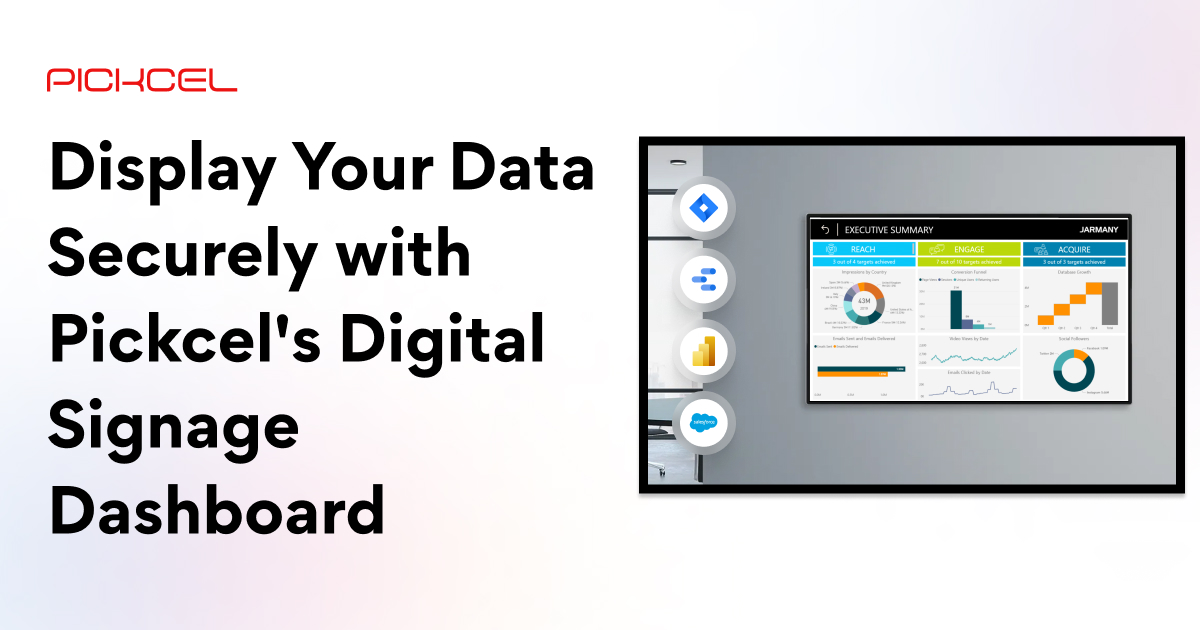
If you’re evaluating this for more than a single screen or want to see how these criteria play out against a live dashboard, Pickcel’s digital signage dashboard page walks through the persistence and multi-screen management side in more depth.
When You Don’t Need Dedicated Software
Here’s the part most vendor content skips: a single screen, in a low-stakes spot, with one person willing to glance at it and restart it if it hangs, does not need dedicated signage software. A browser tab in kiosk mode, on a machine someone already checks daily, is a genuinely fine answer for a small team’s one screen.
What changes the calculation is scale and attention, not principle. The moment nobody is specifically responsible for noticing when it breaks, or the screen count goes past one, or the screen is customer-facing rather than internal, the manual approach starts costing more in quiet failures than dedicated software costs in setup. There is no fixed screen count where this flips; it is closer to “the day someone asks why the dashboard has been showing yesterday’s numbers for a week and nobody knew.”
How to Set Up Your TV Dashboard
- Pick the software or approach, based on the criteria above, matched to how many screens you actually expect to run and whether unattended recovery matters for where it will sit.
- Choose the hardware: a commercial-grade display for anything running all day, or a consumer TV for a low-stakes single screen, plus a dedicated player unless the display’s built-in system handles it.
- Connect your data source: the BI tool, CRM, or support platform the numbers already live in, and confirm it supports the kind of ongoing connection a TV dashboard needs rather than a one-time export.
- Set the display connection: a media player is generally more reliable for anything unattended than a consumer streaming stick, though a streaming device can work for a low-stakes single screen.
- Build the layout around the most important numbers first. A dashboard with everything on it is harder to read from across a room than one with the two or three numbers that actually change behavior.
- Test it where it will actually sit, at the distance and lighting it will actually be read from, then gather feedback and adjust before calling it finished.
When a dashboard project outgrows one screen, the decision stops being “which TV” and becomes “which platform,” and that’s what Pickcel’s digital signage dashboard page is built to help with.
Ready to run a live dashboard on your screens?
See how Pickcel keeps Power BI, Grafana, and CRM dashboards persistent across one screen or fifty — without morning logins or dark screens after a power cut.