
Nov 20 2025

9 min read
December 29, 2025
14 min read


ALL
ON-PREMISE
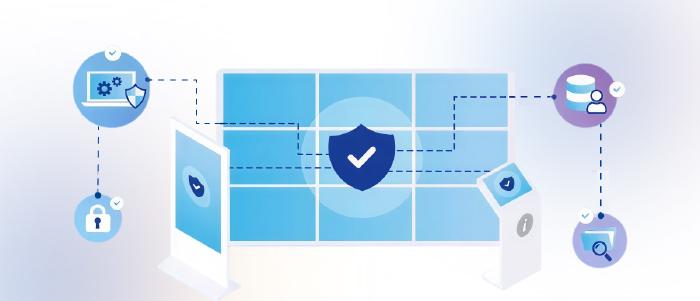
If you’re running on-premise digital signage, you’re not managing “screens for marketing”. You’re running a fleet of networked endpoints, backed by a CMS and server inside your environment, often sitting on the same fabric as core IT and OT systems.
The real objectives are simple:
Integrity: Only approved content should ever reach a screen.
Availability: Screens should stay online when operations, safety, or comms depend on them.
Cloud vs on-prem doesn’t change the need for controls; it changes who is accountable. In a cloud setup, the provider is responsible for server-side hardening, patching, and backend monitoring.
In an on-prem deployment, your organisation is responsible for the entire security surface, the server or VM, OS, database, CMS configuration, VLAN design, firewall rules, identity, logging, backup, and incident handling.
That’s exactly why digital signage security becomes a central part of the deployment, not an afterthought.
For teams planning large on-prem deployments, aligning security with your core architecture decisions becomes essential.
Who This Is For:
IT, network/security, and AV operations teams who manage on-premise digital signage and need a dependable security baseline.
It’s essential to understand where attackers can realistically get in. In signage deployments, the weak points tend to sit in four places:
The device itself (ports, IR, OS access paths).
The network route between the server and the digital signage player.
Administrative and API interfaces.
The content flow and how it’s validated.
Each of these layers has its own failure modes, and most incidents stem from one of them being left open by default.
Before going deeper into individual layers, the foundation is choosing a digital signage software with established security standards (SOC 2, ISO 27001) is the first baseline.
Physical access is the simplest way to bypass every other control in an on-premise signage stack. If someone can reach the device, ports, buttons, or cabling, software safeguards become secondary.
In public or semi-public areas, the goal is to prevent anyone from touching or manipulating the hardware.
Use locked, tamper-resistant enclosures for players instead of leaving them behind accessible displays.
Where possible, place the player away from the screen, inside a back office, rack, ceiling plenum, or secured cabinet.
For screens in high-traffic areas, reinforced mounts and protective glass reduce both vandalism and accidental damage.
USB / HDMI / Ethernet: Physically block unused ports. Don’t rely on OS policies alone.
Auto-run: Disable any behaviour where inserted media can trigger execution without user action.
IR receivers: If not needed, block or disable them to prevent input switching or menu access via remotes.
Touch gestures on kiosks: Turn off OS-level edge swipes or multi-gesture shortcuts that allow breakout from the signage app.
Power/menu buttons: Use the display’s key-lock settings or enclosures that cover front-panel controls.
Apply tiered access control for rooms and racks.
Restrict access to authorised IT, network, or facility staff.
Secure exposed cables in public areas to prevent unplugging.
Physical security also includes keeping the device powered, stable, and recoverable.
Use surge protection or UPS units for critical signage, especially in facilities that depend on continuous display uptime.
Ensure adequate ventilation or cooling inside enclosures.
For outdoor or semi-outdoor screens, use IP-rated enclosures and humidity protection.
Configure players to fail into a neutral fallback state (brand logo or static image) instead of exposing OS screens or error text.
Use watchdog services for automatic recovery from hangs or crashes.
The priority here is simple: contain the device, control traffic, and remove any route an attacker could pivot through. To ensure that if a player is compromised, it cannot move laterally into HR, POS, or internal application networks.
Players should be treated as untrusted endpoints and isolated accordingly.
Dedicated VLAN: Keep all players, head-end devices, and supporting services on a separate subnet with ACLs blocking access to corporate systems.
No public exposure: Players should never have public IPs or be reachable from the internet.
Predictable addressing: Use static IPs or reservations to keep firewall policies consistent and audit-friendly.
This creates a predictable traffic pattern that’s easier to monitor and harder to abuse.
Egress-only model: Players should always initiate outbound connections to the CMS or update server. Block unsolicited inbound traffic completely.
Minimal port surface: Only keep HTTPS (443), DNS (53), and NTP (123) open. Close high-risk ports such as 21, 23, 445, and 161.
TLS everywhere: All player–server communication must use HTTPS/TLS to prevent interception or manipulation.
Organisations run signage in different ways, and each model sets its own perimeter expectations.
LAN-only: No internet route, everything stays local. Lower exposure but manual updates. Suits banks, government, and restricted sites.
Restricted internet: Players reach only approved domains or IPs via strict whitelisting. Ideal for cloud feeds, dashboards, and third-party content.
Cellular isolation: Private 4G/5G routers keep signage traffic off the corporate network entirely and avoid dependency on building LAN design.
If teams need to troubleshoot devices outside headquarters, access must be controlled.
VPN requirement: All remote administration should occur over an encrypted VPN. Never expose VNC, SSH, or RDP ports directly.
Jump box approach: Admins connect through a hardened intermediary server, not directly from workstations.
Consistent policy across sites: Use SD-WAN or centralised firewall policies to apply the same segmentation rules everywhere.
The next priority is making sure the on-prem server and CMS don’t become a single point of failure or a simple takeover path.
Remove or disable unused services.
Disable USB autorun/auto-play and external boot in BIOS/UEFI.
Restrict direct console and RDP/SSH access to admin accounts only.
Keep the server joined to your existing patch, AV, and configuration management processes.
Keep the CMS admin UI on internal networks or VPN only, never exposed on the open internet.
Use IP allowlists or security groups for admin access (IT, ops, authorised content teams).
Enforce SSO and/or MFA for all admin and power users.
Use RBAC so content roles can’t change system, network, or logging settings.
Avoid default admin URLs and credentials; rename/login paths if the platform supports it.
Back up CMS databases, configuration, and critical media. Automate regular backups and verify they complete without errors.
Serve all CMS and API traffic over HTTPS only; redirect or block HTTP.
Use valid, managed TLS certificates rather than long-lived self-signed ones.
Apply standard hardening on the web server (IIS/NGINX/Apache): disable weak ciphers/protocols, limit headers, and keep components updated.
Regularly review exposed headers, open endpoints, and admin routes as part of security reviews.
Store passwords using strong, salted hashes.
Use parameterised queries or ORM-level protections to avoid SQL injection.
Restrict DB access to the CMS app and admin DB accounts only; no generic shared logins.
Encrypt disks/volumes that hold databases, logs, and configuration.
Test OS patches, CMS upgrades, and plugin updates on staging before production rollout.
Use maintenance windows for server reboots and major upgrades; avoid ad-hoc changes.
Track CMS and OS CVEs and align updates with your organisation’s vulnerability SLAs.
This is where most operational issues and compromises originate. The objective is straightforward: trim the device to only what’s required, lock it to its intended function, and keep every unit on a consistent, supportable build.
Mixed hardware, consumer devices, and unmanaged OS versions create an attack surface that is difficult to control.
Use supported, enterprise-grade players.
Maintain one or two approved hardware builds so patching and troubleshooting stay predictable.
Kiosk mode only works when the underlying OS is fully locked.
Replace the desktop shell with a single allowed application.
Disable navigation bars, home/back gestures, status bars, debug menus, and any OS escape paths.
Run the signage app under a restricted user profile, not Admin/Root.
Block or disable unused USB, HDMI, and other physical interfaces at the firmware/BIOS level.
Turn off auto-run/auto-play for external media.
Disable risky protocols and services (Telnet, FTP, SMB, SNMP, RPC).
Disable IR receivers where not needed to prevent input switching or menu access through universal remotes.
Turn off built-in consumer features on displays, casting, microphones, cameras, and unnecessary apps.
Push updates through an MDM or centralised management system.
Test changes on a small canary group before fleet rollout.
Apply critical security patches quickly; schedule feature updates during maintenance windows.
Replace devices running EOL operating systems or firmware.
Have a hardware lifecycle policy that aligns with vendor patch cycles.
Wipe or destroy storage before disposal to prevent recovery of cached content or stored credentials.
Access to the CMS is effectively access to every screen. Keep authentication tied to your existing identity provider using SSO (AD, Entra ID, Okta, SAML/OIDC) instead of local CMS accounts. And users lose signage access the moment their directory account is disabled. It also avoids storing passwords inside the CMS.
Not everyone needs full control of the environment. Structure access around what each group is responsible for.
Admins handle system configuration, networking, and player policy.
Operators manage content workflows but cannot change system settings.
Creators upload and schedule content only.
Enforce MFA for every user with publishing or admin rights.
Retire all default device and CMS credentials at installation.
Avoid shared logins; each user must have their own identifiable account.
If the CMS stores passwords (on-prem deployments), they must use strong salted hashing.
Rotate session IDs on login to prevent session fixation.
Apply idle timeouts so unattended consoles don’t stay open.
Ensure all authentication and session traffic travels over HTTPS.
Anything that integrates with dashboards, data feeds, or automation should follow the same discipline as human users.
Scope API keys to the minimum required permissions.
Rotate keys regularly.
Content and data introduce their own attack surface. When the content layer is part of the attack surface, it also needs its own content governance policies, especially in environments where multiple teams publish.
Use role-based permissions so creators cannot alter system or network settings.
Enforce a two-step workflow for sensitive screens: one user uploads; another approves.
Separate departments at the CMS level so HR, Finance, and Marketing operate in isolated spaces.
BI dashboards: Never store long-lived credentials on players. Use tokens, snapshots, or server-side proxies so players only receive rendered output.
POS / ERP: Keep signage traffic firewalled from transactional systems.
Web apps & feeds: Run third-party or custom HTML apps in sandboxed modes to stop a malicious script from escaping into the OS.
Use signed content so players verify authenticity before playback.
Block USB auto-run and unused ports to stop local injection.
Sanitize uploads server-side so malicious filenames or scripts can’t slip into the CMS.
Process sensor or analytics data on-device and anonymize it—avoid storing PII or raw footage.
Show clear notices wherever cameras or analytics run to meet compliance expectations.
Send CMS and player logs to a central system, keep them for audit needs, and enforce defined retention periods.
Prioritise signals that indicate misuse, anomalies, or early signs of compromise.
Player state: CPU/RAM spikes, app restarts, watchdog resets, unexpected reboots.
Visible output: Automated screenshots to confirm the screen is showing approved content, not OS errors or hijacked visuals.
Physical interaction: Alerts for USB insertion, HDMI/input changes, or kiosk exits.
Network behaviour: Outbound connections outside the CMS/IP allowlist or unusual bandwidth use.
CMS activity: New admin creation, permission escalations, login failures, and unexpected configuration edits.

A unified dashboard helps you spot these signals instantly. With Pickcel, all of these signals roll up into a single dashboard, making deviations easy to catch early.
| Action | Instruction |
|---|---|
| Isolation | Drop player into a restricted VLAN; if unreachable, let on-site staff disconnect power or network. |
| Rollback | Switch to a safe cached layout; keep the player running offline instead of showing errors. |
| Rebuild | Re-flash using a clean OS image; for OS-in-memory devices, hard reboot to restore a clean state. |
The real work starts once the system is live. Security holds only when the routine holds. Keep a simple cadence that forces discipline without slowing teams down.
Daily/weekly checks from ops catch physical tampering, content anomalies, or failing hardware.
Monthly/quarterly cycles from IT tighten patches, review access, and rehearse restores.
Annual architecture reviews and pen tests validate whether the environment still holds up against new threats.
Revisit your controls immediately whenever you add new sites, interactive layers, dashboards, or IoT peripherals, each introduces a fresh attack surface.
Some environments push this harder than others.
Healthcare, finance, government, and OT networks bring tighter identity control, stricter content paths, and rules that leave no room for lateral movement.
Air-gapped sites need safe update workflows that don’t reopen old USB risks. And when external AV partners are involved, certifications, access boundaries, and patch timelines need to be explicit from the start to avoid surprises later.
A lightweight internal audit a couple of times a year is usually enough to keep things honest, looking for drift in VLAN rules, devices nearing end-of-life, new CMS roles, or integrations that now carry different data.
Platforms built with strong security foundations take a lot of this weight off your teams.
Pickcel, trusted by global brands for over a decade, helps maintain a secure, well-governed signage environment without adding operational friction.
Place all players and the CMS on a dedicated VLAN, block all inbound traffic, and allow outbound traffic only to approved IPs. Enforce TLS, restrict remote access to VPN-only, and disable risky ports and protocols. This prevents lateral movement and keeps the signage network contained.
Use minimal OS builds, lock devices in kiosk mode, disable unused ports and services, and restrict the player to a single application. Protect BIOS/UEFI, enforce patch cycles, and run the CMS on a hardened server with backups, encryption, and a defined update process.
Never store live credentials on players. Use tokens or server-side snapshots for dashboards. Whitelist approved URLs, sandbox third-party apps, and ensure content is validated and signed before playback. This stops credential leakage and prevents malicious scripts from entering the environment.
Tie authentication to SSO with MFA for all privileged roles. Apply strict RBAC so users only access their screen groups and workflows. Avoid shared accounts, rotate keys, and maintain audit logs for logins, content changes, and admin actions, with alerts for unusual behaviour.
Nov 20 2025
9 min read
Nov 11 2025
12 min read
Nov 5 2025
8 min read
Nov 3 2025
7 min read
Take complete control of what you show on your digital signage & how you show it.
Start Free Trial Schedule My Demo